20 Funny Backgrounds for Your Meetings 2026 [Teams, Zoom, Jitsi, etc]

![20 Funny Backgrounds for Your Meetings 2026 [Teams, Zoom, Jitsi, etc]](/blog/funny-meeting-backgrounds-2025.webp)
Video meetings don’t have to be boring. Whether you’re on Microsoft Teams, Zoom, Google Meet, or Jitsi, a funny virtual background can turn a dull call into a good time. Here are 20 funny backgrounds for Teams, Zoom, and other platforms you can download and use right now. For meeting productivity tips, check out our complete guide to automated meeting notes and how to take better meeting notes.
Why Use Funny Teams Backgrounds?
Funny virtual backgrounds do more than just get a laugh. They help with:
- Breaking the ice in awkward virtual meetings
- Boosting team morale during long work weeks
- Showing personality without being unprofessional
- Starting conversations in networking calls
- Reducing video call fatigue
Teams that use humor in meetings report 25% higher engagement. It’s a small change that makes a real difference. For meeting support tools, check out our best Microsoft Teams AI notetaker and top audio notetakers.
How to Set Up Backgrounds
Microsoft Teams
- During a call, click the three dots (More actions)
- Select “Apply background effects”
- Click “Add new” to upload your custom background
- Choose your funny background and click “Apply”
Zoom
- Click the up arrow next to “Stop Video”
- Choose “Choose Virtual Background”
- Click the ”+” icon to add custom images
- Select your background file and apply
Google Meet
- Click the three dots in the bottom right corner
- Select “Apply visual effects”
- Choose “Backgrounds” tab
- Upload and select your funny background
Jitsi Meet
- Click the settings icon in the toolbar
- Select “Virtual backgrounds”
- Upload your custom background image
- Apply your chosen background
20 Hilarious Meeting Backgrounds
1. The “This is Fine” Office
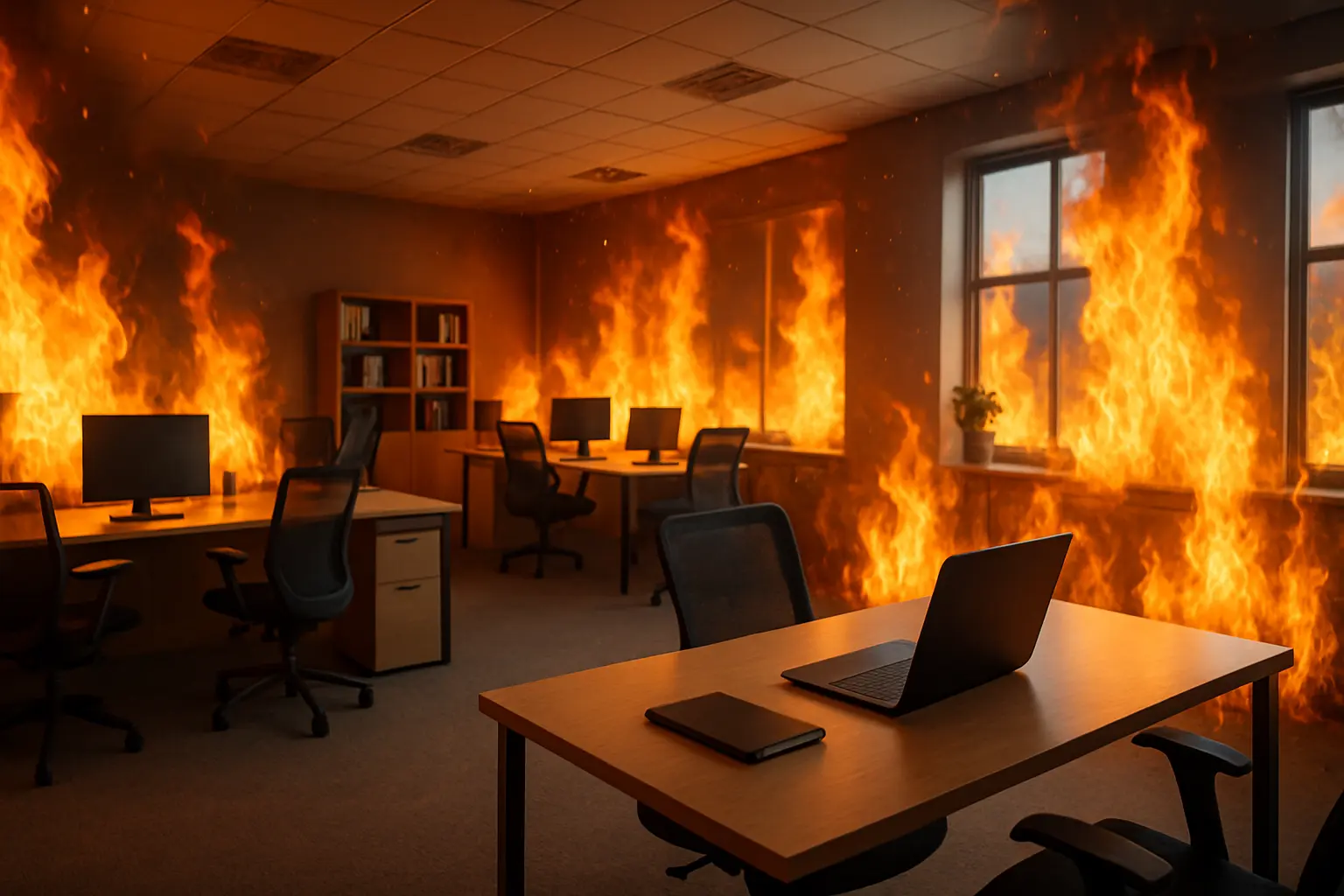
Description: A perfectly normal office setting with everything subtly on fire in the background, channeling the famous “This is Fine” meme.
Perfect for: Monday morning meetings, crisis management, or when everything’s chaotic but you’re staying calm.
Why it’s funny: Relates to everyone’s feeling of controlled chaos in modern work life.
2. Underwater Office Adventure
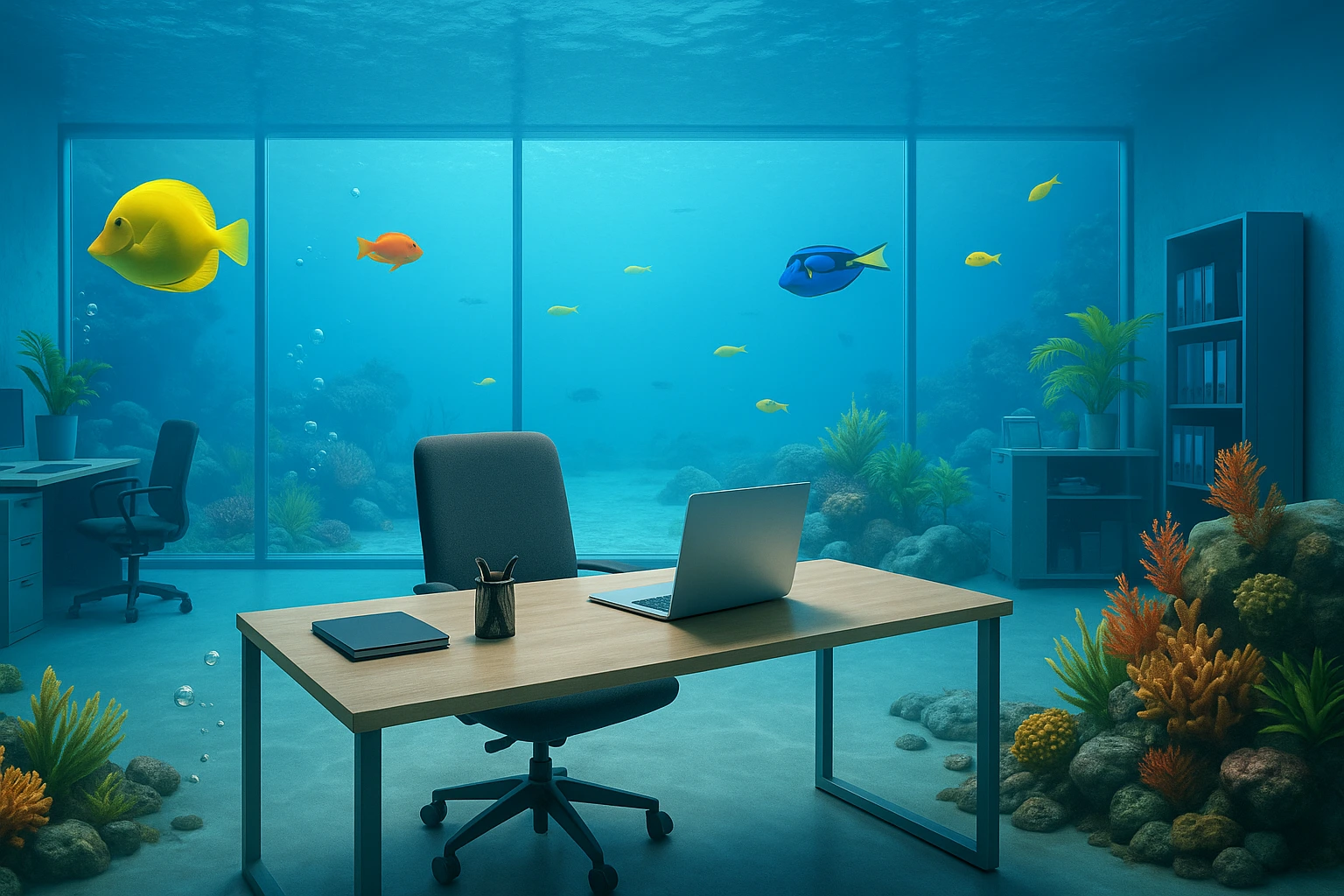
Description: A fully submerged office complete with fish swimming around, coral decorations, and floating air bubbles.
Perfect for: Deep-dive strategy sessions, brainstorming meetings, or when you’re “drowning” in work.
Conversation starter: Creates immediate talking points about your unique “remote location.”
3. Space Station Conference Room
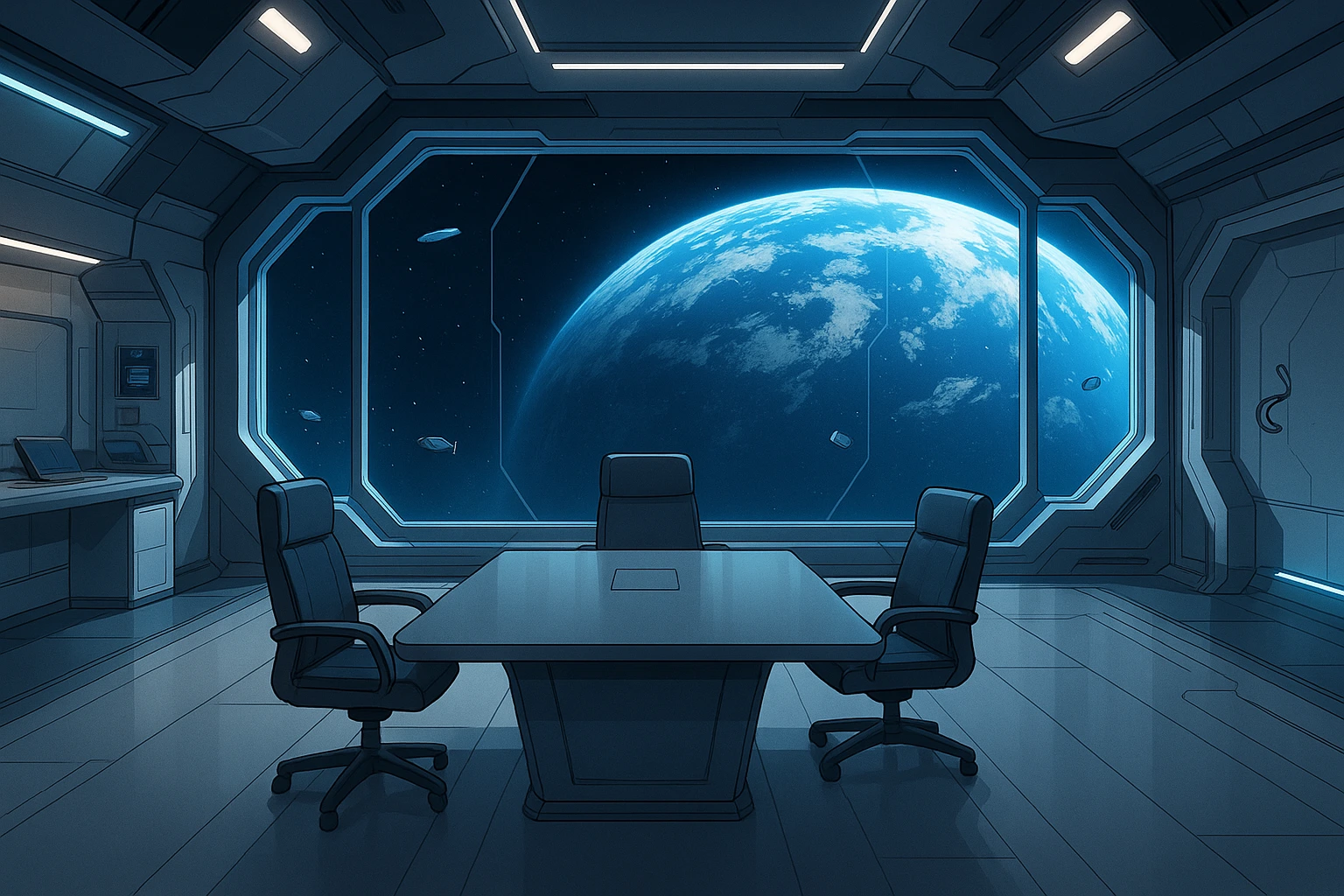
Description: A futuristic space station office with Earth visible through windows and floating objects in zero gravity.
Perfect for: Innovation meetings, tech discussions, or when your ideas are “out of this world.”
Interactive element: Pretend to catch floating objects during calls for extra laughs.
4. Jungle Meeting Room Takeover
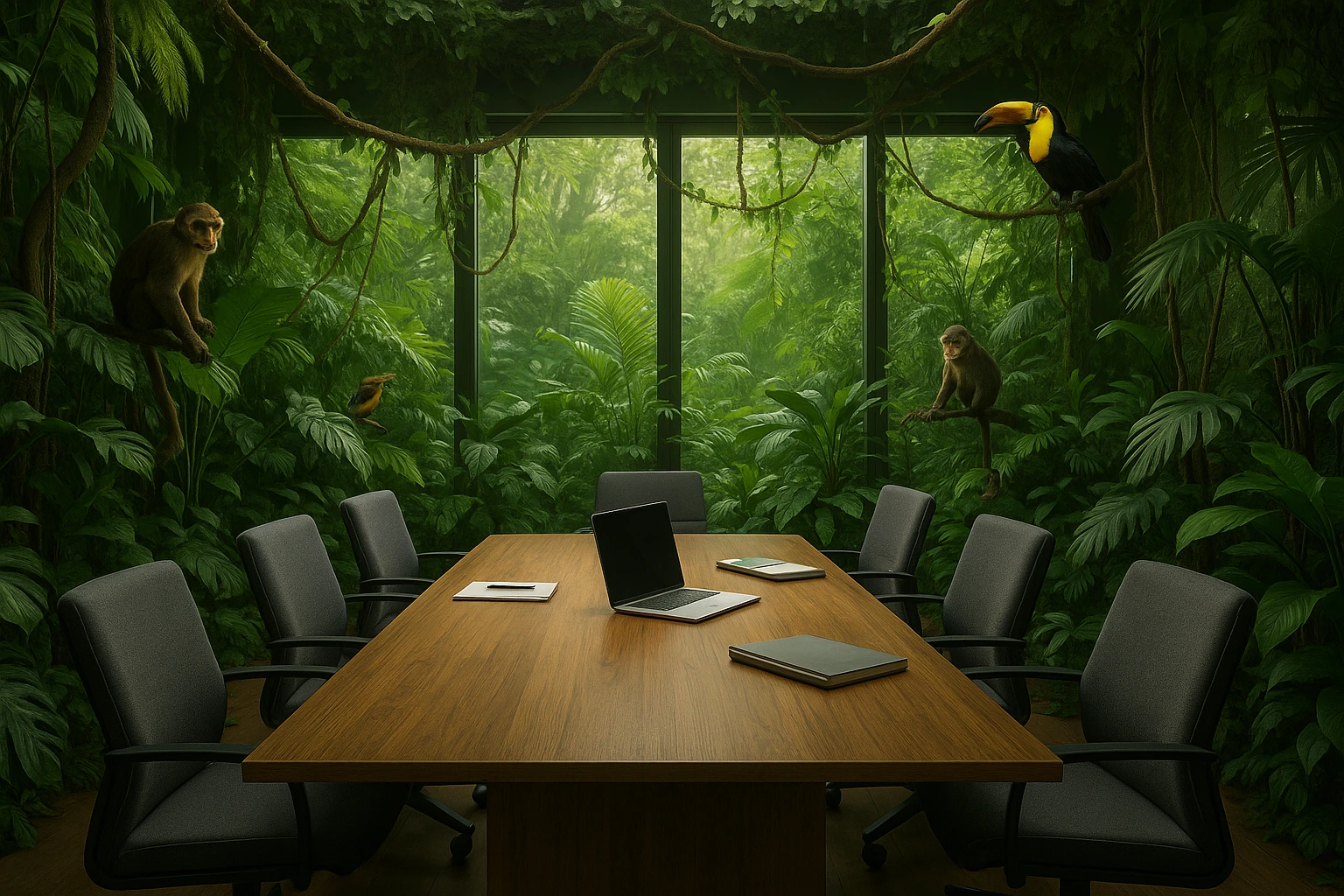
Description: A professional conference room completely overgrown with jungle vegetation, monkeys, and tropical birds.
Perfect for: Team-building sessions, creative brainstorming, or “wild” idea discussions.
Team engagement: Guaranteed to spark conversations about your adventurous workspace.
5. Medieval Castle Boardroom
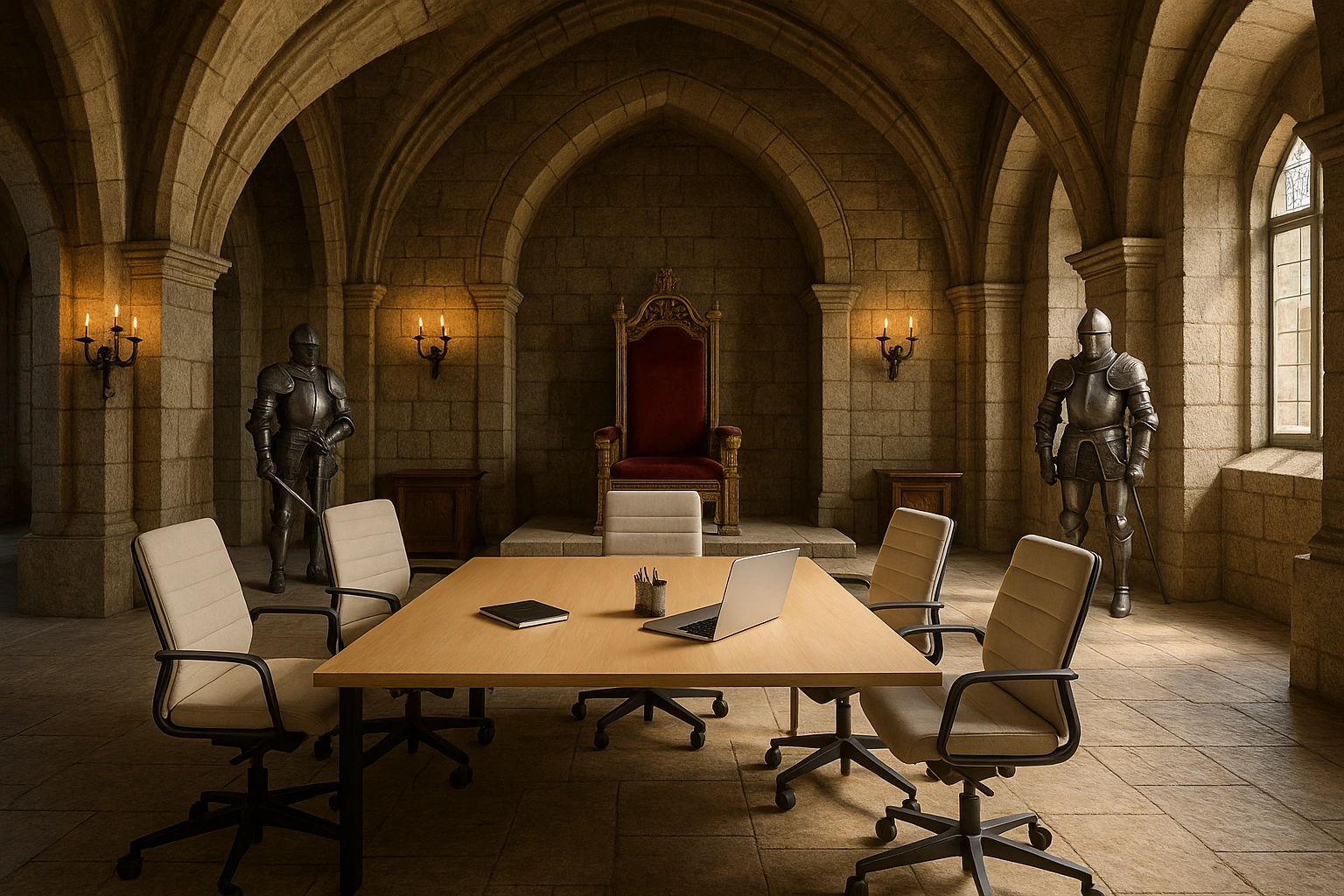
Description: A majestic castle throne room converted into a modern office with suits of armor holding laptops.
Perfect for: Leadership meetings, strategic planning, or when you’re ruling your domain.
Royal treatment: Maintain regal posture for the full effect.
6. 1970s Disco Meeting Room
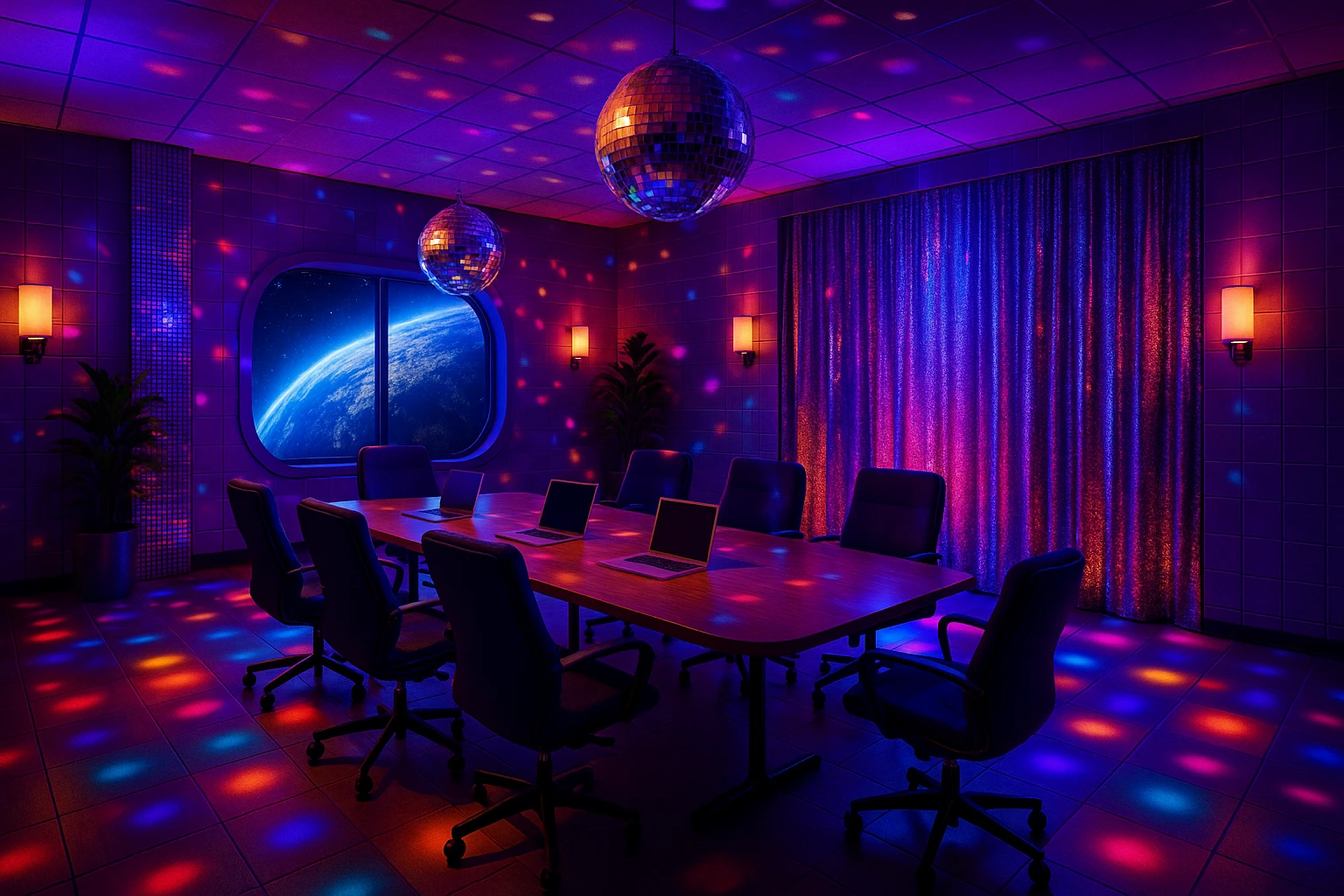
Description: A groovy disco-themed conference room with mirror balls, colorful lights, and retro furniture.
Perfect for: Friday afternoon meetings, celebration calls, or boosting team energy.
Mood booster: Instantly injects fun into serious discussions.
7. Dinosaur Office Colleagues
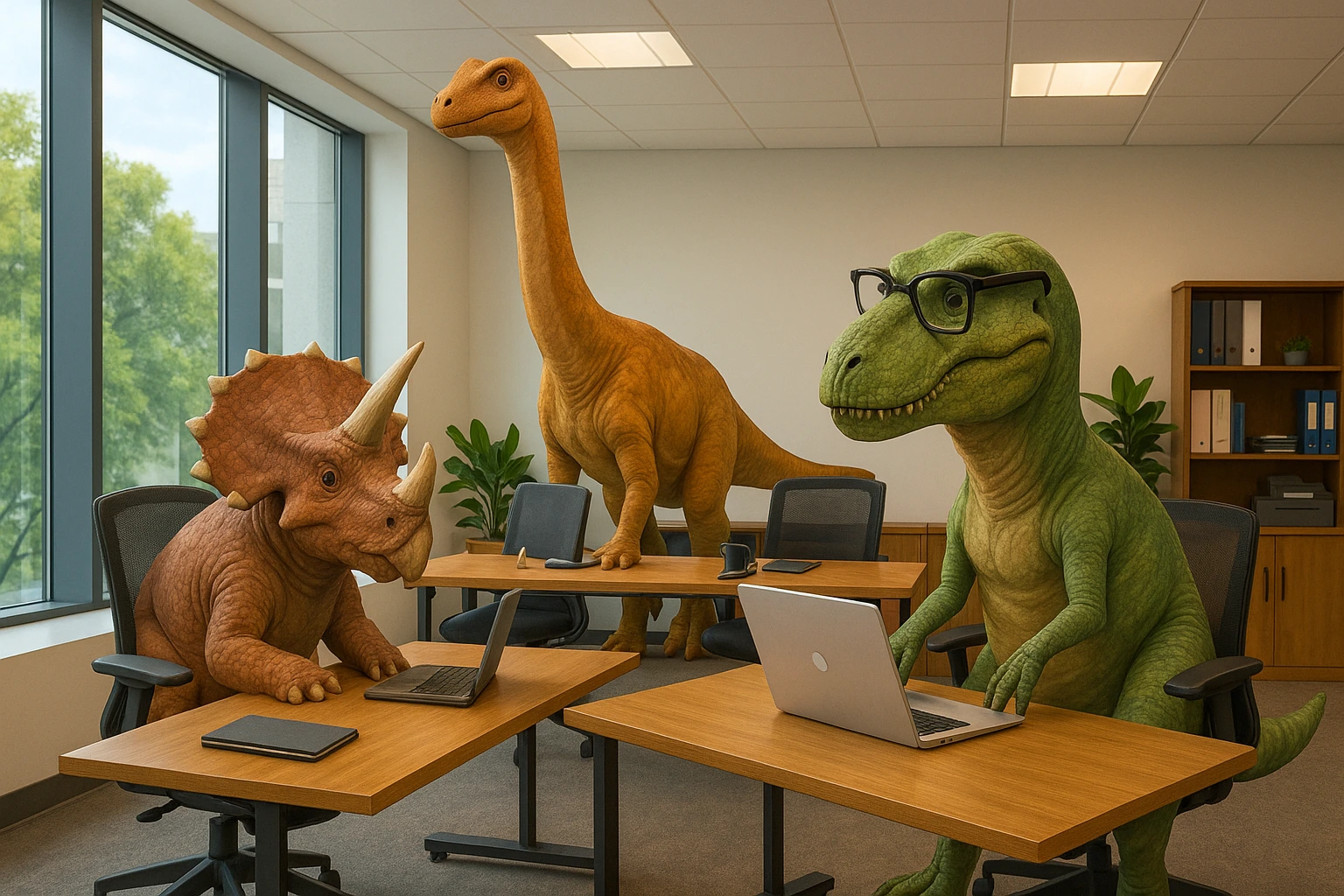
Description: A modern office where friendly dinosaurs are coworkers, including a T-Rex wearing glasses at a computer.
Perfect for: All-hands meetings, family-friendly calls, or discussing “prehistoric” systems.
Kid-approved: Great when children might appear on camera unexpectedly.
8. Ice Age Conference Center
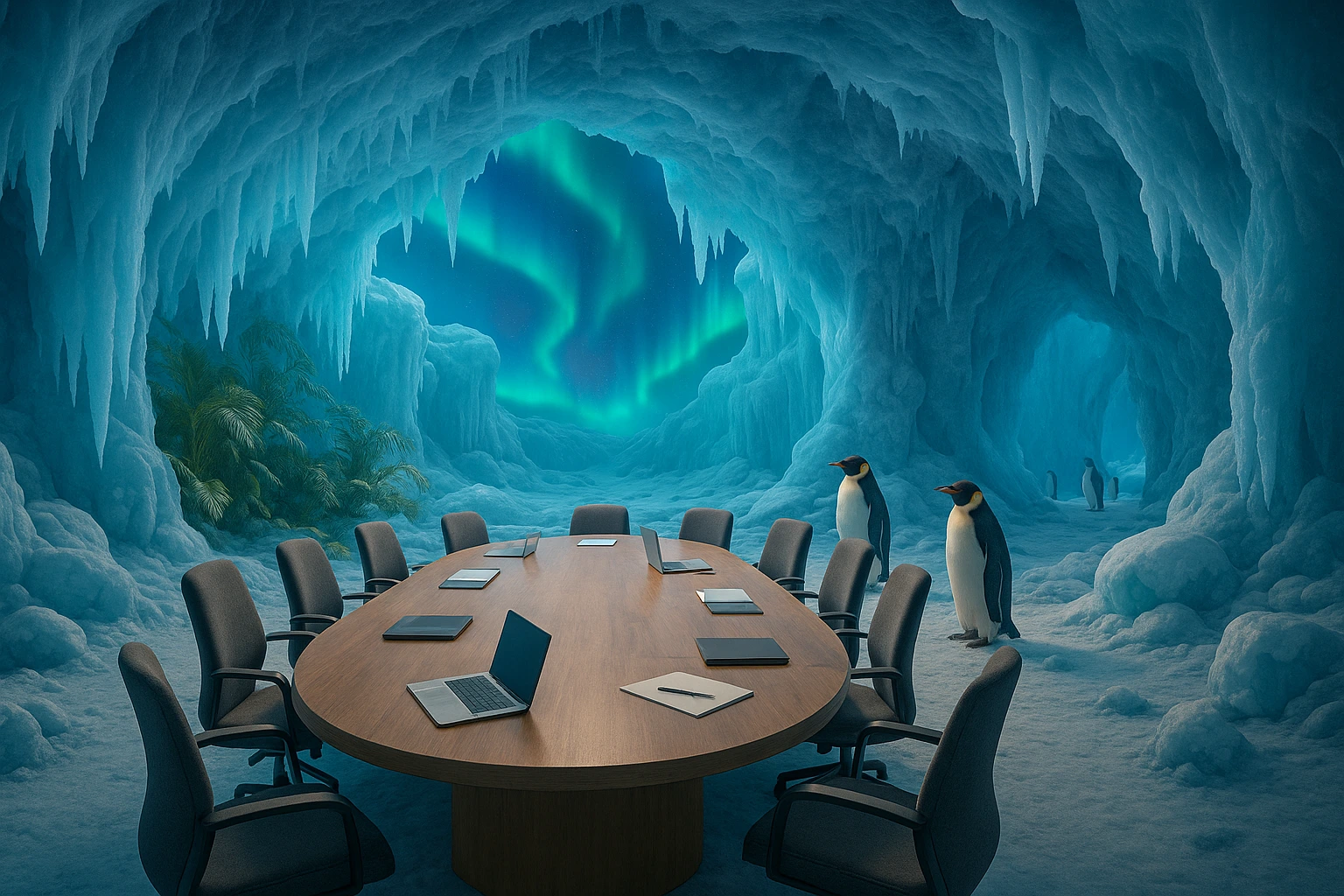
Description: An elegant ice cave meeting room with icicles, aurora lights, and penguins as attendees.
Perfect for: Budget meetings, breaking ice with new teams, or staying cool under pressure.
Climate control: Keeps discussions refreshingly cool.
9. Superhero Command Center
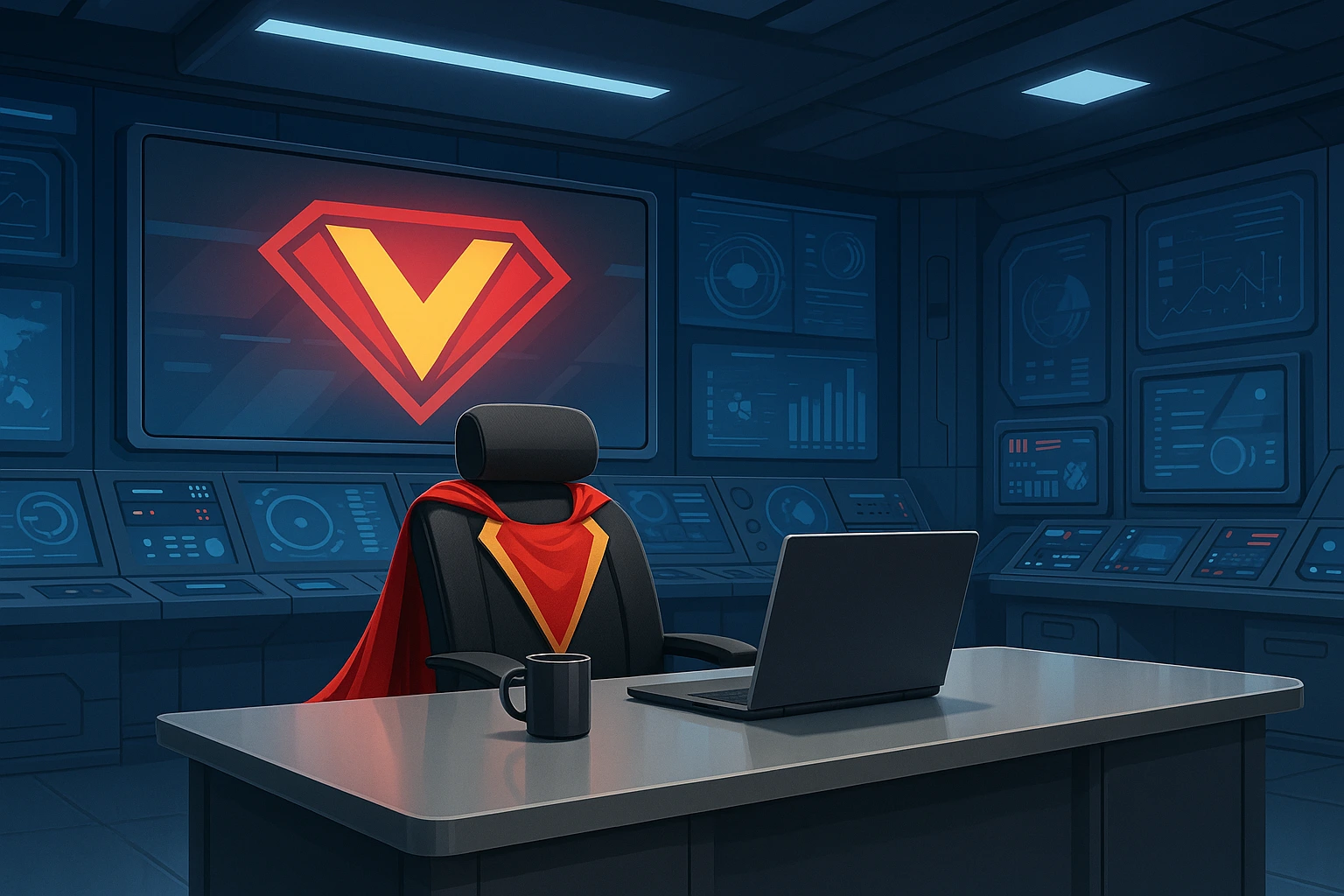
Description: A high-tech superhero headquarters with cape on chair and mission control screens.
Perfect for: Problem-solving sessions, crisis management, or being the office hero.
Power play: Reference your “superpowers” during presentations.
10. Friendly Haunted Mansion
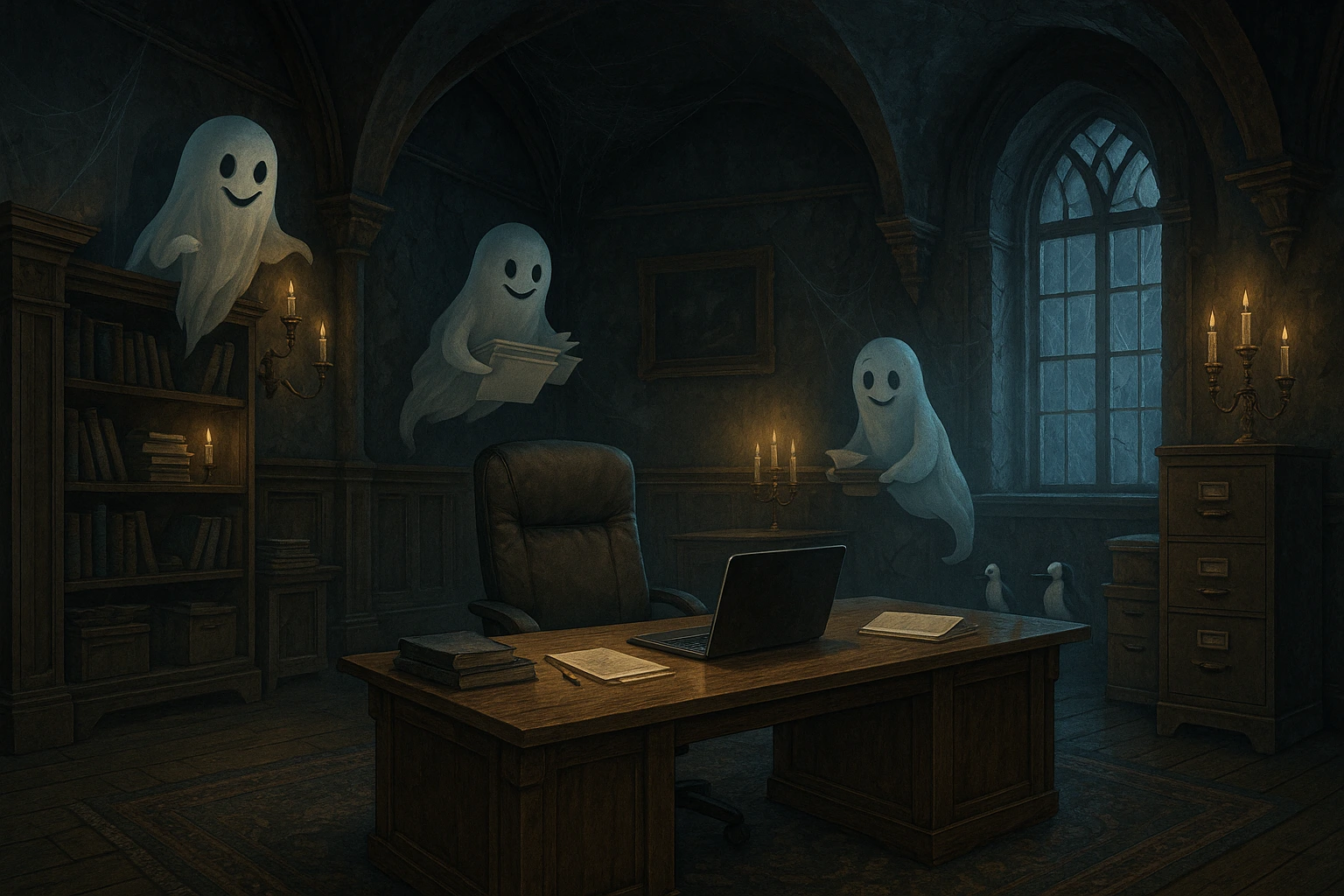
Description: A spooky but charming haunted mansion office with friendly ghosts organizing files.
Perfect for: Halloween meetings, mystery project reveals, or adding spirit to boring calls.
Spook level: Just scary enough to be fun, never frightening.
11. Restaurant Kitchen Chaos
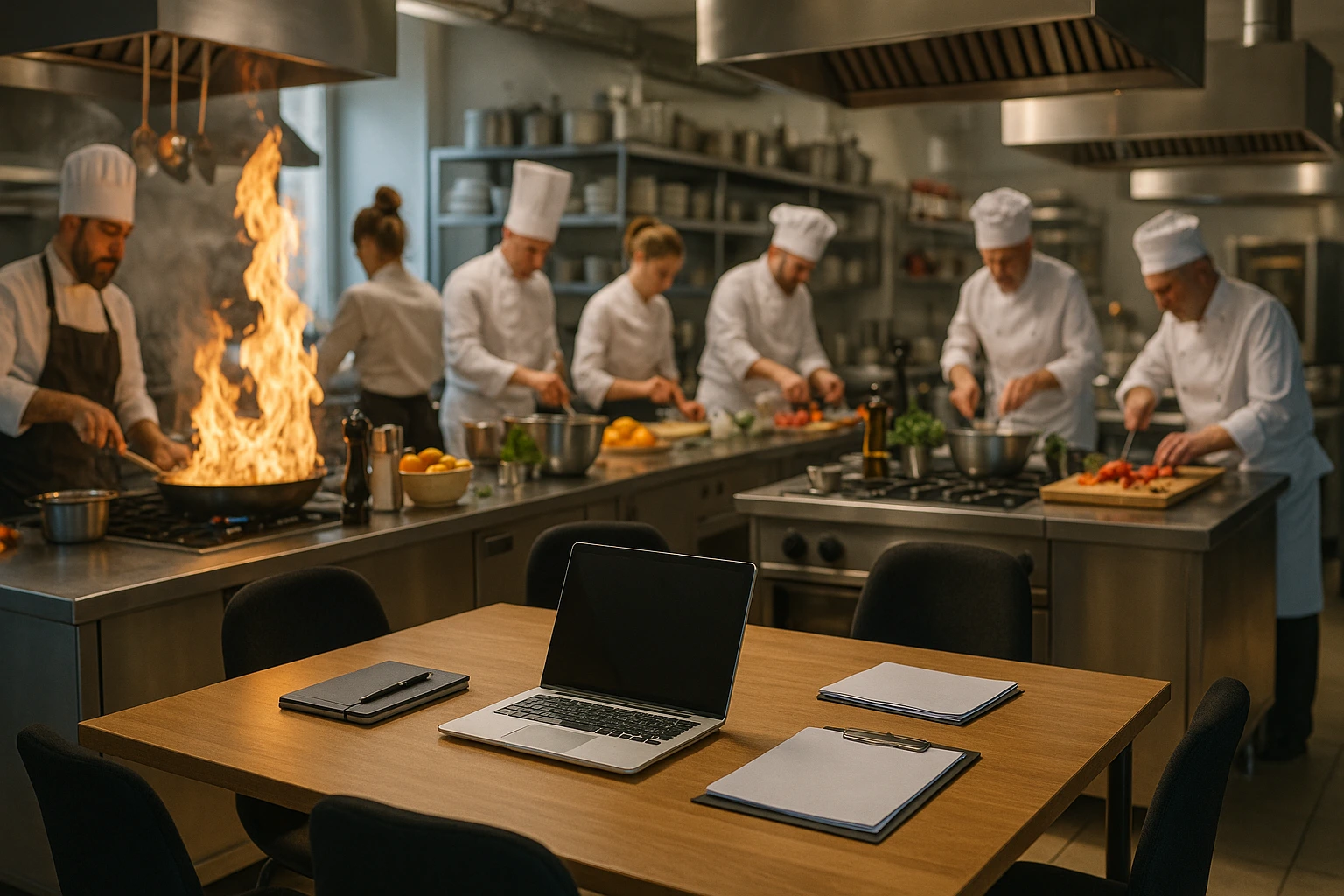
Description: A busy restaurant kitchen with chefs cooking while you conduct meetings at a center table.
Perfect for: Recipe-for-success meetings, cooking up ideas, or when things heat up.
Appetite appeal: Makes everyone hungry, so maybe save it for a short call.
12. Magical Flying Library

Description: A cozy library with books floating magically around your professional workspace.
Perfect for: Educational sessions, knowledge sharing, or book club check-ins.
Smart vibes: Makes you look well-read without saying a word.
13. Artist’s Creative Studio

Description: A colorful artist’s studio with paint splatters, easels, and creative chaos around clean workspace.
Perfect for: Creative brainstorming, design reviews, or painting pictures of success.
Inspiration boost: Great for design teams and creative meetings.
14. Zen Garden Office
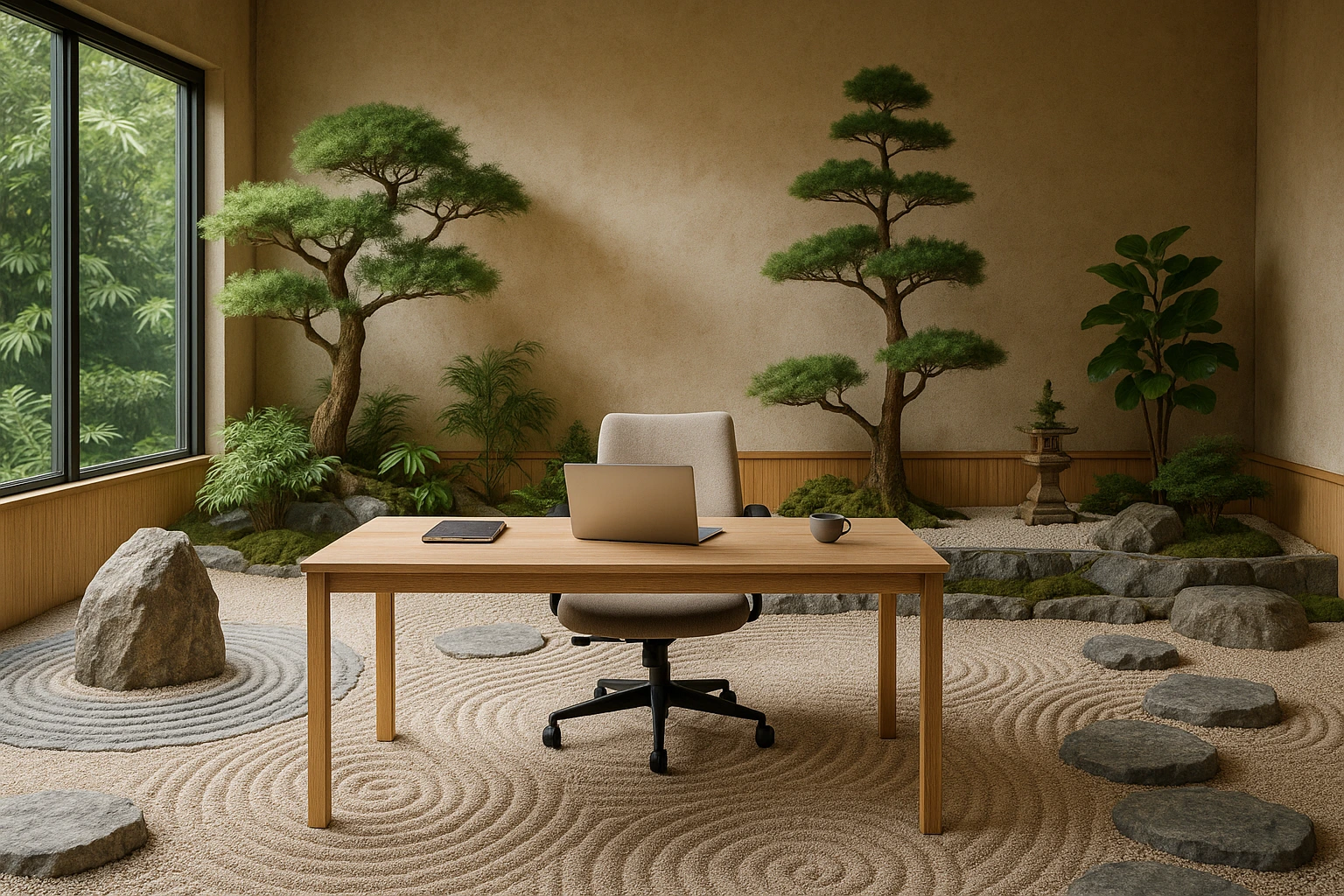
Description: A peaceful Japanese zen garden office with raked sand, bonsai trees, and meditation elements.
Perfect for: Mindfulness meetings, stress management, or finding peace during chaos.
Calm factor: Instantly reduces meeting tension and anxiety.
15. Circus Tent Conference
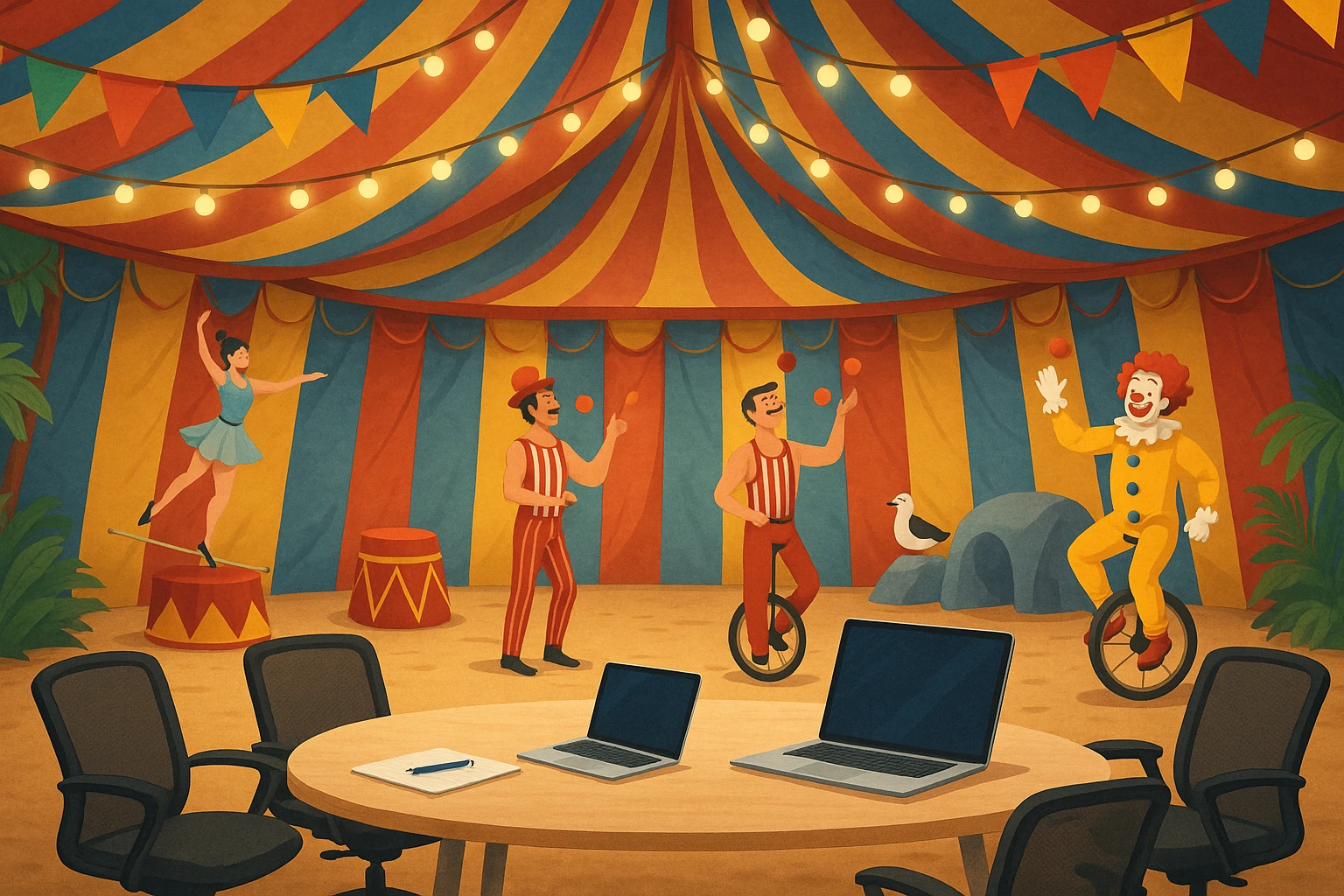
Description: Inside a colorful big top with performers practicing in the background.
Perfect for: Fun team meetings, celebrations, or when work feels like a circus.
Entertainment value: Hard not to smile when there’s a clown juggling behind you.
16. Mad Scientist Laboratory

Description: A bubbling laboratory with colorful experiments and scientific equipment backdrop.
Perfect for: Experimental projects, data analysis, or testing new ideas.
Innovation factor: Perfect for tech and research teams.
17. Cloud Nine Office
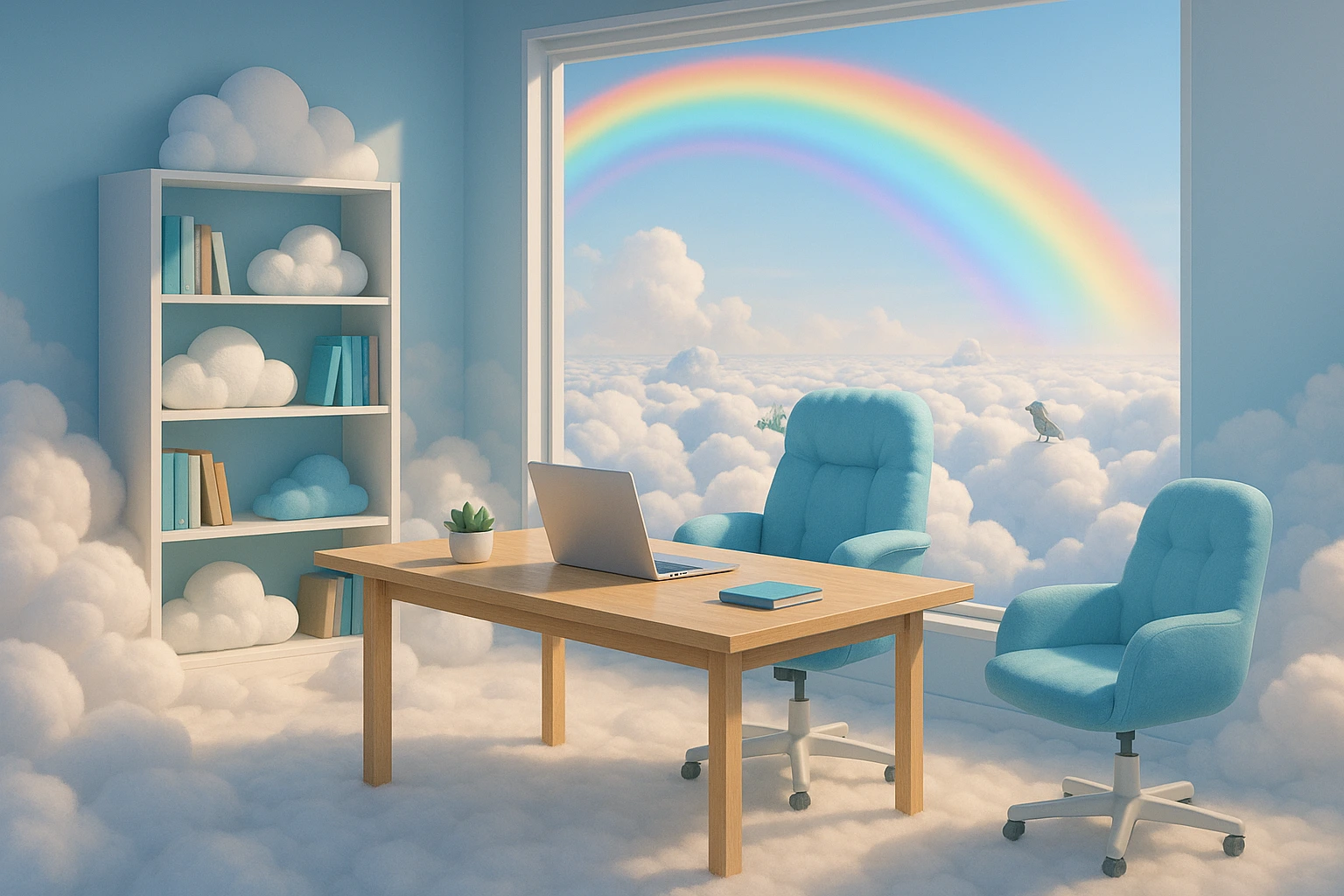
Description: An office floating in clouds with rainbow backdrops and fluffy furniture.
Perfect for: Dream-big meetings, sky-high goals, or celebrating achievements.
Mood elevator: Literally and figuratively uplifting for teams.
18. Retro 80s Synthwave Office
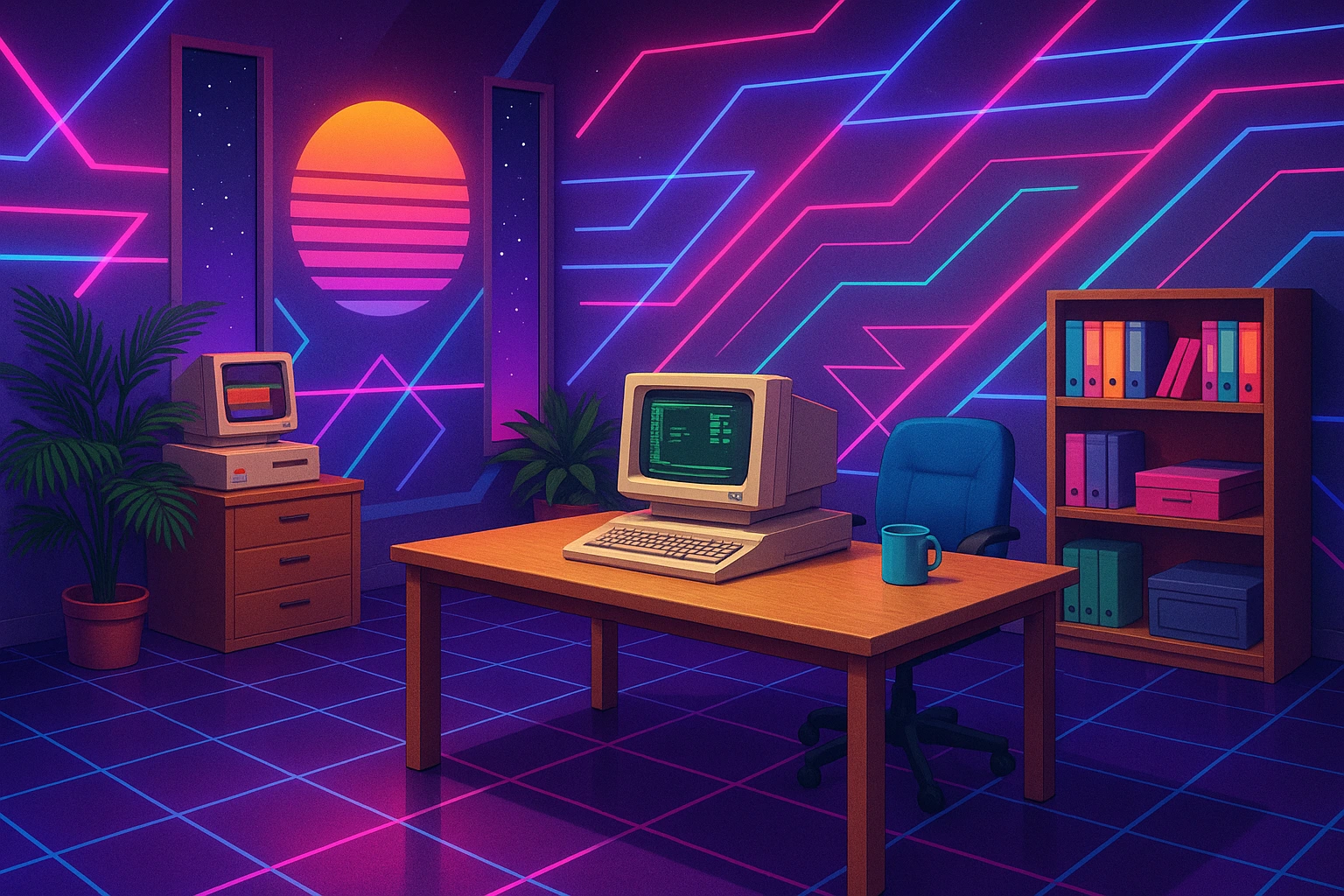
Description: A neon-soaked 1980s office with geometric patterns and retro computers.
Perfect for: Nostalgic teams, tech throwbacks, or adding radical vibes.
Generational appeal: Millennials and Gen X team members love this one.
19. Pirate Ship Boardroom
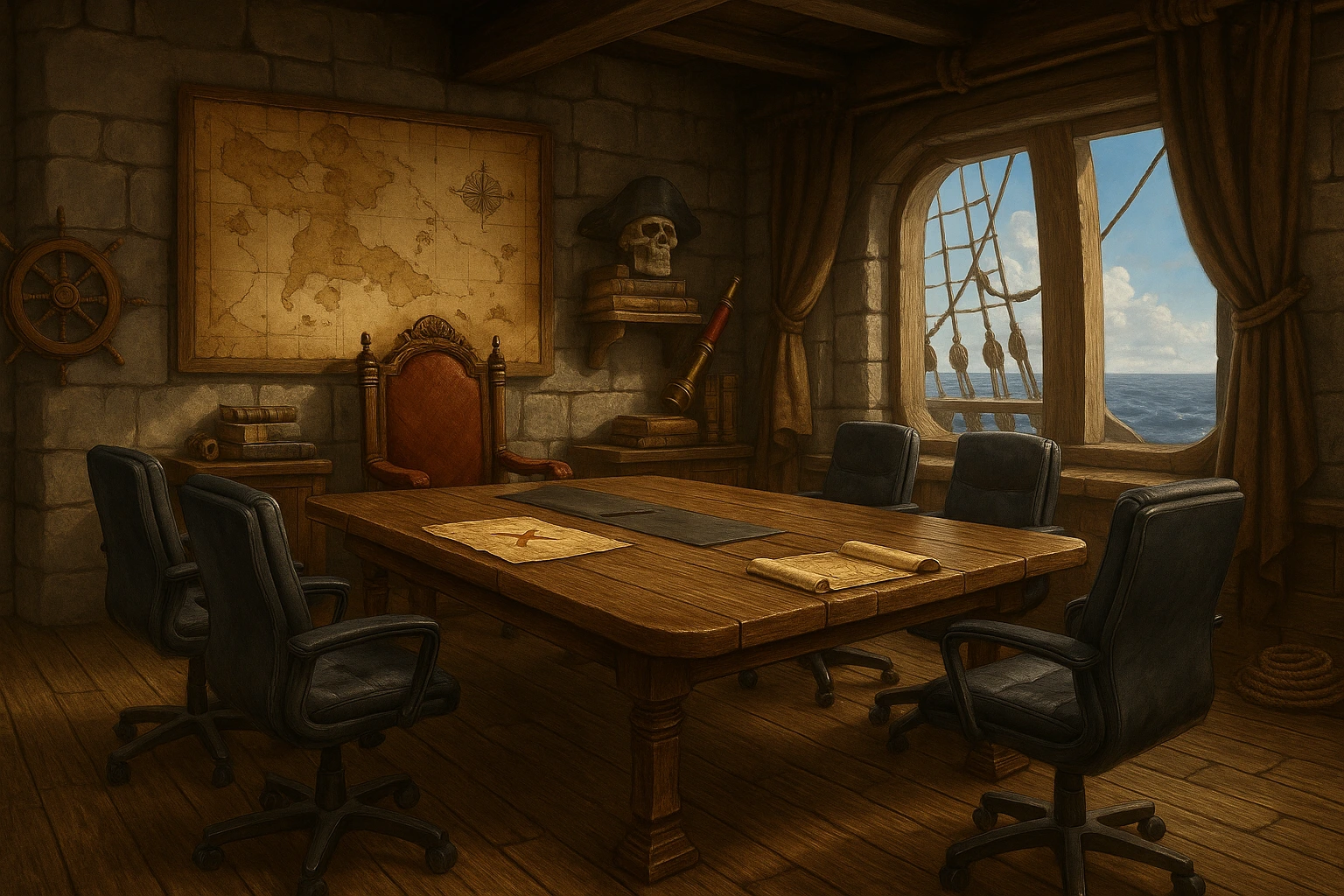
Description: Captain’s quarters converted to boardroom with treasure maps and nautical elements.
Perfect for: Adventure planning, opportunity hunting, or navigating rough waters.
Team building: Great for morale boosting and collaborative spirit.
20. Greenhouse Meeting Paradise
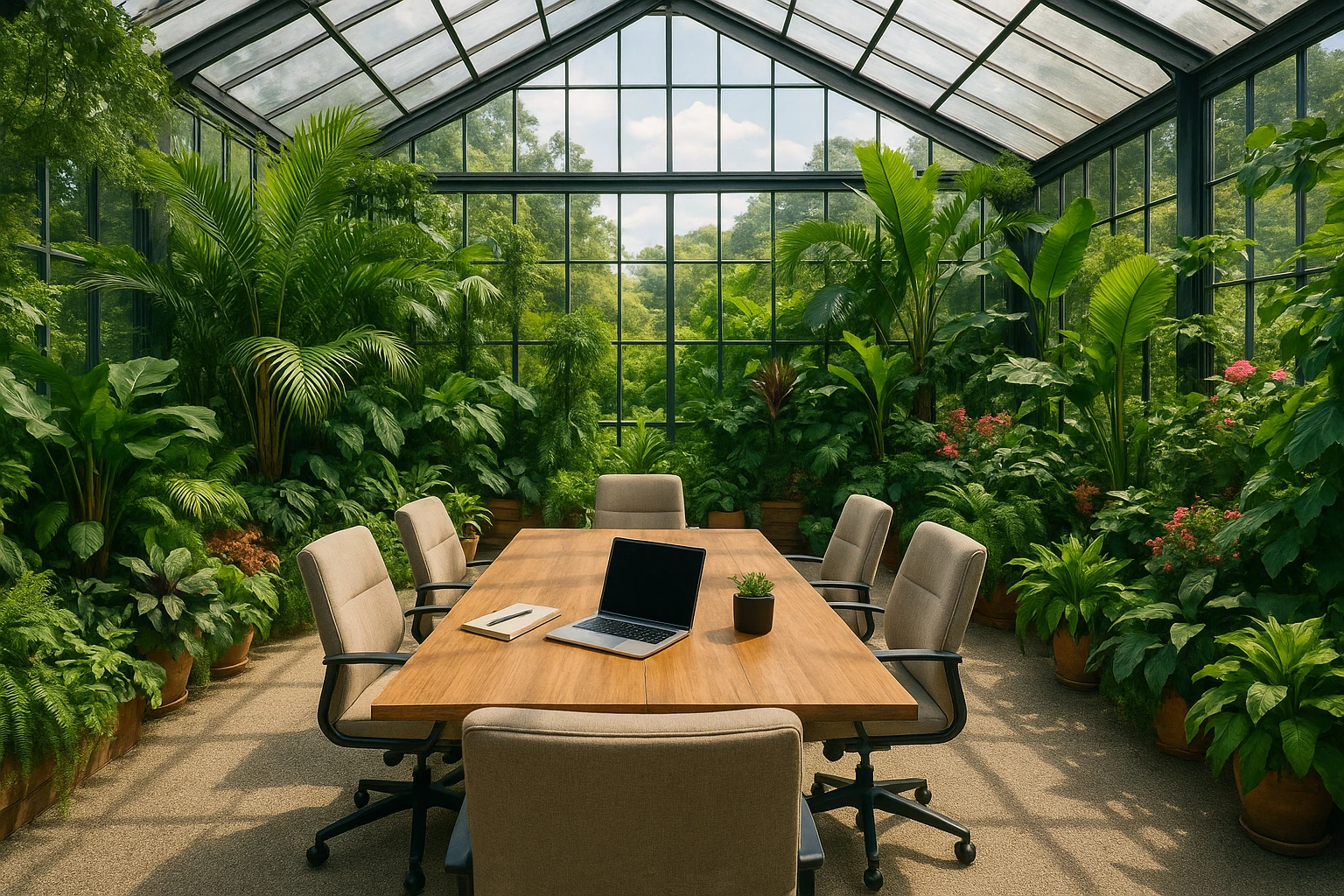
Description: A lush greenhouse meeting space surrounded by tropical plants and natural lighting.
Perfect for: Growth discussions, team building, or cultivating new ideas.
Calming effect: The plants make even a budget review feel relaxed.
Technical Setup Tips
Image Quality Requirements
- Resolution: Minimum 1920x1080 (Full HD) for crisp quality
- Format: JPG or PNG files work best across platforms
- File size: Keep under 10MB for faster loading
- Aspect ratio: 16:9 widescreen for optimal compatibility
Lighting Best Practices
- Even illumination: Avoid harsh shadows on your face
- Front-facing light: Position light sources in front of you
- Avoid backlighting: Don’t sit with bright lights behind you
- Natural light: Face windows when possible for best results
Platform Optimization
- Microsoft Teams: Optimized for 1920x1080 resolution
- Zoom: Supports various ratios, 16:9 recommended
- Google Meet: Prefers landscape orientation images
- Jitsi: Most flexible with different image formats
When to Use Funny Backgrounds
Funny backgrounds work best in casual settings:
- Team building sessions and icebreakers
- Creative brainstorming meetings
- Friday afternoon casual calls
- Informal check-ins and updates
- Virtual social events and celebrations
Skip the funny backgrounds for client presentations, performance reviews, C-level meetings, and external partner calls. Keep a professional background ready in case the mood shifts.
Quick tips: Always preview your background before important calls. Make sure your internet connection is stable, since virtual backgrounds use extra processing power.
Does Humor Actually Help Meetings?
Yes. Research shows teams that use humor in meetings see up to 40% higher participation rates. People remember more of what was discussed, feel less stressed, and build stronger connections with remote coworkers.
Dr. Jennifer Aaker from Stanford’s Graduate School of Business found that appropriate humor in professional settings improves team performance and job satisfaction. A funny Teams background is one of the simplest ways to bring that into your daily calls.
Make Your Own Backgrounds
DIY Background Concepts
- Pet invasion: Your workspace taken over by adorable animals
- Food truck office: Working from inside a mobile restaurant
- Time machine: Your desk transported to different historical periods
- Weather extremes: Office during various dramatic weather events
- Movie parodies: Professional versions of famous film scenes
Creation Tools and Resources
- Canva: User-friendly design platform with templates
- GIMP: Free, powerful photo editing software
- Adobe Photoshop: Professional-grade editing suite
- AI generators: DALL-E, Midjourney for unique, creative concepts
- Online background makers: Browser-based editing tools
- Venngage: Easy-to-use poster creator for designing custom backgrounds and visuals
Troubleshooting
Background Not Displaying
- Update software: Ensure you have the latest platform version
- Check requirements: Verify your hardware meets minimum specs
- Restart application: Simple but often effective solution
- Clear cache: Remove temporary files that might cause conflicts
- Verify format: Ensure image files are in compatible formats
Quality and Performance Problems
For blurry or pixelated backgrounds:
- Use higher resolution images (1080p minimum)
- Ensure stable internet connection for processing
- Close unnecessary applications to free resources
- Adjust video quality settings appropriately
For edge detection issues:
- Improve lighting with even, front-facing illumination
- Wear solid colors that contrast with your background
- Use simple, uncluttered backgrounds behind you
- Center yourself properly in camera frame
Where to Find Funny Backgrounds
Here are the best sites to download funny virtual backgrounds for Teams, Zoom, and other platforms in 2026:
| Site | Free Backgrounds | Best For | Platforms Supported |
|---|---|---|---|
| VirtualBackgrounds.site | 1,000+ | General funny backgrounds | Teams, Zoom, Meet, WebEx |
| Canva | 500+ templates | Custom and editable backgrounds | All platforms |
| Unsplash | Unlimited photos | High-quality scenic and absurd shots | All platforms |
| Unlimited | Meme-style and pop culture backgrounds | All platforms | |
| Livestorm | 100+ | Curated funny categories | Teams, Zoom, Meet |
Most of these backgrounds work across all platforms. Just download the image and upload it through your app’s background settings.
FAQ
How do I add funny backgrounds to Microsoft Teams?
Open a Teams call, click the three dots (More actions), then select “Apply background effects.” Click “Add new” to upload any image from your computer. Teams accepts JPG and PNG files up to 1920x1080 resolution.
What size should funny Teams backgrounds be?
The recommended size for Teams backgrounds is 1920x1080 pixels (16:9 aspect ratio). PNG and JPG formats both work. Keep the file under 10MB for the best performance.
Can I use funny backgrounds on Google Meet?
Yes. During a Google Meet call, click the three dots in the bottom right, select “Apply visual effects,” then choose the “Backgrounds” tab. You can upload custom funny backgrounds from there.
Do funny virtual backgrounds slow down my computer?
They can. Virtual backgrounds use your CPU or GPU for real-time processing. If your computer is older or running many apps, close unused programs first. A solid internet connection (at least 5 Mbps) helps too.
Are funny backgrounds appropriate for work?
It depends on the meeting. Funny backgrounds work well for team standups, brainstorming sessions, and Friday casual calls. Skip them for client pitches, executive presentations, and performance reviews. When in doubt, keep a professional backup ready.
What are the best funny backgrounds for Teams in 2026?
Popular options include the “This is Fine” meme office, underwater office scenes, space station conference rooms, and retro 80s synthwave offices. Pop culture references like The Office’s Dunder Mifflin or the Friends Central Perk couch also get good reactions.
Where can I download free funny Teams backgrounds?
Sites like VirtualBackgrounds.site, Canva, Unsplash, and Pinterest all have free funny backgrounds. You can also use AI image generators like DALL-E or Midjourney to create completely original backgrounds.
FAQ
Open a Teams call, click the three dots (More actions), then select "Apply background effects." Click "Add new" to upload any image from your computer. Teams accepts JPG and PNG files up to 1920x1080 resolution.
The recommended size for Teams backgrounds is 1920x1080 pixels (16:9 aspect ratio). PNG and JPG formats both work. Keep the file under 10MB for the best performance.
Yes. During a Google Meet call, click the three dots in the bottom right, select "Apply visual effects," then choose the "Backgrounds" tab. You can upload custom funny backgrounds from there.
They can. Virtual backgrounds use your CPU or GPU for real-time processing. If your computer is older or running many apps, close unused programs first. A solid internet connection (at least 5 Mbps) helps too.
It depends on the meeting. Funny backgrounds work well for team standups, brainstorming sessions, and Friday casual calls. Skip them for client pitches, executive presentations, and performance reviews. When in doubt, keep a professional backup ready.
Popular options include the "This is Fine" meme office, underwater office scenes, space station conference rooms, and retro 80s synthwave offices. Pop culture references like The Office's Dunder Mifflin or the Friends Central Perk couch also get good reactions.
Sites like VirtualBackgrounds.site, Canva, Unsplash, and Pinterest all have free funny backgrounds. You can also use AI image generators like DALL-E or Midjourney to create completely original backgrounds.