The Model Context Protocol (MCP) has moved from concept to reality. If you’ve been waiting for a way to connect your meeting recordings directly to AI assistants like Claude and ChatGPT, the wait is over.
ScreenApp now offers a fully functional MCP server that lets you query your entire video library from within your favorite AI chat interface. No switching tabs, no copy-pasting transcripts, no manual searching. Just ask questions and get answers.
This guide explains what MCP is, how ScreenApp’s implementation works, and how to set it up in minutes.
What is the Model Context Protocol (MCP)?
The Model Context Protocol is an open standard introduced by Anthropic. It creates a universal bridge between AI models and external data sources. Think of it as a standardized way for AI assistants to securely access information from other applications.
The architecture is straightforward:
- Host: The AI application you interact with (Claude, ChatGPT)
- Client: A component that speaks the MCP protocol
- Server: The external system providing data (in this case, ScreenApp)
When you ask Claude “What were the action items from my last marketing meeting?”, the AI uses MCP to query ScreenApp, retrieve the relevant transcript data, and provide you with a direct answer.
What Can You Do With ScreenApp MCP?
Once connected, your AI assistant gains direct access to your video library. Here are real queries you can run:
- “Based on my marketing meetings last month, what were the main blockers?” - Cross-video analysis
- “Find the video where we discussed the Q3 roadmap and summarize the action items.” - Search and extract
- “Draft a follow-up email based on the transcript of the ‘Client Kickoff’ call.” - Content generation
- “Review my last 5 sales calls. What is the most common customer objection?” - Pattern identification
- “Who attended the ‘All Hands’ meeting on Tuesday?” - Metadata queries
The AI automatically selects the right tool based on your question. You don’t need to remember commands or write code.
Available MCP Tools
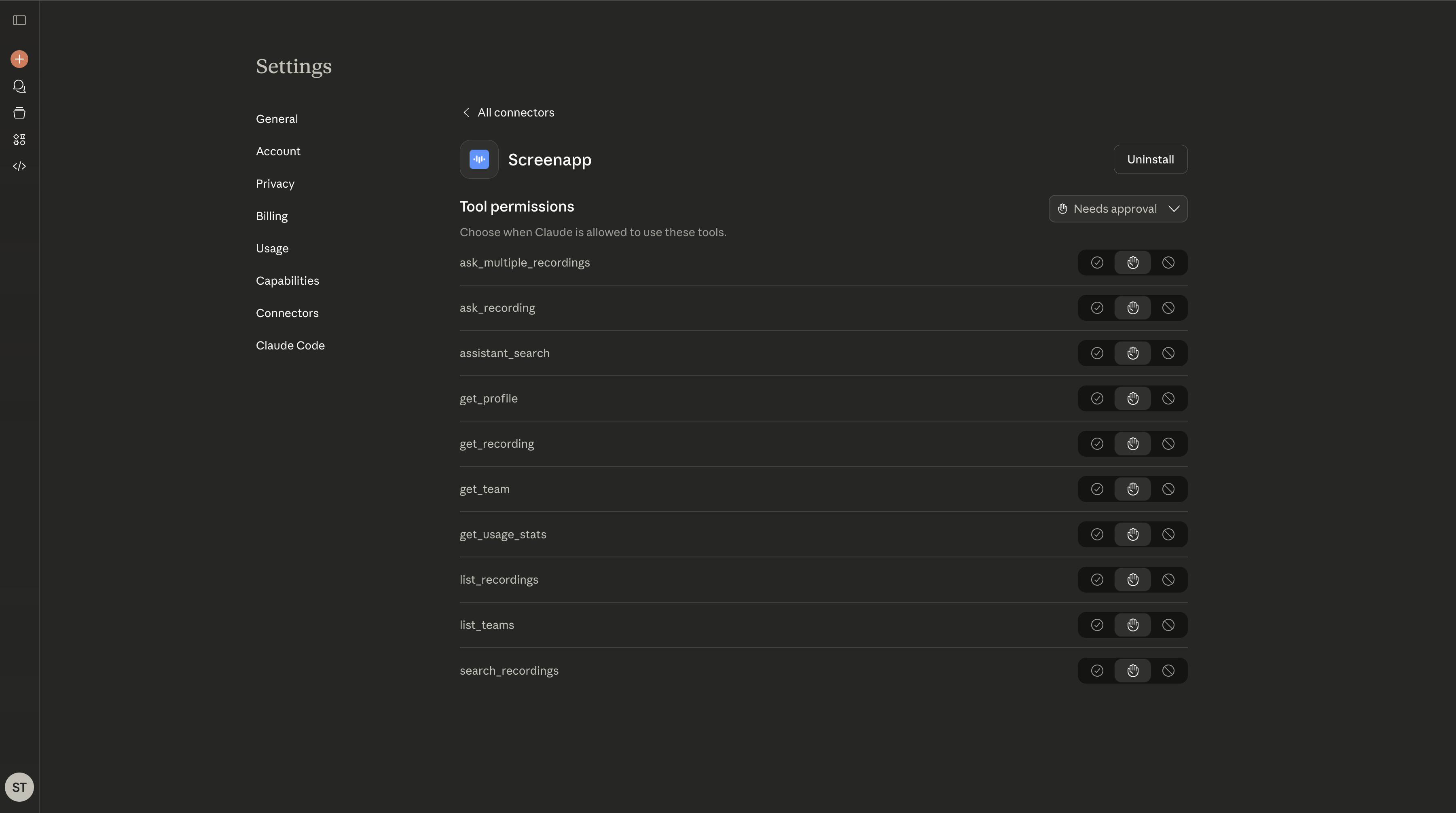
ScreenApp’s MCP server exposes these tools to your AI assistant:
| Tool | Purpose |
|---|---|
assistant_search | AI-powered search with intelligent query optimization (recommended for most queries) |
ask_multiple_recordings | Find patterns across multiple recordings |
ask_recording | Query a specific recording’s content |
search_recordings | Search transcripts and return matching snippets |
list_recordings | List videos with optional team filtering |
get_recording | Get metadata (duration, URLs, file details) |
list_teams | List teams you belong to |
get_team | Get team details including members |
get_profile | Get your account information |
get_usage_stats | Get usage and billing stats |
How to Set Up ScreenApp MCP
Setup takes about 5 minutes. ScreenApp supports both ChatGPT and Claude.
Prerequisites
- A ScreenApp account with recorded or uploaded videos
- MCP integration enabled in ScreenApp (Dashboard → Settings → Integrations → Connect to Claude or GPT)
- ChatGPT Plus/Pro subscription OR Claude Desktop/Web access
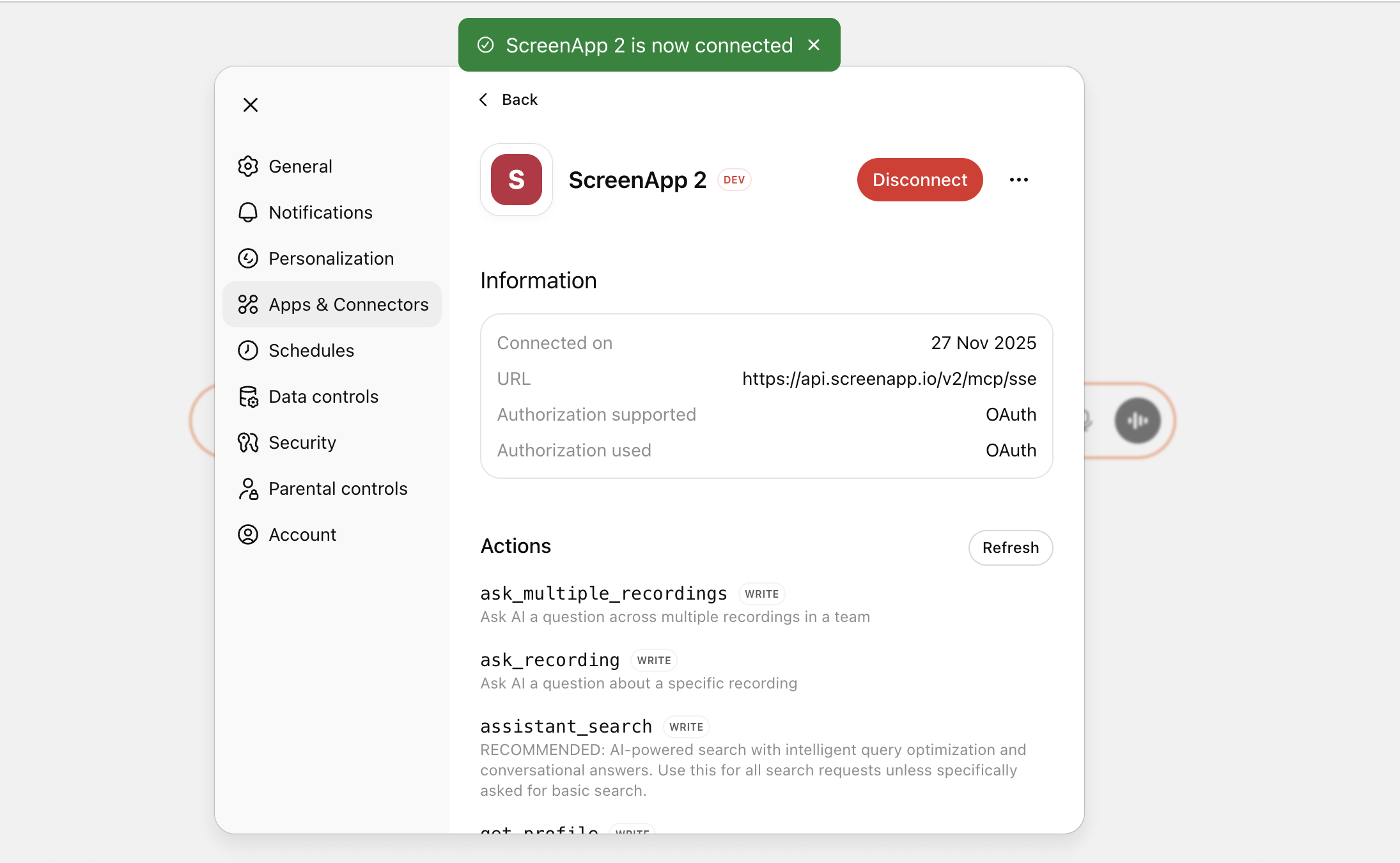
ChatGPT Setup
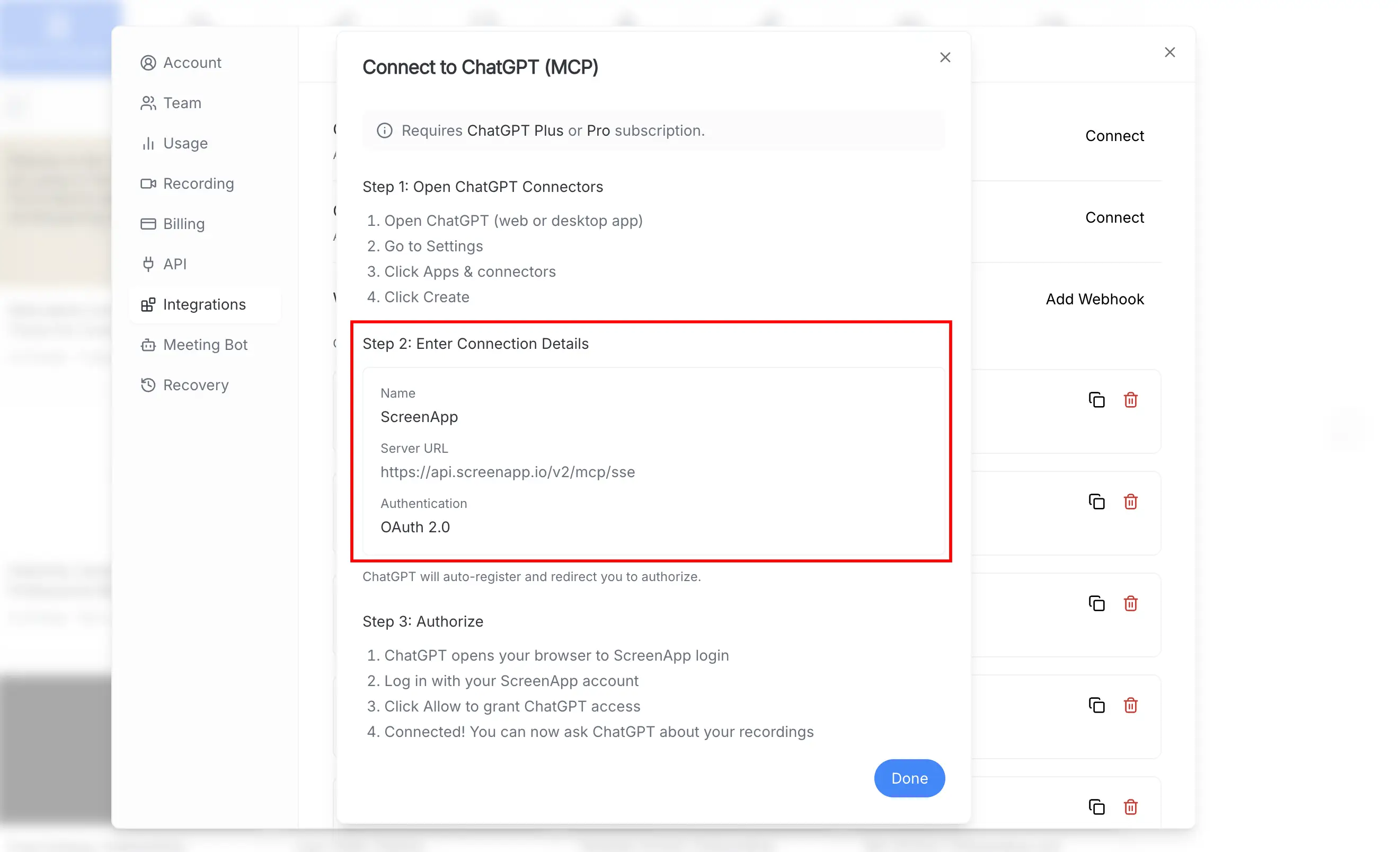
- Open ChatGPT and go to Settings
- Click Apps & connectors
- Enable Developer mode
- Click Create
- Enter the connection details:
| Field | Value |
|---|---|
| Name | ScreenApp |
| Server URL | https://api.screenapp.io/v2/mcp/sse |
| Authentication | OAuth 2.0 |
- Complete the OAuth authorization when redirected to ScreenApp
Claude Setup
- Open Claude.ai and go to Settings
- Navigate to Connectors and click Custom Connector
- Enter the connection details:
| Field | Value |
|---|---|
| Server URL | https://api.screenapp.io/v2/mcp/sse |
| Authentication | OAuth 2.0 |
- Complete the OAuth authorization when redirected to ScreenApp
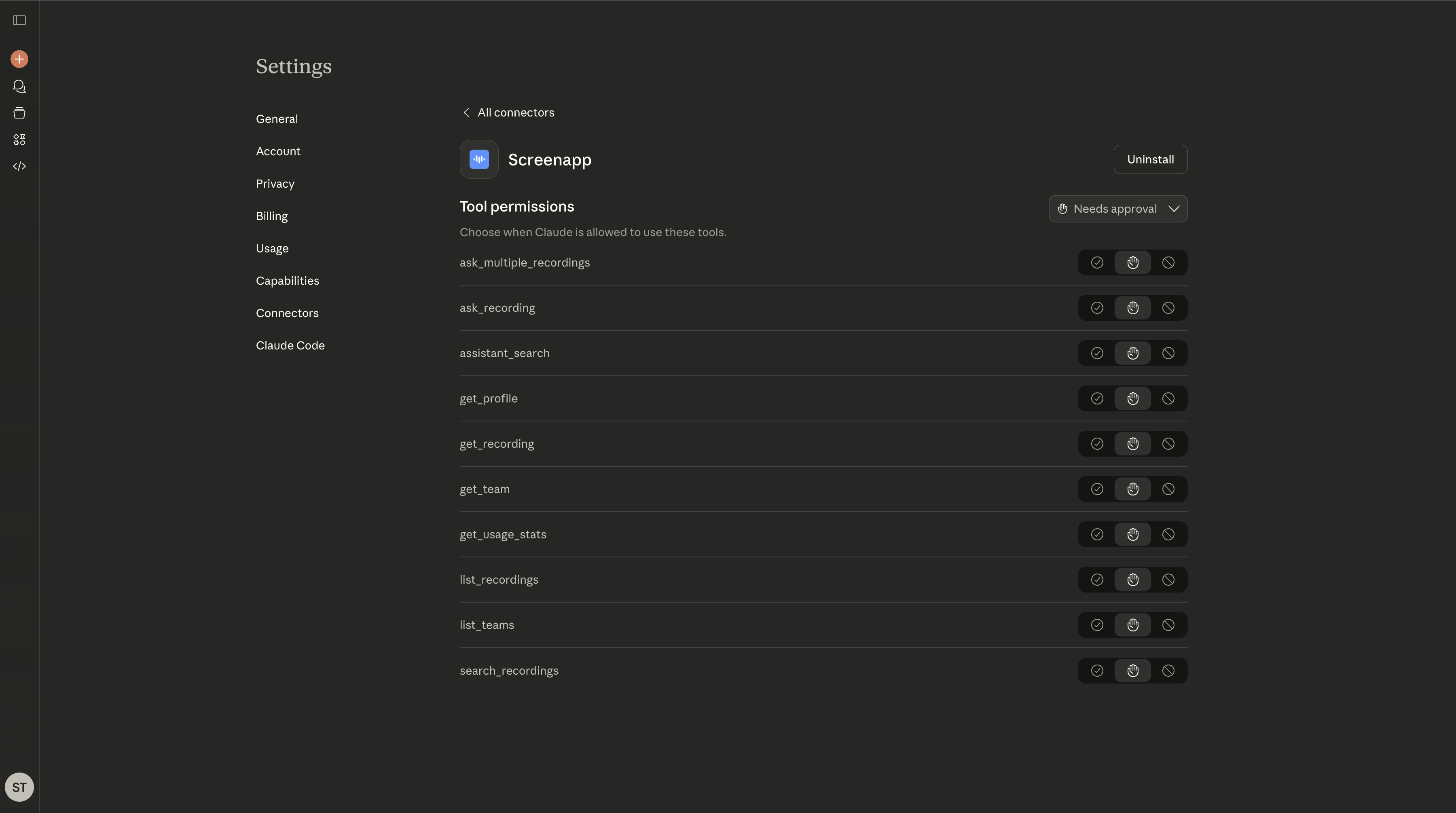
For detailed step-by-step instructions with screenshots, see the complete MCP setup guide.
Testing Your Connection
Verify everything works with these test queries:
"Show me my 5 most recent videos from ScreenApp"
"Find videos where we discussed 'product launch'"
"Pull the transcript from my video titled 'Team Standup - Monday'"
If the AI returns relevant results from your library, you’re connected.
Use Cases
Weekly Meeting Digests
"Summarize all my meetings from the past 7 days and highlight key decisions"
Customer Insight Mining
"Analyze my sales calls from Q4. What features do customers request most?"
Action Item Tracking
"List all action items assigned to me from meetings this month"
Content Repurposing
"Draft a blog post based on our 'Product Strategy' meeting transcript"
Security and Privacy
ScreenApp’s MCP server only reads the specific data required to answer your prompt. Your full video library is not shared with or used to train public AI models. All data transmission is encrypted, and you can revoke access at any time from your ScreenApp dashboard.
You can also restrict access by workspace, folder, or video tags in Settings → API → MCP Permissions.
ScreenApp MCP vs. Alternatives
| Feature | ScreenApp MCP | DIY Build | Waiting for Native |
|---|---|---|---|
| Availability | Now | Months of development | Uncertain |
| Setup | 5 minutes | Complex engineering | N/A |
| Cross-Platform | Meet, Zoom, Teams | Separate integrations needed | Platform-specific |
| AI Features | Full (summaries, search, analytics) | Must build | Basic |
| Maintenance | Included | Ongoing cost | Included |
Get Started
ScreenApp’s MCP server is available now on all paid plans. Connect your video library to Claude or ChatGPT and start querying your meetings with natural language.
FAQ
What is Meeting MCP?
Meeting MCP applies the Model Context Protocol to video meetings. It allows AI assistants to access your meeting transcripts, summaries, and metadata through a standardized interface. ScreenApp’s MCP server provides this functionality for Claude and ChatGPT.
Does Google Meet or Zoom have native MCP?
No. While platform vendors are exploring MCP, native integration isn’t available. ScreenApp provides MCP benefits now by recording and processing your meetings from any platform.
What ScreenApp plan do I need?
MCP integration is available on all ScreenApp paid plans (Pro, Team, Enterprise). Free plan users can upgrade to access API and MCP features.
Can I use both Claude and ChatGPT?
Yes. You can set up MCP connections to both platforms simultaneously. Each assistant has independent access to your ScreenApp library.
Is my data secure?
Yes. The MCP server only accesses data needed for your specific query. Transmission is encrypted, and you control access permissions. Your videos are not used to train AI models.