
In a few clicks, your favorite AI apps can access your entire recording library. Whether it’s ChatGPT, Claude, or Perplexity, these AI assistants can now analyze your meetings, lectures, interviews, and any other content you’ve recorded.
AI assistants cannot process video files or audio recordings directly. ScreenApp’s MCP server gives them access to transcripts, summaries, and insights from ALL your recordings - not just meetings like other tools.
When it’s useful
Sprint planning: Ask ChatGPT “What blockers came up in our last three standup meetings?” and get answers from your recorded sessions.
Customer research: Tell Claude “Analyze user feedback patterns from my customer interview recordings” for comprehensive insights across multiple conversations.
Sales follow-ups: Ask “Draft a proposal based on yesterday’s client call” and get content based on actual conversation transcripts.
Academic work: Request “Create study notes from my Advanced Biology lecture recordings” to turn hours of recorded content into organized materials.
Content creation: Say “Write a blog post about the product features discussed in our demo recording” to repurpose video content instantly.
Training and onboarding: Ask “What were the key points covered in our new employee training session?” to extract information from recorded training videos.
Unlike Granola (which only works with calendar meetings), ScreenApp works with ANY recording type. Screen captures, phone interviews, lecture recordings, brainstorming sessions - your AI assistant can analyze it all.
What is ScreenApp MCP?
Think of MCP as “USB-C for AI apps.” Just like USB-C lets you connect different devices, MCP lets AI assistants connect to your ScreenApp recordings.
What you get:
- Ask ChatGPT about your recorded content without uploading files
- Get answers from transcripts of ANY recording type (not just meetings)
- Find information across multiple videos instantly
- Generate content based on your actual conversations
- Secure connection that doesn’t train public AI models
ScreenApp vs Granola MCP:
- Granola: Only calendar meetings, launched February 2026
- ScreenApp: ANY recording type (meetings, lectures, interviews, screen recordings), available since 2025
- Granola: Meeting notes only
- ScreenApp: Video analysis + transcripts + metadata
- Granola: ChatGPT only
- ScreenApp: ChatGPT, Claude, Perplexity, and more
What You Can Ask Your AI Assistant
Cross-recording analysis: “What themes came up across all my customer calls this month?”
Specific information retrieval: “Find where we discussed the budget increase and summarize the decision.”
Content generation: “Write a training guide based on the onboarding session I recorded last week.”
Pattern identification: “What objections do customers mention most often in my sales recordings?”
Meeting follow-ups: “Create action items from today’s project planning session.”
ScreenApp MCP vs Other Solutions
| Feature | ScreenApp MCP | Granola MCP | Otter.ai | Fireflies | Assembly AI |
|---|---|---|---|---|---|
| Available since | 2025 | Feb 2026 | No MCP | No MCP | No MCP |
| Recording types | ANY (video, audio, screen) | Meetings only | Meetings only | Meetings only | Audio only |
| Video analysis | Yes | No | No | No | No |
| AI assistants | ChatGPT, Claude, Perplexity | ChatGPT only | Built-in only | Built-in only | API only |
| Setup time | 2 minutes | 2 minutes | 15+ minutes | 10+ minutes | API integration |
| Works with existing recordings | Yes | Yes | Live only | Live only | Upload required |
Key differences:
vs Granola MCP: ScreenApp works with ALL recording types (lectures, interviews, screen recordings), not just calendar meetings. Plus video analysis capabilities and support for more AI assistants.
vs Otter.ai: Otter focuses on live meeting transcription. ScreenApp lets you connect your entire existing library to AI assistants for analysis.
vs Fireflies: Fireflies requires joining live meetings. ScreenApp analyzes any recorded content you already have.
What you need
ScreenApp account: Any plan works, sign up free if needed
AI assistant:
- ChatGPT Plus, Team, or Enterprise
- Claude Desktop App (download free)
2 minutes: That’s all the setup takes
ChatGPT Setup (2 minutes)
You need: ChatGPT Plus, Team, or Enterprise account
Get your connection info
- Log in to ScreenApp
- Go to Settings > Integrations
- Find Connect to ChatGPT (MCP)
- Copy the Server URL (you’ll need this next)


Add ScreenApp to ChatGPT
- Open ChatGPT
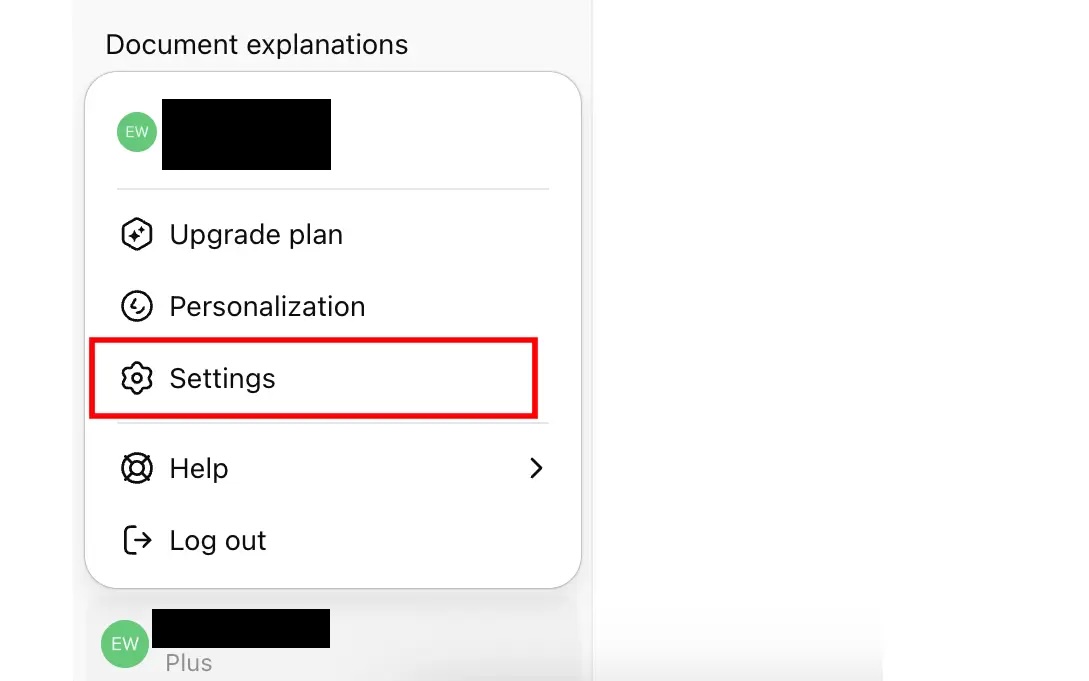
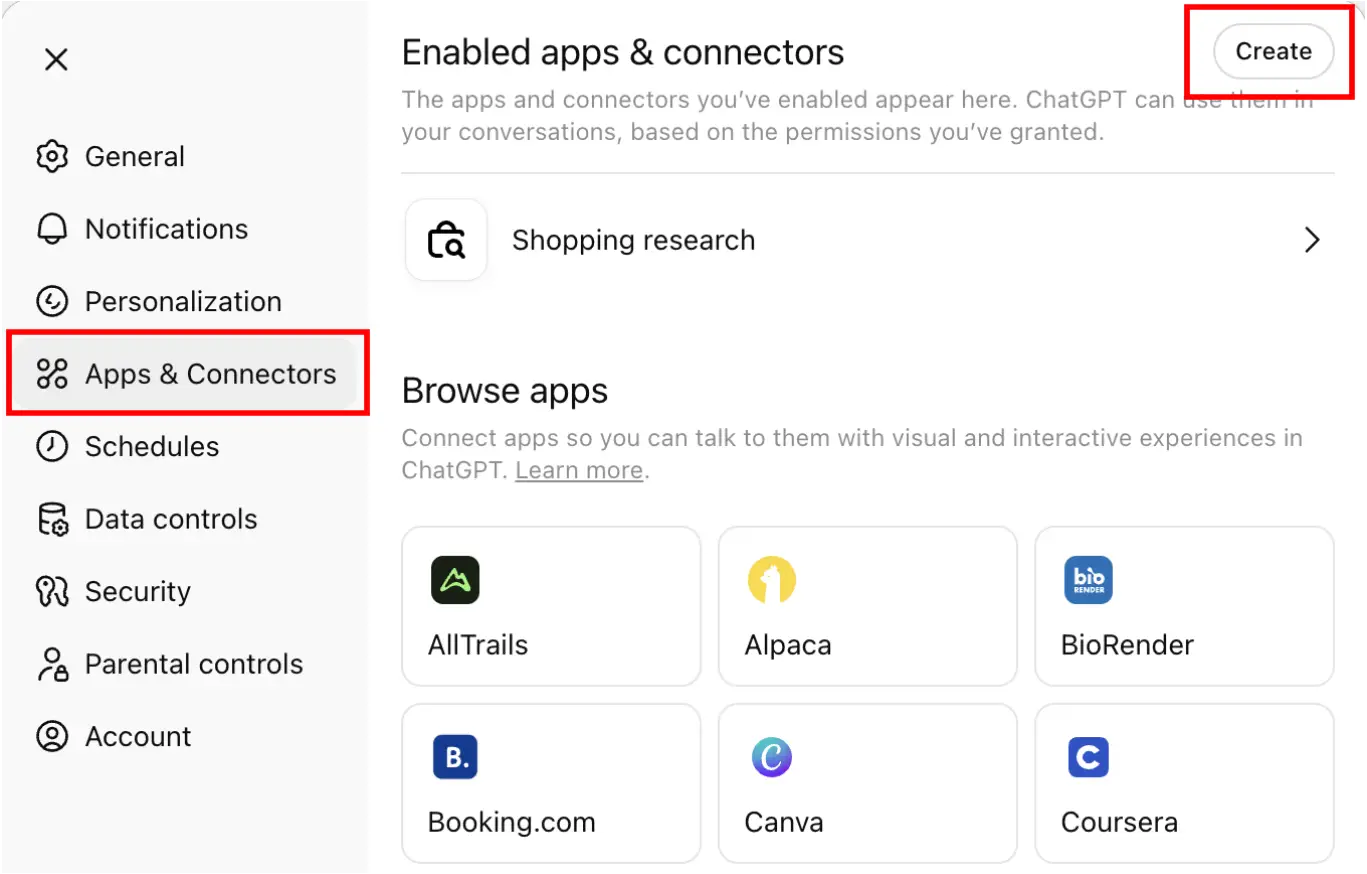
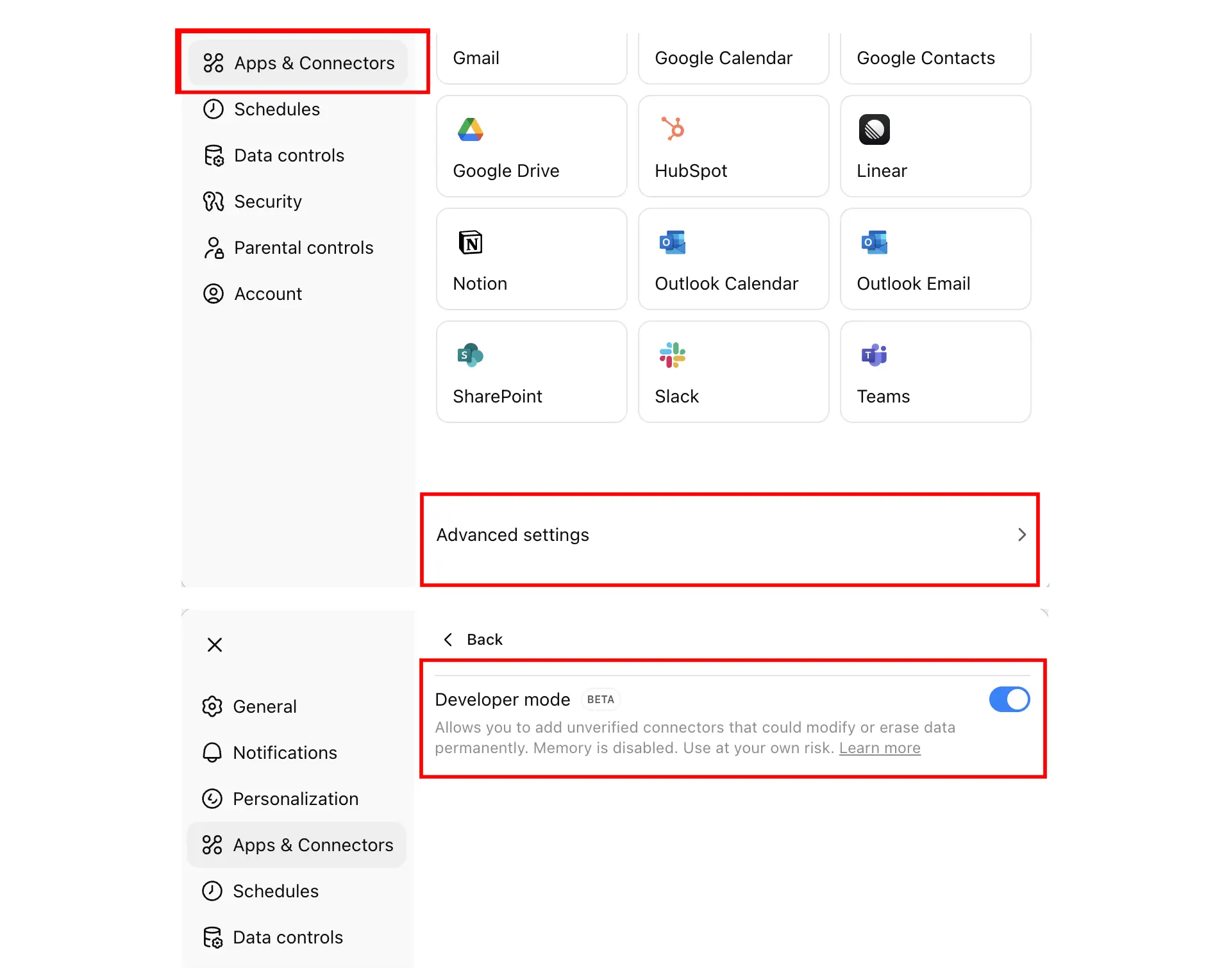
- Go to Settings > Apps & connectors
- Enable Developer mode
- Click Create

Enter the details
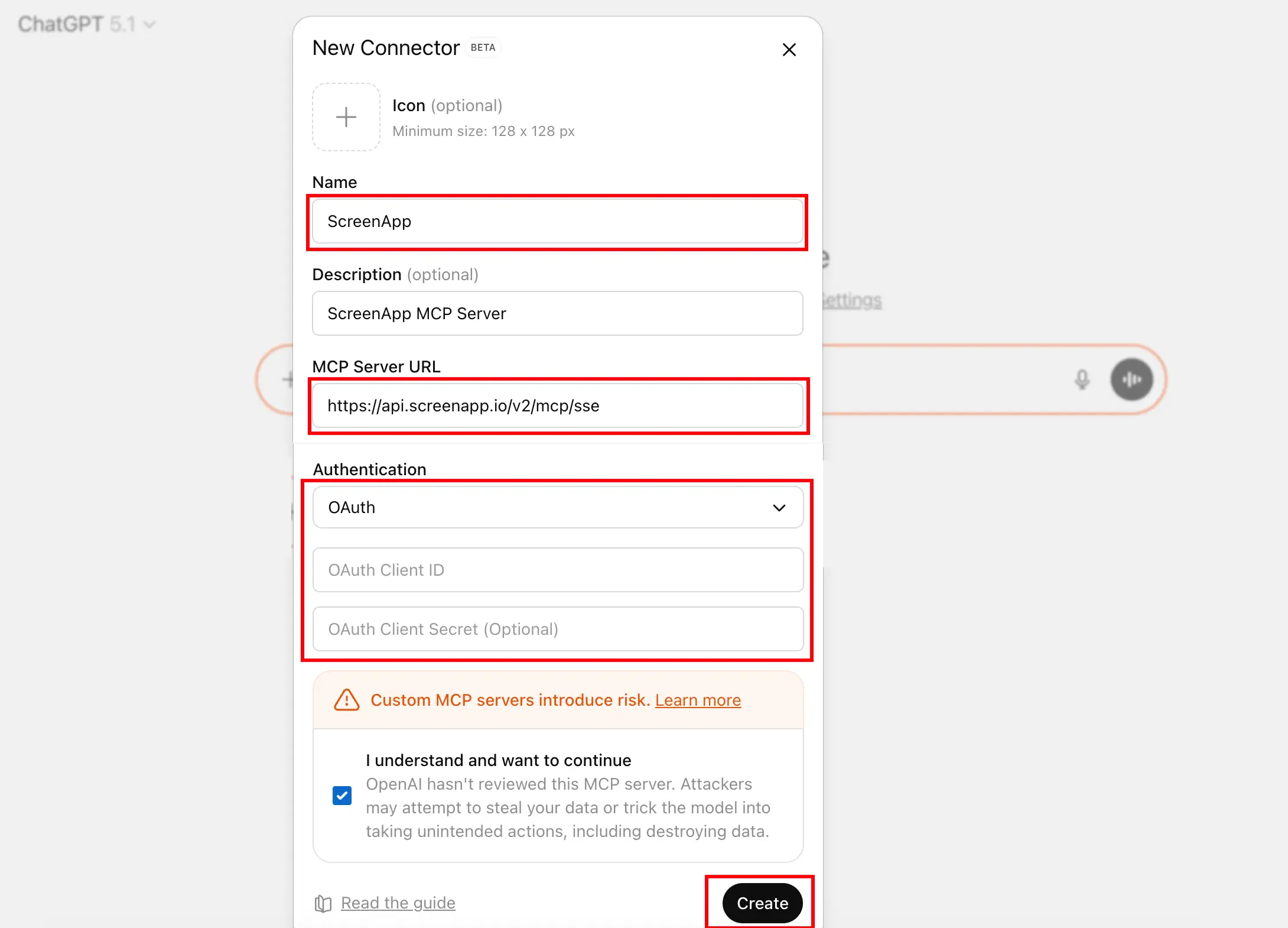
Fill in these exact details:
| Field | Value |
|---|---|
| Name | ScreenApp |
| Server URL | https://api.screenapp.io/v2/mcp/sse |
| Authentication | OAuth 2.0 |
Leave OAuth Client ID and Client Secret empty.
Authorize the connection
ChatGPT will open ScreenApp in your browser. Log in and click Allow to connect.
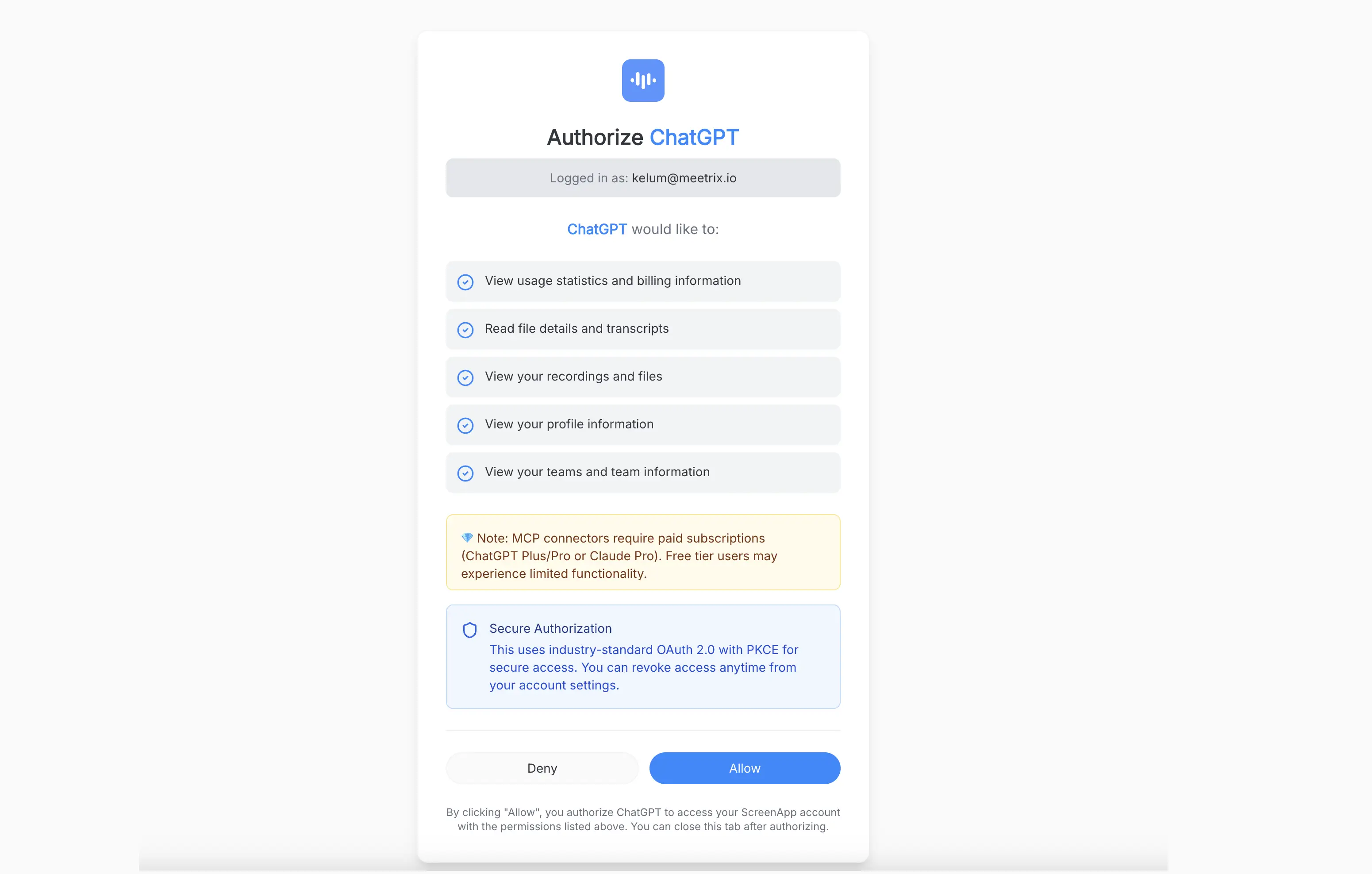
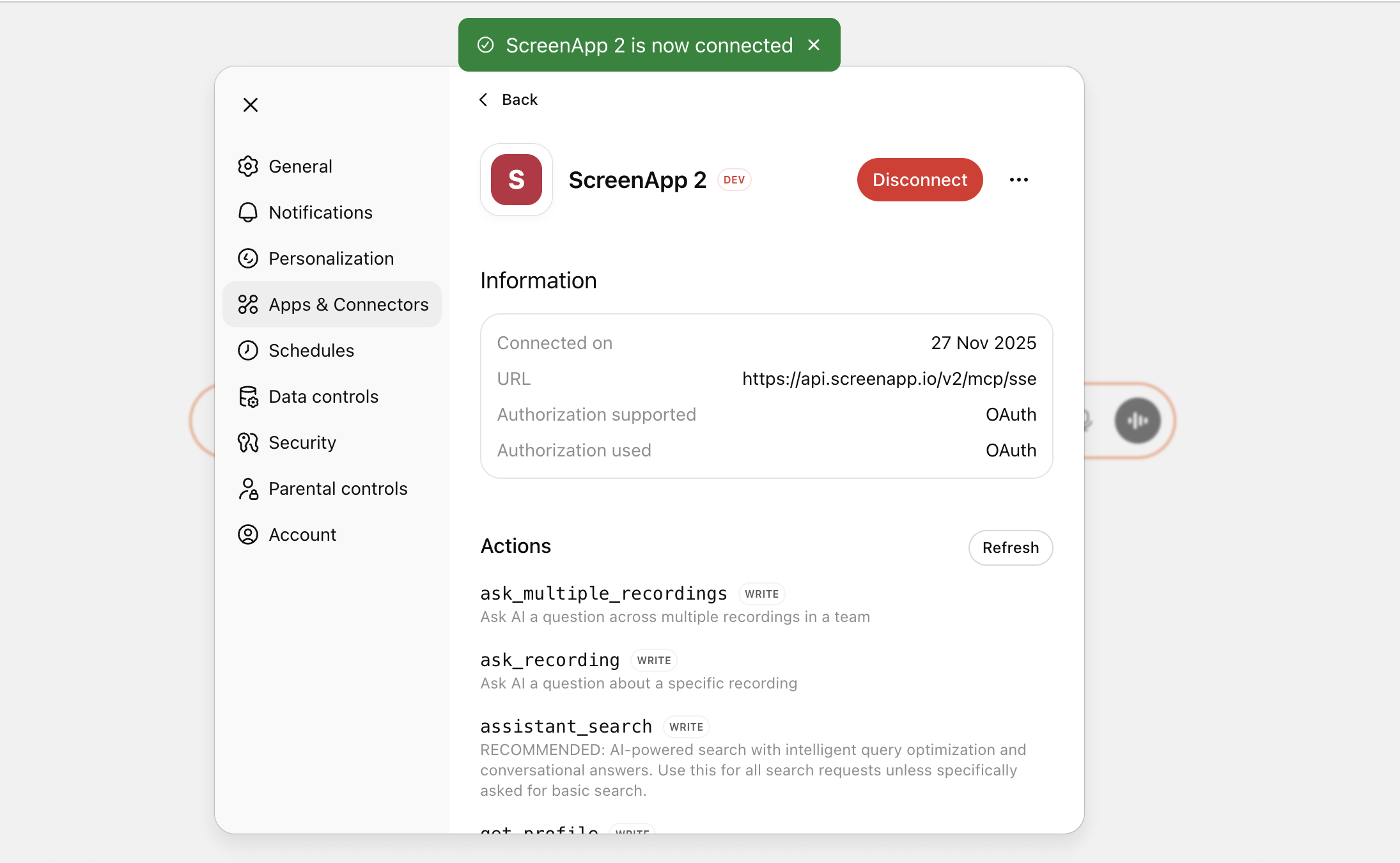
That’s it! ChatGPT can now access your recordings.
Claude Setup (2 minutes)
You need: Claude account (free works) and Claude Desktop app
Get your connection info
Use the same Server URL from ScreenApp Settings > Integrations > Claude MCP
Add ScreenApp to Claude
- Open Claude.ai in your browser
- Click your profile icon (bottom left) > Settings
- Go to Connectors > Custom Connector
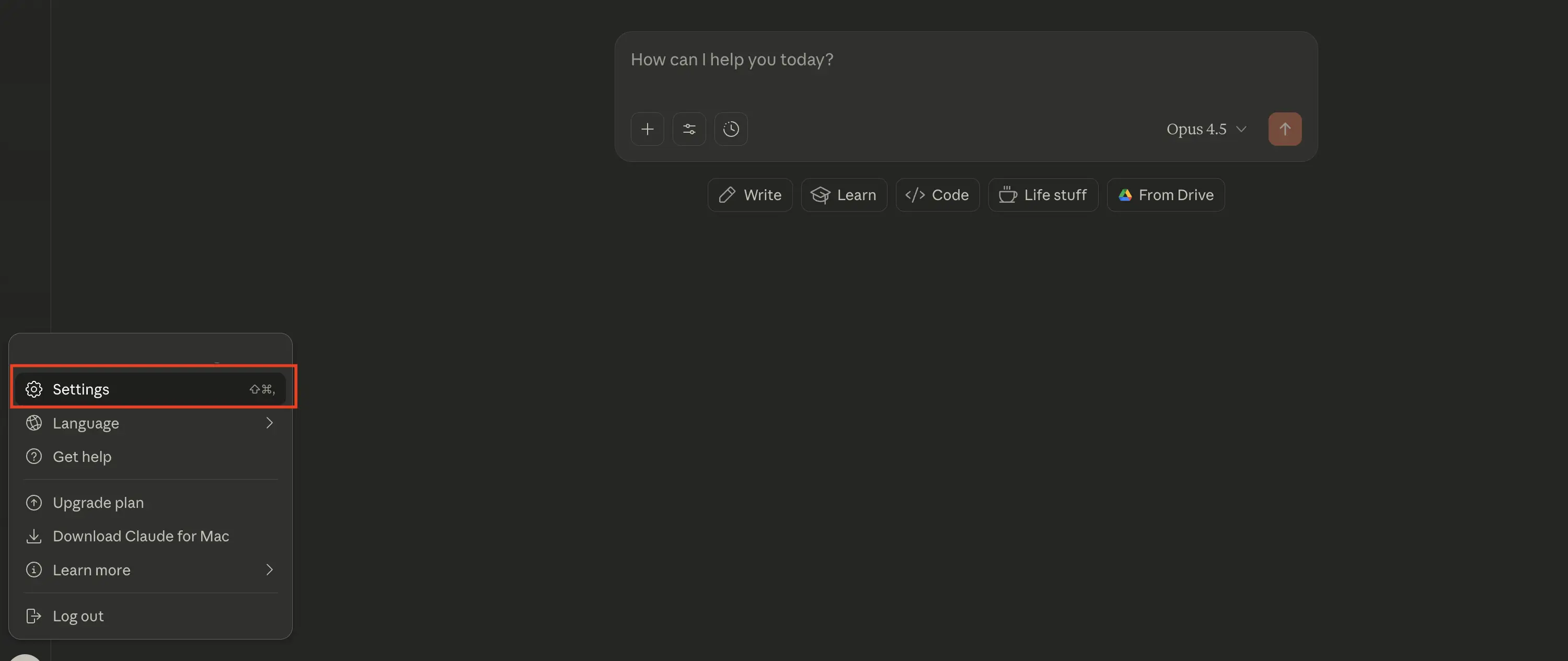
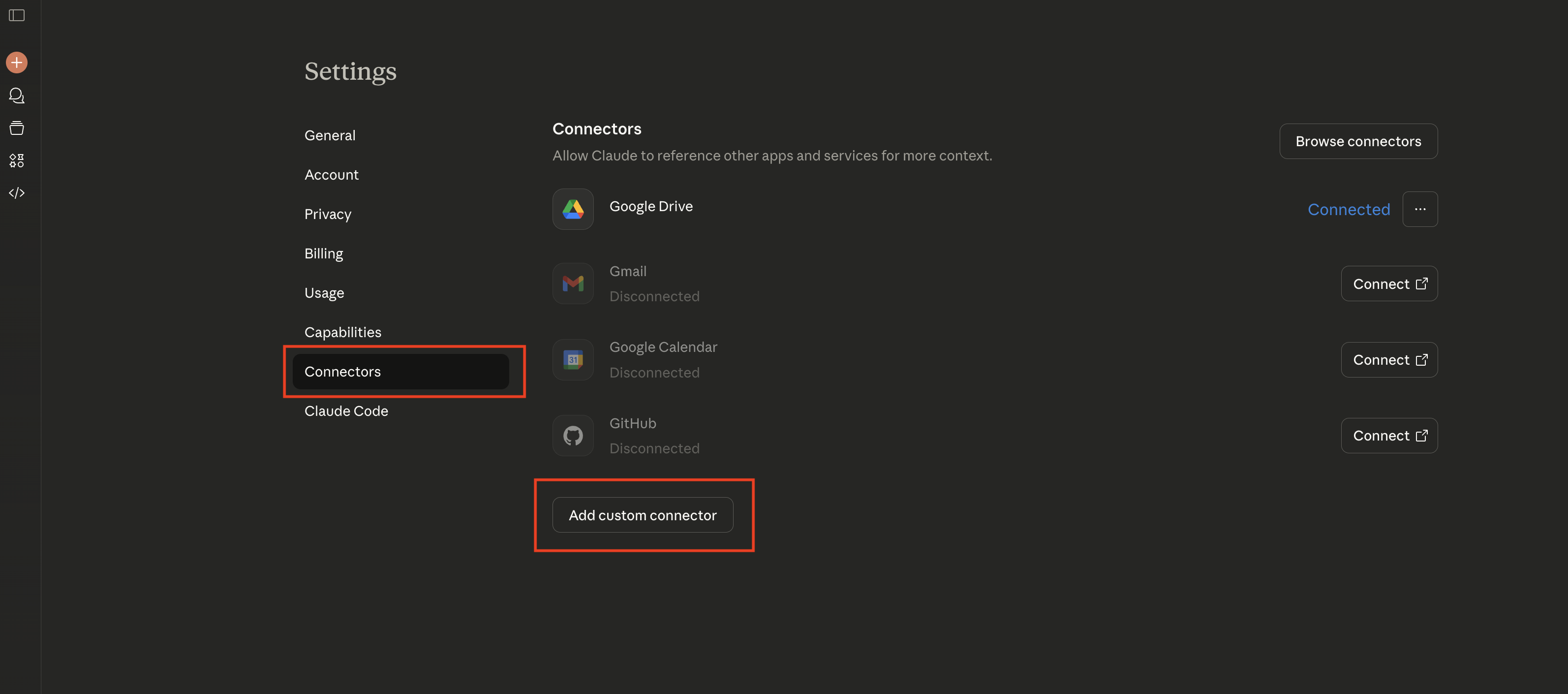
Enter the details
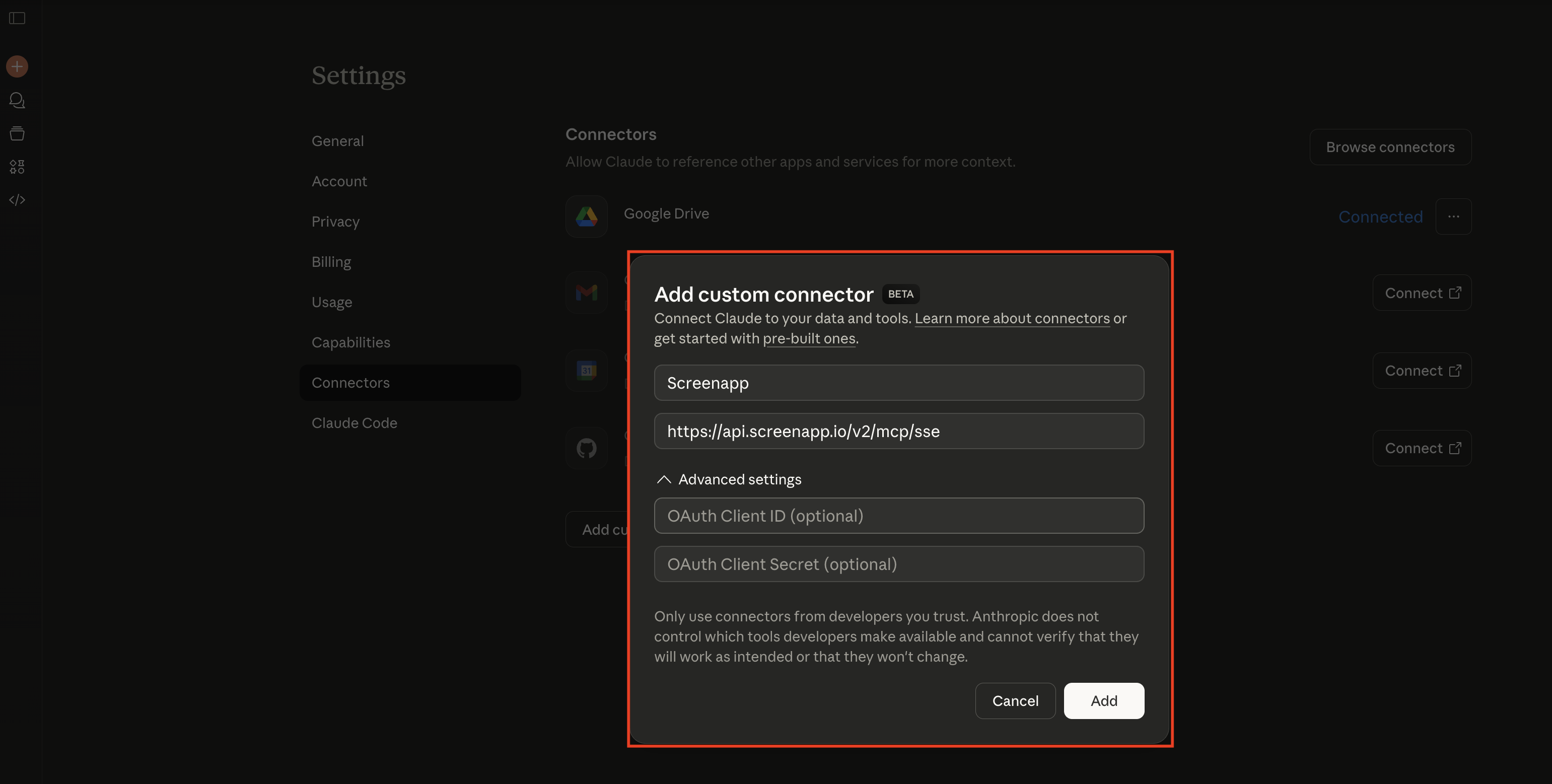
| Field | Value |
|---|---|
| Server URL | https://api.screenapp.io/v2/mcp/sse |
| Authentication | OAuth 2.0 |
Leave OAuth Client ID and Client Secret empty.
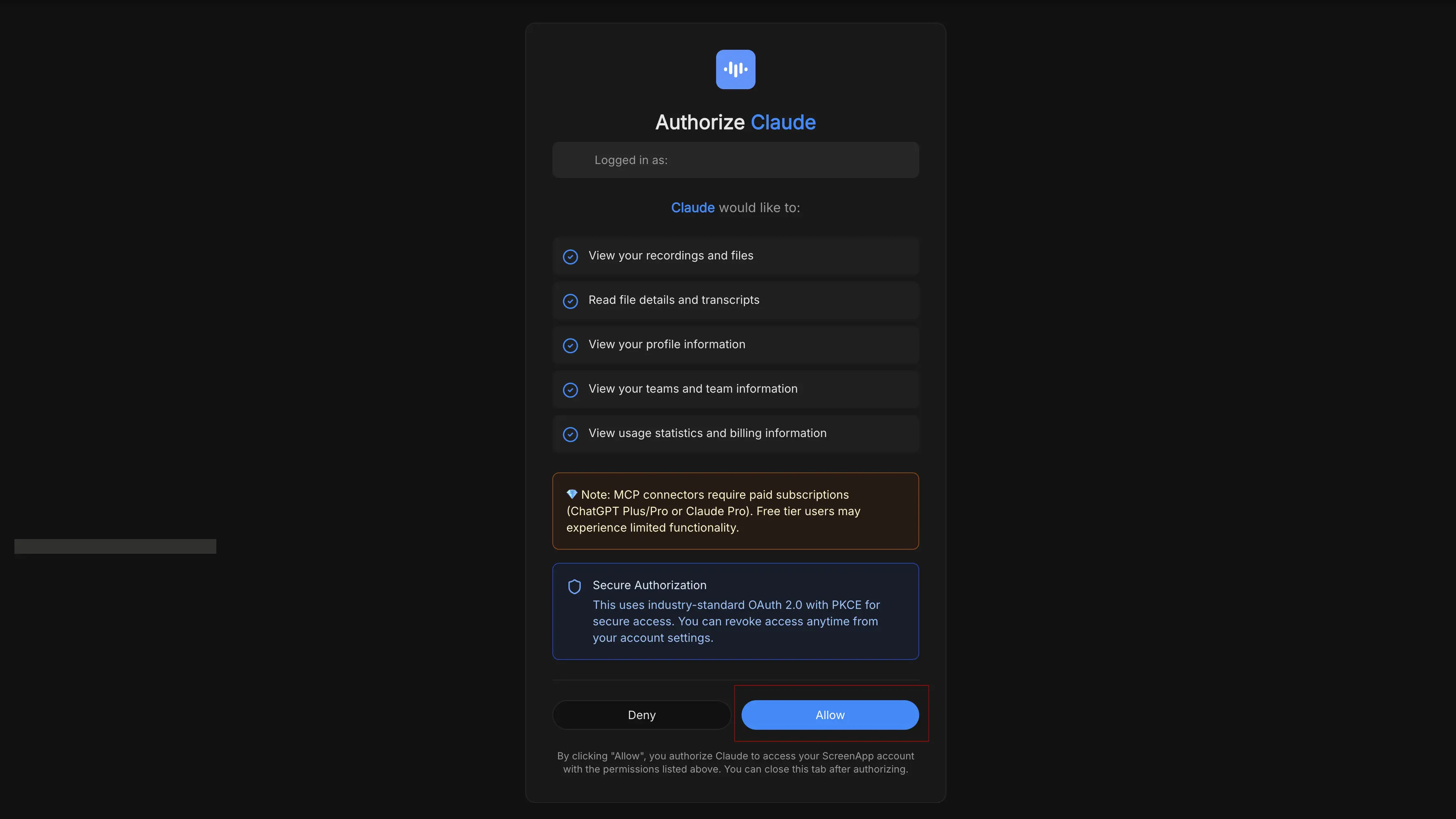
Authorize the connection
Claude will open ScreenApp in a new tab. Log in and click Allow to connect.
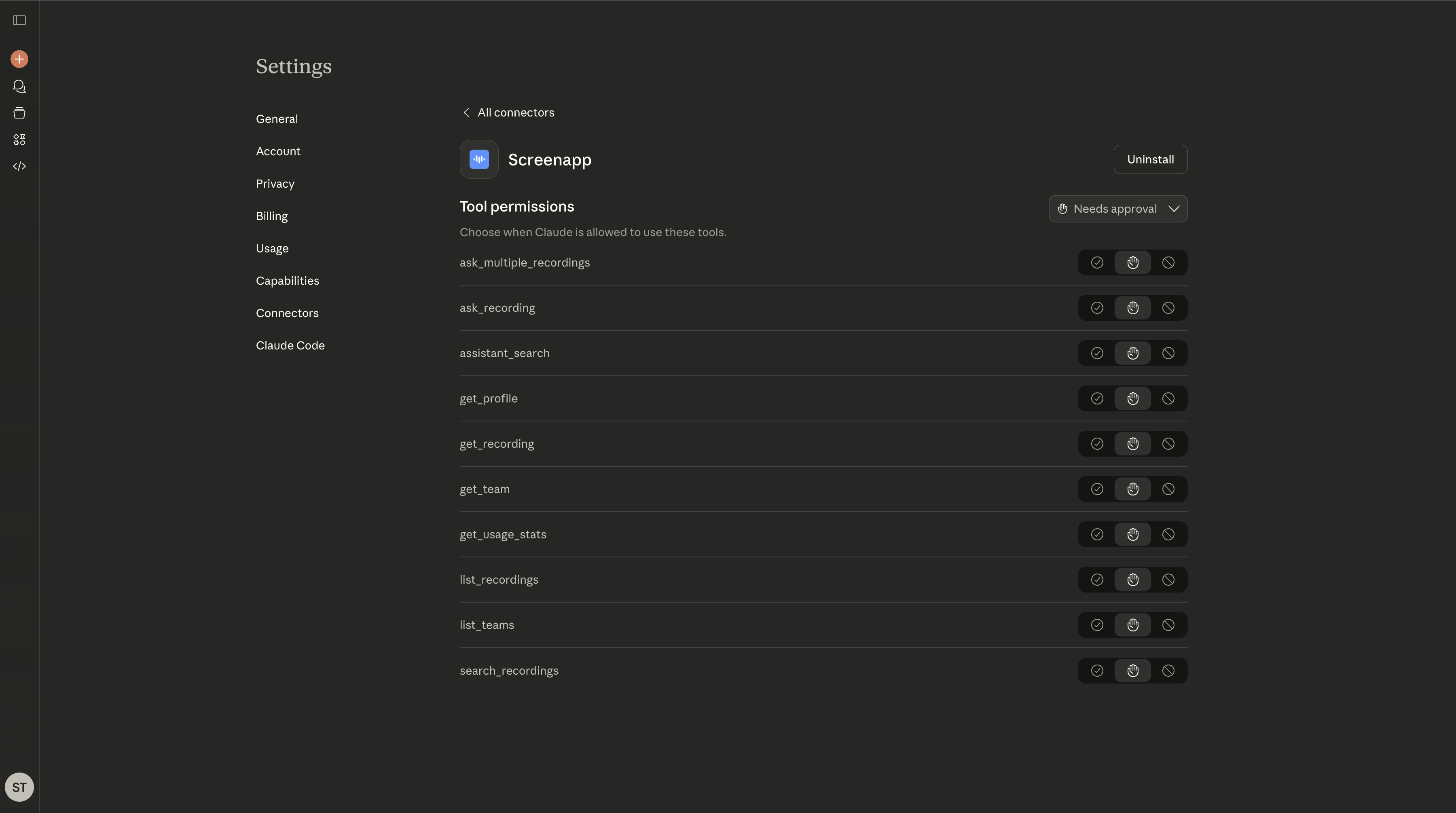
Done! Claude can now analyze your recordings.
Available MCP Tools
You don’t need to write code or remember commands. Just ask natural questions, and your AI assistant will automatically use these tools to access your ScreenApp data.
| Tool Name | What It Does | Example Prompts |
|---|---|---|
assistant_search | AI-powered search with intelligent query optimization and conversational answers (recommended for all searches) | “What did we decide about the Q4 budget?” or “Find discussions about product roadmap” |
ask_multiple_recordings | Ask AI questions across multiple recordings in a team to find patterns and insights | ”What are the common themes from all my sales calls this month?” |
ask_recording | Ask AI questions about a specific recording’s content and context | ”Summarize the action items from the ‘Team Standup - Monday’ recording” |
search_recordings | Search for specific content within recording transcripts and return matching snippets with context | ”Find all mentions of ‘customer feedback’ in my recordings” |
list_recordings | List recordings/files from your teams, with optional filtering by specific team | ”Show me all recordings from last week” or “List my marketing team’s videos” |
get_recording | Get detailed metadata about a specific recording (duration, URLs, file details) | “What’s the duration of my ‘Client Onboarding’ video?” |
list_teams | List all teams you belong to and their basic information | ”What teams am I part of?” or “Show me my workspace teams” |
get_team | Get detailed information about a specific team including members and settings | ”Tell me about my Marketing team setup and members” |
get_profile | Get your current user profile information and account details | ”What’s my current ScreenApp profile information?” |
get_usage_stats | Get usage statistics and billing information for your account | ”How many minutes have I recorded this month?” or “Show my usage stats” |
Pro Tip: For best results, use
assistant_searchfor most queries as it provides intelligent optimization and conversational answers. The AI will automatically choose the right tool based on your question.
Testing Your Connection
Once you’ve completed the setup, test the connection with a simple query to ensure everything is working correctly.
Test 1: List Recent Videos
"Show me my 5 most recent videos from ScreenApp"
Test 2: Search by Keyword
"Find videos where we discussed 'product launch'"
Test 3: Get Transcript
"Pull the transcript from my video titled 'Team Standup - Monday'"
If the AI returns relevant results from your ScreenApp library, the connection is working correctly!
Common Questions
The AI says “I don’t have access to that.” What should I do?
Try being more specific in your request:
- Instead of: “What did we discuss in the meeting?”
- Try: “Use the ScreenApp tool to search my recordings for [specific topic]”
Also check that ScreenApp is enabled in your AI assistant’s tools menu.
How is this different from Granola’s MCP?
ScreenApp MCP (available since 2025):
- Works with ANY recording type (meetings, lectures, interviews, screen recordings)
- Video analysis capabilities
- Supports ChatGPT, Claude, Perplexity
- Analyze existing recorded content
Granola MCP (launched February 2026):
- Only calendar meetings
- Meeting notes only (no video analysis)
- ChatGPT only
- Meeting-focused workflow
Is my video data secure?
Yes. The MCP server only accesses data needed to answer your specific questions. Your videos aren’t used to train public AI models, and you can revoke access anytime from ScreenApp Settings.
Can I use this with multiple AI assistants?
Absolutely. Set up the connection with both ChatGPT and Claude. Each works independently with your ScreenApp library.
What plan do I need?
MCP works with all ScreenApp paid plans. Free users can upgrade to access MCP features.
Can I control which recordings the AI can see?
Yes. Go to Settings > API > MCP Permissions to restrict access by workspace, folder, or video tags.
Does this work on mobile?
ChatGPT: Yes, once set up, it works on mobile too. Claude: Desktop and web only (no mobile MCP support yet).
Get More From Your Connected Library
Weekly summaries “Summarize all my team meetings from this week and highlight key decisions”
Customer insights “What features do customers request most often in my sales call recordings?”
Content creation “Write a blog post based on the product demo I recorded yesterday”
Pattern analysis “What objections came up across my client calls this month?”
Training materials “Create a study guide from my Advanced Chemistry lecture recordings”
Why Choose ScreenApp MCP?
More than just meetings: While Granola only handles calendar meetings, ScreenApp analyzes ANY recording. Lectures, interviews, screen recordings, training sessions - your AI assistant understands it all.
Video analysis: ScreenApp provides visual context and video insights, not just text transcripts like meeting-only tools.
Proven track record: ScreenApp has offered MCP integration since 2025, giving us more experience and stability than newer solutions.
More AI assistants: Works with ChatGPT, Claude, Perplexity, and other AI tools, not just one platform.
Any content type: Meeting notes, academic lectures, customer interviews, training videos, brainstorming sessions - connect your AI assistant to everything you record.
Get Started Today
Transform how you work with recorded content. Set up MCP in 2 minutes and turn your AI assistant into an expert on your entire video library.