
You recorded a once-in-a-lifetime moment, but when you watched it back, the focus was off. The result? A blurry, unusable mess that you can’t bear to delete but can’t really use either.
The good news: you don’t need expensive desktop software to fix blurry video anymore. AI-powered online tools can sharpen video and remove blur directly in your web browser - often for free.
According to Cisco’s Annual Internet Report, video accounts for over 82% of all consumer internet traffic. With billions of videos being recorded daily on smartphones, blurry footage is one of the most common problems people face.
This guide covers the specific problem of fixing blur. For a broader look at video quality issues like grain, compression artifacts, and camera shake, see our complete video quality enhancer guide.
Why Is My Video Blurry? (And Can It Be Saved?)
Before you try to fix blurry video, it helps to understand what caused the blur. Different types of blur require different solutions.
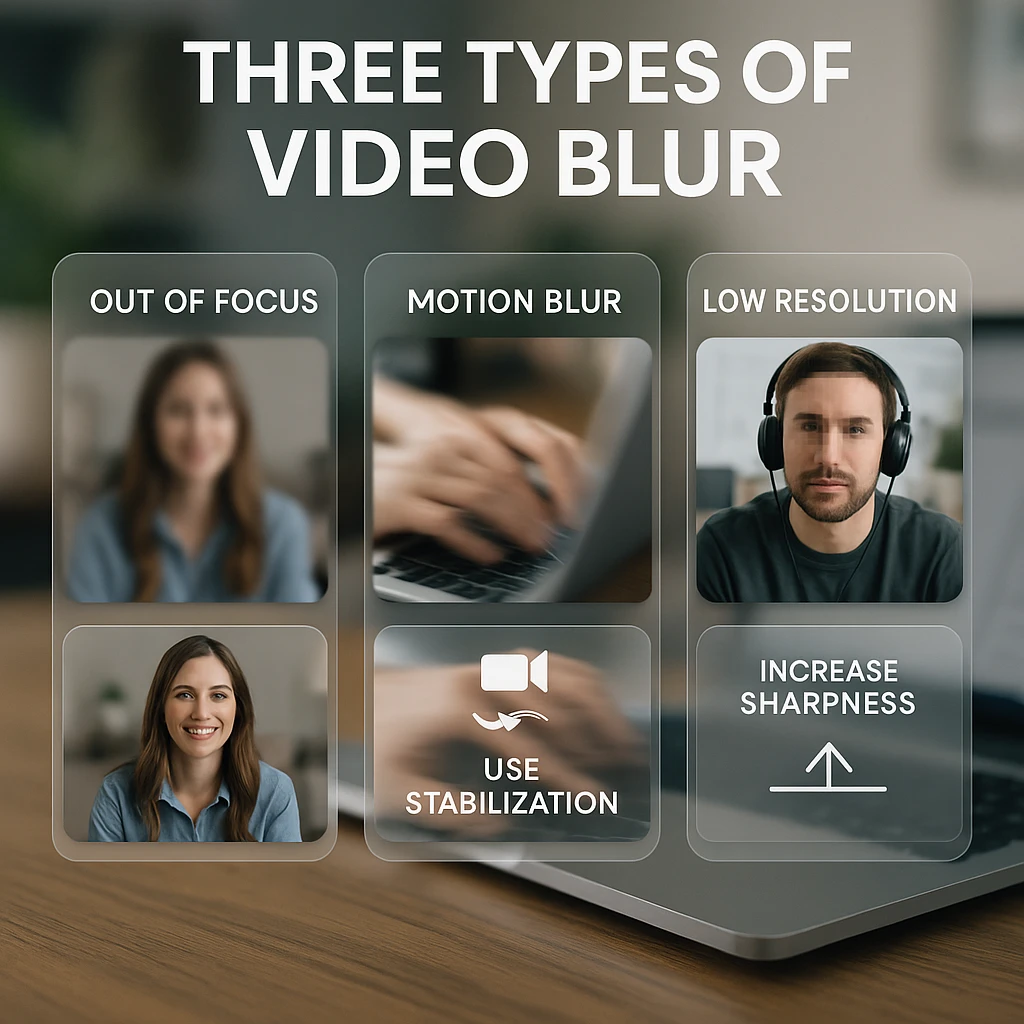
Three Types of Video Blur
Out of Focus
The lens didn't lock onto the subject. Common with smartphone cameras that autofocus incorrectly.
Solution: AI sharpening tools can reconstruct edges and improve clarity significantly.
Motion Blur
The camera or subject moved too fast during capture, creating streaky blur patterns.
Solution: Requires frame interpolation. Harder to fix than focus blur.
Low Resolution
The video is pixelated (360p or 480p) and lacks detail. Common with old recordings or compressed files.
Solution: AI upscaling can add detail and increase resolution to 1080p or higher.
Reality Check
AI can significantly improve video clarity, but it cannot invent details that were never captured by the lens. Think of it as intelligent restoration, not magic. Severely blurry footage will improve but won't become crystal clear.
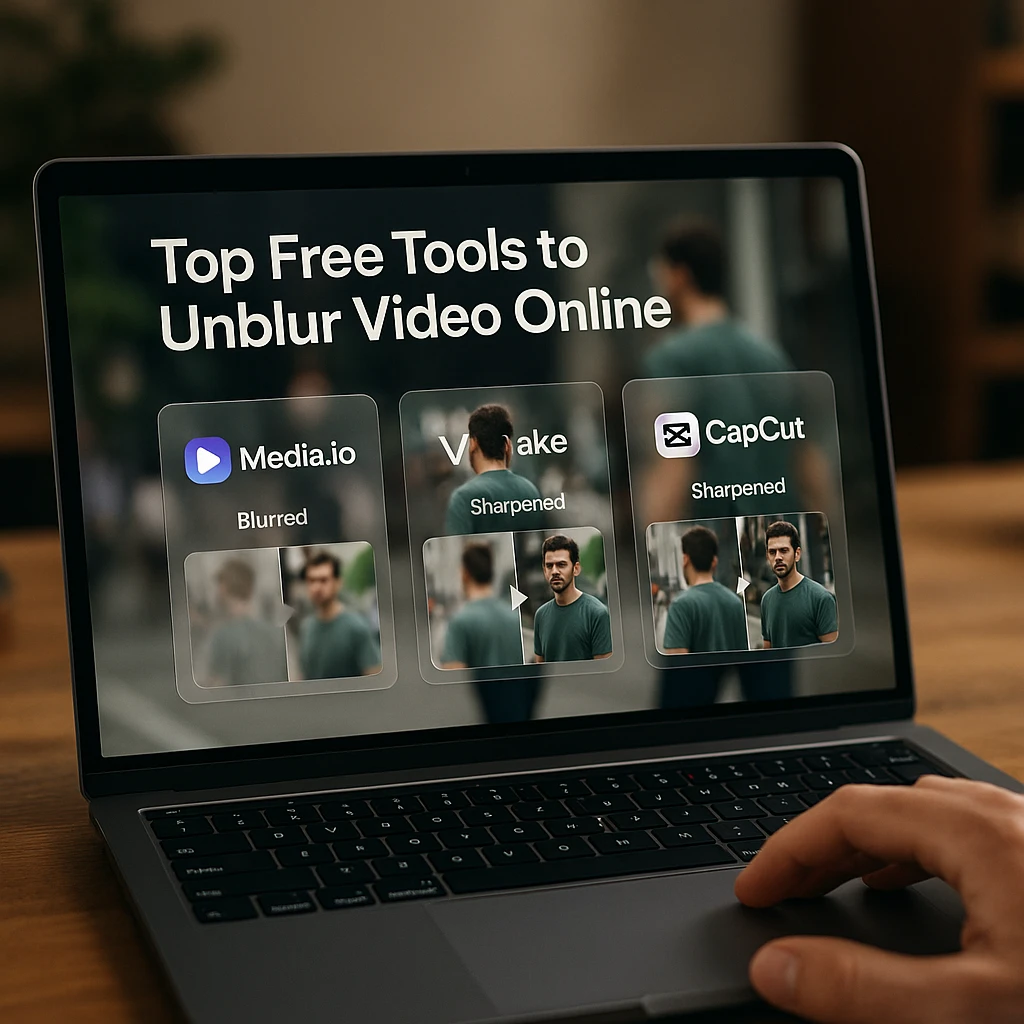
Top 5 Free Tools to Unblur Video Online
We tested over a dozen online video enhancers to find the ones that actually work for fixing blurry footage. Here are the five best free options available in 2026.
| Rank | Tool | Best For | AI-Powered | Free Tier |
|---|---|---|---|---|
| 1 | Media.io | AI deblurring & face recovery | Yes | Limited clips |
| 2 | Vmake AI | One-click enhancement | Yes | Watermark |
| 3 | CapCut Online | Social media creators | Yes | Full access |
| 4 | Flixier | Editing + enhancement | Limited | Watermark |
| 5 | Clideo | Quick adjustments | No | Watermark |
Media.io AI Video Enhancer: Best AI Deblurring
True AI-powered deblurring with face reconstruction
Media.io uses deep learning to reconstruct faces in blurry videos - a feature most competitors lack. It's the closest thing to professional restoration you'll find online for free.
Key Features
Pros
- Genuine AI enhancement
- Excellent face reconstruction
- Multiple enhancement modes
Cons
- Free tier limited to short clips
- Processing can be slow
- Requires account signup
Vmake AI Video Enhancer: Best One-Click Solution
Automated quality enhancement with minimal effort
Vmake is perfect for users who don't want to adjust settings. Upload your blurry video, click enhance, and let the AI figure out what needs fixing. Particularly good at removing compression artifacts.
Key Features
Pros
- Dead simple to use
- Good artifact removal
- Fast cloud processing
Cons
- Watermark on free exports
- Less control over settings
- Limited customization
CapCut Online Video Editor: Best Free Option
TikTok's editor with surprisingly good sharpening
CapCut's "Smart Sharpen" effect is surprisingly effective for mobile footage. As a TikTok product, it's optimized for the type of smartphone video most people need to fix. Best of all - it's completely free without watermarks.
Key Features
Pros
- Completely free, no watermark
- Full video editor included
- Great for social media content
Cons
- Requires account signup
- Not true AI enhancement
- Less powerful than dedicated tools
Flixier Online Video Editor: Best for Editors
Cloud-powered editor with enhancement features
Flixier is a full video editor that happens to include enhancement tools. Best for content creators who need to both fix blur and edit their footage in the same workflow.
Key Features
Pros
- Cloud-powered, fast rendering
- Full editing suite
- Team collaboration features
Cons
- Deblur is not the focus
- Watermark on free tier
- Overkill for just fixing blur
Clideo Video Clearer: Best for Quick Fixes
Simple slider-based adjustments
Clideo offers traditional sharpening filters (not AI) with simple slider controls. It's not as powerful as AI tools, but it's quick and doesn't require account signup.
Key Features
Pros
- No account required
- Very easy to use
- Quick processing
Cons
- Not AI-powered
- Watermark on free version
- Limited improvement possible
For those who prefer desktop software with more power, check out our guide on best 4K video downloaders which covers tools that can also handle video enhancement.
How to Sharpen Video Online (Tutorial)
Here’s a universal workflow that works with most online video enhancers. We’ll use a general approach that applies whether you’re using Media.io, CapCut, or any similar tool.
Upload Your Blurry Footage
Navigate to your chosen tool (Media.io, CapCut, etc.) and upload the video file. Most tools accept MP4, MOV, and AVI formats. Cloud processing means you don't need a powerful computer.
Tip: For faster uploads, compress very large files first. The enhancement quality won't suffer much.
Find the Enhancement Controls
Look for an "Adjust" tab, "Enhance" button, or "AI Enhancer" option. In CapCut, it's under Effects > Basic > Sharpen. In Media.io, it's on the main interface.
Adjust Sharpness (Carefully)
Increase the sharpness slider to around 30-50%. This is the sweet spot for most footage. Also slightly increase contrast to help define edges.
Warning: Don't crank sharpness to 100%. Over-sharpening creates visible halos around objects and amplifies noise, making your video look worse.
Preview Before Exporting
Always preview a section of your video before processing the whole file. Check for artifacts, halos, or areas where the AI made mistakes.
Export in High Quality
Export at 1080p or higher to preserve your improvements. Choose H.264 codec for web sharing or ProRes if you plan to edit further.
For more advanced video workflows including recording and transcription, ScreenApp’s video analyzer can help you work with your enhanced footage.
Pro Tips: Preventing Blur Before It Happens
Fixing blur is possible, but prevention is always better. Here’s how to avoid capturing blurry footage in the first place.
Prevention Checklist
Lock Focus Before Recording
On smartphones, tap and hold on your subject to lock focus and exposure. This prevents the camera from hunting for focus during recording.
Clean Your Lens
It sounds obvious, but a smudge or fingerprint on your phone lens is the #1 cause of "soft" looking videos. Wipe it with a microfiber cloth.
Use More Light
Cameras focus slower in low light conditions. More light means faster, more accurate autofocus and less motion blur from longer exposures.
Stabilize Your Camera
Use a tripod, gimbal, or rest your elbows against your body. Shaky hands cause motion blur that's harder to fix than focus blur.
For recording professional-quality video that doesn’t need fixing, consider using ScreenApp’s video recording tools which capture in high definition without compression artifacts.
Common Questions About Fixing Blurry Video
Yes. CapCut Online is completely free with no watermarks. However, professional-grade AI restoration usually requires paid credits because the server processing costs are significant. For occasional fixes, free tools work well; for serious restoration, expect to pay.
Yes. AI tools like Media.io and Remini are specifically trained on human faces and can reconstruct a blurry face with surprising accuracy. They work by referencing millions of face images to predict what the clear version should look like.
If overdone, yes. Excessive sharpening creates "noise" and visible halos around objects. The key is moderation - stay around 30-50% sharpness. Over-sharpened video looks worse than the original blur.
Yes. Apps like Remini and CapCut have iOS versions that can sharpen video directly on your phone. For better results, use the web versions of Media.io or Vmake AI, which run on more powerful cloud servers.
Cross-platform compression is a common cause of blur. The video was compressed during transfer. Upload the original file from the Android device to a cloud service, then download it on iPhone. Then use any of the tools above to enhance if needed.
CapCut Online is currently the best option - completely free with no watermark on exports. DaVinci Resolve (desktop software) is another free option with no watermarks if you don't mind installing software.
AI upscaling can increase resolution (e.g., 480p to 1080p) while adding detail. Tools like Media.io and Vmake AI do this well. For a full walkthrough, see our [video resolution converter guide](/blog/video-resolution-converter-upscale). However, there are limits - extremely low-resolution footage won't become crystal clear. Expect significant improvement, not miracles.
Conclusion: Don’t Delete That Blurry Video
Before you give up on that blurry footage, try one of the tools above. AI-powered enhancement has come a long way, and you might be surprised at what can be salvaged. For more free options without watermarks, see our free online video quality enhancers roundup.
Quick Recommendations
Best AI Results
Media.io - True AI deblurring with excellent face reconstruction.
Best Free Option
CapCut Online - Completely free, no watermark, good for social media.
Easiest to Use
Vmake AI - One-click enhancement, no settings to adjust.
Record Clear Video from the Start
Instead of fixing blurry video, record it right the first time. ScreenApp provides high-quality video recording with AI transcription built in.
Start Free TrialNo credit card required - HD recording included
Related Guides
Video quality (pillar and clusters):
- Best AI Video Enhancer Apps - Compare the 10 best tools for 2026
- Video Quality Enhancer Guide - Complete guide to all video quality problems
- Video Resolution Converter - Upscale 480p to 1080p and 4K
- Free Online Video Quality Enhancers - 7 best tools, no watermark
- How to Restore Old Videos - Bring VHS and vintage footage to 4K
More guides:
- Best Free AI Video Generators - Create original AI video content
- Top YouTube Downloaders - Save videos for offline use