
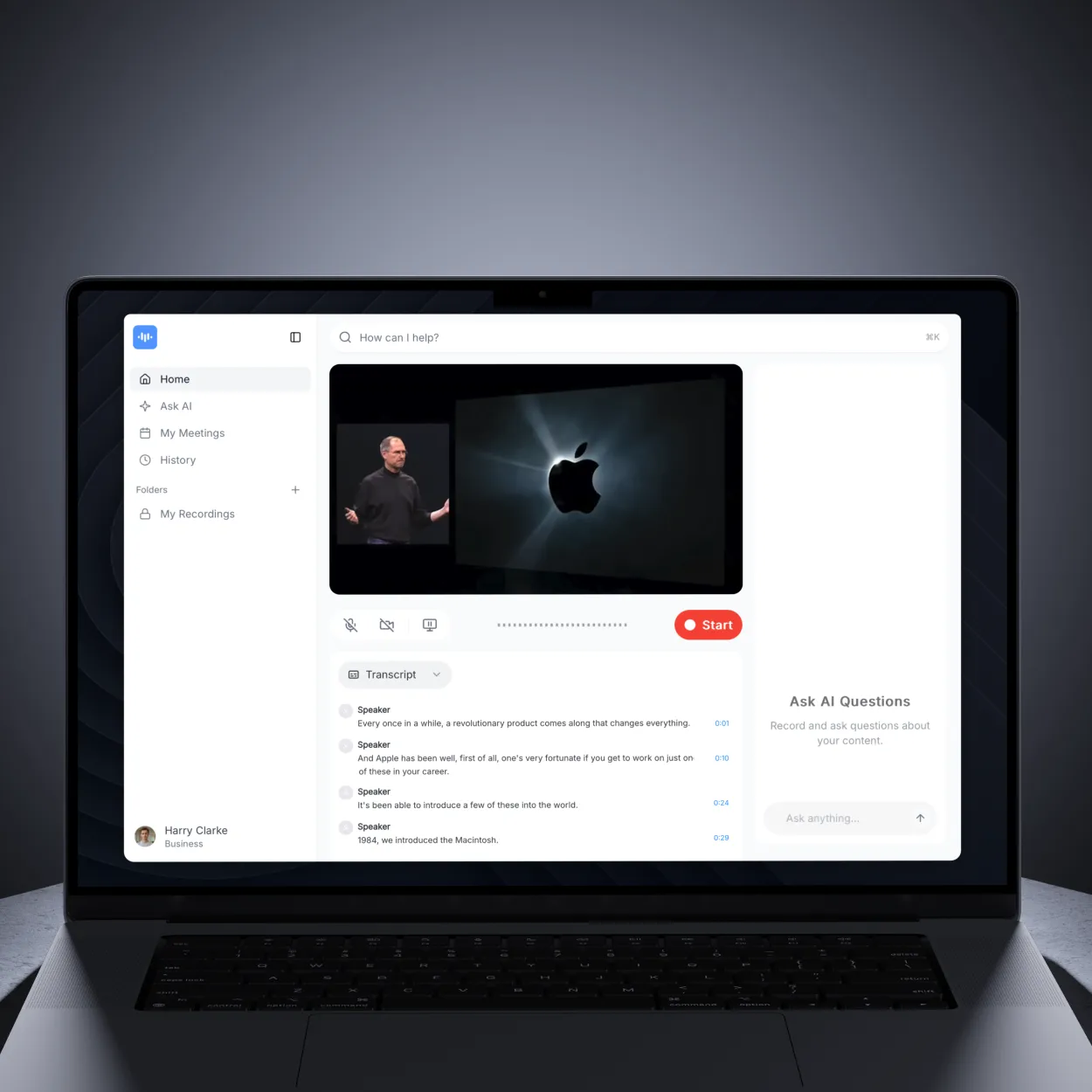
Why Add Subtitles to Videos?
Subtitles make your videos accessible to everyone - from hearing-impaired viewers to global audiences watching without sound. They improve SEO, increase engagement by up to 80%, and ensure compliance with accessibility regulations like WCAG 2.1 and ADA.
AI-powered subtitling is one of the most impactful video editing trends in 2026, making caption creation faster and more accurate than ever before.
Whether you’re creating educational content, marketing videos, social media posts, or business presentations, subtitles are essential for maximum reach and impact.
What You’ll Need
Before adding subtitles, ensure you have:
- A video file (MP4, MOV, AVI, WebM, or any format)
- Clear audio track (for auto-generation accuracy)
- ScreenApp account (free sign-up at screenapp.io)
- Internet connection for processing
Method 1: Auto-Generate Subtitles with AI
ScreenApp’s AI automatically generates accurate subtitles from your video’s audio track.
Step 1: Upload Your Video
- Log into ScreenApp
- Click “Upload” button in your Library or drag and drop your file
- Alternatively, use “Import from URL” to paste a YouTube URL or direct video link
- Wait for upload to complete (10-30 seconds depending on file size)
Supported formats: MP4, MOV, AVI, WebM, MKV, FLV, WMV, and 50+ more
Step 2: AI Auto-Generation
Once uploaded:
- ScreenApp automatically detects speech in your video
- AI transcribes audio to text with 99% accuracy
- Subtitles are synchronized with timestamps automatically
- Processing typically takes 1-3 minutes depending on video length
What happens during processing:
- Speech-to-text conversion using advanced AI models
- Speaker detection (identifies different voices)
- Timestamp synchronization (subtitles match audio perfectly)
- Punctuation and capitalization applied automatically
Step 3: Review Auto-Generated Subtitles
After processing completes:
- Your video appears in the Library with subtitles ready
- Click the video to open it
- Navigate to the Transcript tab to see subtitles
- Click any subtitle line to jump to that moment in the video
Check for accuracy:
- Technical terms or jargon (AI may need correction)
- Names of people or brands
- Acronyms and abbreviations
- Background noise or unclear audio
Method 2: Manually Edit Subtitles
For perfect accuracy, edit auto-generated subtitles with inline editing.
Editing Auto-Generated Subtitles
- Open your video in ScreenApp
- Navigate to the Transcript tab
- Click any subtitle line to start editing
- A text field appears - type your corrections
- Press Enter to save or Escape to cancel
- Changes save automatically to the video
Editing tips:
- Fix technical terms and proper nouns first
- Split long subtitles into shorter segments (max 2 lines)
- Ensure subtitles stay on screen for 1-3 seconds minimum
- Break at natural pauses in speech
- Use punctuation for clarity
Adjusting Subtitle Timing
While ScreenApp automatically syncs subtitles with audio, you can fine-tune timing if needed:
- Subtitles are automatically timestamped during AI generation
- Click any subtitle segment to see its timestamp
- The video player jumps to that exact moment
- Timing adjustments are handled through re-processing if accuracy issues occur
Timing best practices:
- ScreenApp’s AI automatically ensures subtitles appear in sync with speech
- Each subtitle stays on screen for an appropriate reading duration
- Natural pauses between speakers are respected
- Reading speed optimized at 160-180 words/minute
Exporting Subtitles
ScreenApp supports all major subtitle formats for universal compatibility.
Available Export Formats
- SRT (.srt) - “SRT Subtitles” - Most compatible format for video players
- VTT (.vtt) - “WebVTT Subtitles” - For web video players and HTML5
- TXT (.txt) - “Plain Text” - Simple text-only transcript
- DOCX (.docx) - “Word Document” - Formatted transcript with timestamps
- PDF (.pdf) - “PDF Document” - Professional format for sharing
How to Export Subtitles
- Open your video in ScreenApp
- Click the “Download” button (Download icon)
- A dialog appears with format options
- Select your preferred format:
- SRT Subtitles - For uploading to YouTube, video editors
- WebVTT Subtitles - For web players
- Plain Text - For simple text copy
- The file downloads immediately to your computer
File naming: Files download with descriptive names based on your video title
Multi-Language Subtitles
Reach global audiences by translating subtitles into multiple languages.
Auto-Translate Subtitles
ScreenApp automatically translates subtitles into 100+ languages:
- Open your video with subtitles
- Click the “Translate” button in the video controls
- A language selection dialog appears
- Search or select your target language from the list
- Translation generates in 30-60 seconds
- The translated transcript appears in the Transcript tab
Supported languages include:
- Popular: English, Spanish, French, German, Portuguese, Chinese, Japanese, Korean, Russian, Hindi
- All languages: 100+ languages from Afrikaans to Zulu
- Languages are searchable by name in the dialog
Downloading Translated Subtitles
After translating to a target language:
- The translated transcript is now available in your video
- Click “Download” to export the translated version
- Select format (SRT, VTT, TXT, DOCX, PDF)
- Download includes the translated text
Translation tips:
- Auto-translated subtitles are 85-90% accurate
- Review translations with native speakers for business-critical content
- Technical terms may need manual correction
- Cultural idioms adapt automatically where possible
Subtitle Best Practices
Accessibility Guidelines (WCAG 2.1 Compliance)
To meet accessibility standards:
- Reading speed: Maximum 160-180 words per minute
- Line length: Maximum 42 characters per line
- Lines per subtitle: Maximum 2 lines
- Timing: Minimum 1 second on-screen, maximum 6 seconds
- Speaker identification: Use labels for multi-speaker content
- Sound effects: Include non-speech sounds in [brackets], e.g., [music playing]
Subtitle Formatting Standards
Capitalization:
- Capitalize proper nouns, start of sentences
- Avoid ALL CAPS unless indicating shouting
Punctuation:
- Use periods, commas, question marks naturally
- Use ellipses (…) for trailing off
- Use dashes (—) for interruptions
Line breaks:
- Break at natural speech pauses
- Keep related phrases together
- Avoid splitting names or titles across lines
Speaker labels:
[JOHN]: Welcome to the presentation.
[SARAH]: Thanks for having me.
Common Use Cases
Educational Videos & Lectures
- Upload recorded lecture or tutorial
- Auto-generate subtitles for students
- Edit for technical accuracy (formulas, terminology)
- Translate for international students
- Export SRT files for LMS platforms (Canvas, Moodle, Blackboard)
Educational benefits:
- Students can review material at their own pace
- Search transcripts for specific topics
- Accessibility for hearing-impaired students
- Language learners benefit from reading along
Social Media Videos
- Upload social media video (often watched on mute)
- Generate subtitles automatically
- Keep subtitles concise (1 line preferred)
- Download video with burned-in subtitles
- Upload to Instagram, TikTok, Facebook, LinkedIn
Social media stats:
- 85% of Facebook videos watched without sound
- Subtitled videos get 40% more engagement
- Viewers watch 12% longer with subtitles
YouTube Videos
- Paste YouTube URL into ScreenApp
- Generate subtitles automatically
- Download SRT file
- Upload to YouTube via Studio > Subtitles > Upload file
- YouTube displays subtitles with viewer control
YouTube SEO benefits:
- Subtitles improve search rankings
- YouTube indexes subtitle content for discovery
- Automatic translation increases global reach
Business & Marketing Videos
- Upload product demo or marketing video
- Generate professional subtitles
- Translate into target market languages
- Download with burned-in subtitles for ads
- Or use separate SRT files for website embedding
Marketing impact:
- 80% higher conversion rates with subtitles
- Global campaigns reach wider audiences
- Accessibility compliance for corporate standards
Troubleshooting Common Issues
”Subtitles are inaccurate”
Causes:
- Poor audio quality (background noise, echo)
- Heavy accents or unclear speech
- Technical jargon AI doesn’t recognize
Solutions:
- Use the subtitle editor to manually correct errors
- Upload higher-quality audio if possible
- Add custom vocabulary for technical terms
- Break into shorter clips for complex audio
”Subtitles out of sync”
Causes:
- Video edited after subtitle generation
- Incorrect frame rate or time base
- Manual timing errors
Solutions:
- Click “Re-sync” to auto-adjust timing
- Manually adjust start/end times in editor
- Re-generate subtitles from original video
- Use the visual timeline to drag and adjust
”Can’t export subtitles”
Causes:
- Processing still in progress
- Browser extension blocking download
- Network connectivity issue
Solutions:
- Wait for processing to complete (check progress bar)
- Disable browser extensions temporarily
- Try different browser (Chrome, Firefox, Safari)
- Contact support if issue persists
”Subtitle format not compatible”
Causes:
- Video player doesn’t support chosen format
- Incorrect file extension
Solutions:
- Export as SRT (most universally compatible)
- Convert using ScreenApp’s format converter
- Check video player documentation for supported formats
- For web use, try VTT format
Advanced Subtitle Features
Speaker Diarization
ScreenApp automatically identifies different speakers:
- Upload multi-speaker video (interviews, podcasts, meetings)
- AI detects voice changes and labels speakers
- Edit speaker labels in transcript editor
- Export with speaker-labeled subtitles
Format:
[Speaker 1]: First person's dialogue here.
[Speaker 2]: Second person's response.
Subtitle Styling
For ASS format subtitles, customize appearance:
- Export as ASS format
- Open in subtitle editor (Aegisub, Subtitle Edit)
- Customize font, color, position, effects
- Save and re-import to video editor
Styling options:
- Font family and size
- Text color and background
- Position on screen
- Fade in/out effects
Batch Subtitle Generation
Process multiple videos at once:
- Select multiple videos in Library
- Click “Batch Actions”
- Select “Generate Subtitles”
- Choose language and format
- All videos process simultaneously
Time savings: Process 10-50 videos in the time it takes to do one manually.
Next Steps
Now that you know how to add subtitles to videos, explore these related topics:
- How to Translate Videos - Create multi-language subtitles and dubbed audio
- How to Transcribe Audio to Text - Generate subtitles from video transcription
- How to Convert Videos - Export videos with embedded subtitles
Start Adding Subtitles Today
ScreenApp makes subtitle generation effortless with AI-powered accuracy, automatic translation, and universal format support. Create accessible, engaging videos that reach global audiences.
Ready to add subtitles to your first video? Start using ScreenApp for free and follow this guide.