
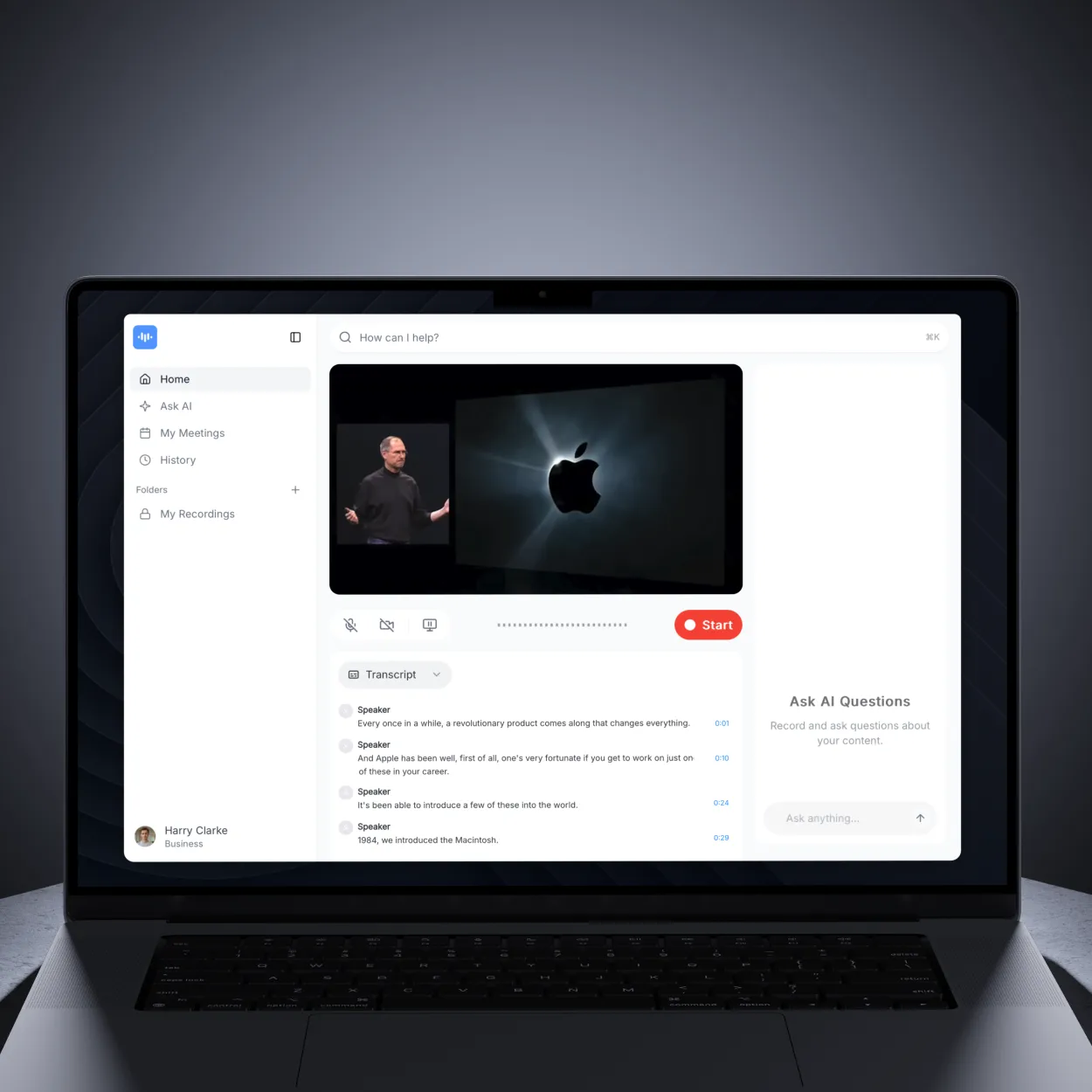
Why Transcribe Audio to Text?
Transcription transforms spoken words into searchable, shareable text. Whether you’re recording meetings, interviews, lectures, podcasts, or voice memos, transcripts make content accessible, searchable, and repurposable.
Key benefits:
- Accessibility: Make audio content available to deaf and hard-of-hearing audiences
- Searchability: Find specific quotes or topics instantly
- Productivity: Review hours of content in minutes by scanning text
- SEO: Text content ranks in search engines (audio doesn’t)
- Repurposing: Turn audio into blog posts, social media content, or documentation
What You’ll Need
Before transcribing, ensure you have:
- Audio or video file (MP3, MP4, WAV, M4A, or any format)
- Clear audio quality (reduces errors and editing time)
- ScreenApp account (free at screenapp.io)
- Internet connection for AI processing
How AI Transcription Works
ScreenApp uses advanced speech recognition AI to convert audio to text:
- Audio Analysis: AI processes your audio file and detects speech patterns
- Speech Recognition: Advanced models (like Whisper AI) convert speech to text
- Speaker Detection: AI identifies different voices and labels speakers
- Timestamp Sync: Every word gets timestamped for easy navigation
- Post-Processing: Punctuation, capitalization, and formatting applied automatically
Accuracy: 99% for clear audio with minimal background noise. Accuracy decreases with:
- Heavy accents or unclear speech
- Background noise or music
- Multiple overlapping speakers
- Low-quality audio files
Step-by-Step: Transcribe Audio Files
Step 1: Upload Your Audio or Video
- Go to ScreenApp Transcription
- Click “Upload” button or drag and drop your audio/video file into your Library
- Wait for upload to complete (10-60 seconds depending on file size)
Supported formats:
- Audio: MP3, WAV, M4A, AAC, FLAC, OGG, WMA, AIFF
- Video: MP4, MOV, AVI, WebM, MKV, FLV, WMV, MPEG
- File size: Up to 5GB per file
Upload from URL:
- Use the “Import from URL” option
- Paste YouTube, Vimeo, or direct audio/video link
- ScreenApp downloads and transcribes automatically
Step 2: AI Automatic Transcription
Once uploaded:
- ScreenApp automatically starts transcription
- Processing time: ~1 minute per 10 minutes of audio
- Status updates show progress:
- “Transcribing…” - AI converting speech to text
- “Diarizing…” - Identifying different speakers (if multi-speaker audio)
- “Processing templates…” - Generating AI summaries
- You’ll see “Transcription complete” when finished
What happens during processing:
- Audio extraction (from video files)
- Noise reduction and audio enhancement
- Speech-to-text conversion with AI
- Speaker diarization (identifying different speakers)
- Timestamp synchronization
- Punctuation and formatting automatically applied
Step 3: Review Your Transcript
After processing completes:
- Your file appears in Library with transcript ready
- Click the file to open it
- Navigate to the Transcript tab
- Transcript displays with synchronized timestamps and speaker labels
Transcript tab features:
- Auto-scroll: Transcript follows audio playback
- Click to jump: Click any line to jump to that moment
- Search: Find specific words or phrases instantly
- Speaker labels: Different speakers identified automatically
- Timestamps: Every segment timestamped precisely
Step 4: Edit for Perfect Accuracy
Even with 99% accuracy, review and edit for:
- Technical terms: Industry jargon AI may not recognize
- Names: People, companies, brands
- Acronyms: Spelled-out vs. abbreviated
- Punctuation: Add or correct for clarity
How to edit:
- Open the Transcript tab
- Click any word or segment to start editing
- An inline text field appears
- Type your corrections
- Press Enter to save or Escape to cancel
- Changes save automatically
Editing tips:
- Listen to audio while editing for context
- Speaker names can be edited by clicking the speaker label
- Use search to find all instances of a term
Speaker Diarization: Who Said What?
ScreenApp automatically identifies different speakers in your audio.
How Speaker Detection Works
- AI analyzes voice characteristics (pitch, tone, cadence)
- Detects voice changes and creates speaker segments
- Labels speakers as “Speaker 1”, “Speaker 2”, etc.
- You can rename speakers to actual names
Best results with:
- Clear, distinct voices
- Minimal speaker overlap
- Good audio quality
- Pauses between speakers
Editing Speaker Labels
To rename speakers:
- Open transcript editor
- Click speaker label (e.g., “Speaker 1”)
- Type actual name (e.g., “John Smith”)
- All instances update automatically throughout transcript
Speaker label formatting:
John Smith: Welcome to today's meeting.
Sarah Johnson: Thanks, John. Let's start with Q1 results.
John Smith: Great idea. Revenue is up 15% this quarter.
Multi-Speaker Use Cases
Interviews:
- Interviewer and interviewee clearly labeled
- Easy to extract quotes from specific person
- Export with speaker attributions
Meetings:
- Track who said what for meeting minutes
- Identify action items by person
- Create searchable meeting archives
Podcasts:
- Host and guest(s) automatically separated
- Create show notes with speaker quotes
- Timestamp specific guest responses
Exporting Transcripts
ScreenApp offers multiple export formats for different use cases.
Available Export Formats
- Plain Text (.txt) - Simple text file with no formatting
- Word Document (.docx) - Formatted document with timestamps and speaker labels
- PDF Document (.pdf) - Professional format for sharing and printing
- SRT Subtitles (.srt) - Subtitle format with timestamps (for videos)
- WebVTT Subtitles (.vtt) - Web video subtitle format (for videos)
How to Export
- Open your transcribed file
- Click the “Download” button (Download icon)
- A dialog appears showing available formats
- Select your preferred format:
- Plain Text - Instant download, basic formatting
- Word Document - Includes speaker names and timestamps
- PDF Document - Formatted for professional use
- SRT/VTT - For adding subtitles to videos
- The file downloads automatically to your computer
File naming: Files download with names based on your original file
Export Use Cases
For documentation (Word/PDF):
- Include timestamps and speaker labels
- Add AI-generated summary at top
- Professional formatting for reports
For subtitles (SRT/VTT):
- Timestamps required
- Speaker labels optional
- Used for video captioning
For analysis (JSON):
- Structured data for processing
- Includes metadata (duration, speakers, confidence scores)
- For developers building integrations
Transcribing Different Content Types
Meeting Transcription
Best practices:
-
Before meeting:
- Test audio setup
- Enable recording in meeting platform
- Inform participants they’re being recorded
-
During meeting:
- Minimize background noise
- Speak clearly into microphone
- Avoid talking over each other
-
After meeting:
- Upload recording to ScreenApp
- Review transcript for action items
- Extract key decisions and next steps
- Share transcript with attendees
Meeting transcript workflow:
1. Record meeting (Zoom, Google Meet, Teams)
2. Download recording
3. Upload to ScreenApp
4. Auto-transcribe (5-10 min processing)
5. Edit speaker names and key points
6. Export as Word/PDF
7. Distribute to team
Interview Transcription
Journalist and researcher workflow:
- Record interview (phone, video call, in-person)
- Upload to ScreenApp immediately after
- Get transcript while memory is fresh
- Review and add notes/context
- Extract quotes for articles
- Archive with searchable text
Tips for interview transcripts:
- Tag important quotes with highlights
- Add [context notes] in brackets
- Mark [inaudible] sections for follow-up
- Export with timestamps for verification
Podcast Transcription
Content creator workflow:
- Record podcast episode
- Upload to ScreenApp for transcription
- Edit transcript for show notes
- Create blog post from transcript
- Extract social media quotes
- Add transcript to podcast page for SEO
Podcast SEO benefits:
- Search engines index podcast content
- Listeners can search for specific topics
- Accessibility for deaf/hard-of-hearing
- Repurpose into multiple content formats
Lecture Transcription
Student and educator workflow:
- Record lecture (with permission)
- Transcribe immediately after class
- Review transcript while studying
- Search for specific concepts or terms
- Share with classmates (if allowed)
- Create study guides from transcript
Educational benefits:
- Study at your own pace
- Review complex topics multiple times
- Search for key terms instantly
- Accessibility for all learning styles
Voice Memo Transcription
Quick thoughts and ideas:
- Record voice memo on phone
- Upload to ScreenApp
- Get text version instantly
- Copy/paste into notes, docs, or tasks
- Search archived memos by keyword
Use cases:
- Capture ideas while commuting
- Interview notes on-the-go
- Verbal to-do lists
- Quick reports or summaries
Advanced Transcription Features
Live Transcription
Transcribe in real-time as audio plays:
- Click “Record and Transcribe”
- Grant microphone permission
- Speak or play audio
- Words appear instantly as you speak
- Stop recording when finished
Live transcription use cases:
- Real-time meeting notes
- Live presentations with captions
- Dictation for writing
- Accessibility for live events
Timestamp Navigation
Every transcript word has a timestamp for precise navigation:
- Click any word in transcript
- Audio jumps to that exact moment
- Hear context around specific quote
- Verify accuracy of important statements
Timestamp formats:
00:01:23= Hours:Minutes:Seconds- Clickable in transcript viewer
- Included in SRT/VTT exports
Search and Filter
Find specific content in long transcripts:
- Click “Search” icon in transcript viewer
- Type keyword or phrase
- Results highlight in transcript
- Click any result to jump to that timestamp
- Navigate between search results with arrows
Advanced search:
- Search across multiple transcripts
- Filter by speaker
- Filter by date range
- Export search results only
AI Summary
Get instant summaries of transcribed content:
- Open transcript
- Click “AI Summary”
- ScreenApp generates key points automatically
- Review 3-5 sentence summary
- Export summary with transcript
Summary accuracy: Best for structured content (meetings, interviews, presentations). Less effective for casual conversations.
Transcription Best Practices
Improving Audio Quality
For best transcription accuracy:
Before recording:
- Use external microphone (not built-in)
- Record in quiet environment
- Test audio levels (not too quiet, not clipping)
- Position mic 6-12 inches from mouth
During recording:
- Speak clearly and at moderate pace
- Minimize background noise (close windows, turn off fans)
- Avoid rustling papers or tapping
- Allow pauses between speakers
Audio cleanup tools:
- Use noise reduction before uploading
- Normalize audio levels
- Remove long silences (saves processing time)
Formatting Guidelines
For professional transcripts:
-
Verbatim vs. Clean:
- Verbatim: Include “um”, “uh”, false starts, repetitions
- Clean: Remove filler words for readability
- Choose based on use case (legal = verbatim, content = clean)
-
Speaker attribution:
Full Name: First statement or question. Full Name: Response here. -
Non-speech sounds:
- [laughter]
- [pause]
- [inaudible]
- [crosstalk]
-
Timestamps:
- Include for long transcripts (>30 min)
- Every 1-5 minutes as paragraph breaks
- Or every speaker change
Accuracy Checking
Verify transcript accuracy:
- Spot check method: Listen to random 1-minute sections
- Full review: Play audio while reading along (for critical content)
- Third-party review: Have someone unfamiliar listen and compare
- Automated check: Use ScreenApp’s confidence scores (low = review needed)
When to do full review:
- Legal proceedings or depositions
- Published content (articles, books)
- Academic research
- Medical or technical documentation
Troubleshooting Common Issues
”Transcription is inaccurate”
Causes:
- Poor audio quality
- Heavy accents
- Technical jargon
- Multiple overlapping speakers
Solutions:
- Re-upload with enhanced audio (noise reduction applied)
- Manually edit inaccurate sections
- Use transcript editor while listening to audio
- For critical content, consider human review
”Speaker diarization didn’t work”
Causes:
- Similar-sounding voices
- Speakers talking over each other
- Poor audio separation (phone calls, conference rooms)
Solutions:
- Manually assign speaker labels in editor
- Use timestamps to identify speaker changes
- Listen and mark speaker transitions
- Combine with video if available (visual cues)
“Transcript too long to review”
Causes:
- Multi-hour recordings
- Limited time for editing
Solutions:
- Use AI summary to get overview
- Search for specific topics/keywords
- Export and share for collaborative editing
- Focus on editing critical sections only
”Can’t export transcript”
Causes:
- Processing not complete
- Browser issues
- File format not supported
Solutions:
- Wait for processing to finish (check status)
- Try different export format (TXT always works)
- Clear browser cache and retry
- Use different browser (Chrome recommended)
Integrations and Workflow Automation
Transcribe from Cloud Storage
Link your cloud accounts for seamless transcription:
- Connect Dropbox, Google Drive, or OneDrive
- Select files directly from cloud storage
- Transcribe without downloading locally
- Save transcripts back to cloud automatically
API Access for Developers
Automate transcription in your apps:
- Get API key from ScreenApp dashboard
- Send audio files via REST API
- Receive JSON transcripts in response
- Integrate into existing workflows
API use cases:
- Auto-transcribe customer calls
- Transcribe user-generated content
- Build voice-controlled apps
- Create searchable audio archives
Enterprise API Options (March 2026): Zoom now offers “Zoom AI Services” for developers, providing enterprise-grade speech recognition, transcription, and translation APIs. These join other enterprise solutions like AWS Transcribe and Google Cloud Speech-to-Text for organizations building custom voice applications.
Chrome Extension
Transcribe browser audio instantly:
- Install ScreenApp Chrome Extension
- Play any video or audio in browser
- Click extension icon to start transcribing
- Get transcript without downloading file
Works on:
- YouTube videos
- Podcast websites
- Video conferencing (Google Meet, Zoom web)
- Any browser audio/video
Transcription Pricing and Limits
Free plan:
- 30 minutes transcription per month
- All export formats included
- Speaker diarization included
- 99% accuracy guarantee
Pro plan:
- Unlimited transcription
- Priority processing (faster)
- Bulk transcription (process multiple files)
- API access
- Team collaboration features
Next Steps
Now that you know how to transcribe audio to text, explore these related guides:
- Speaker Diarization Guide - Master multi-speaker transcription
- Meeting Notes Best Practices - Extract action items and decisions from meetings
- How to Add Subtitles to Videos - Turn transcripts into video captions
Start Transcribing Today
ScreenApp makes audio transcription effortless with AI-powered accuracy, automatic speaker detection, and flexible export options. Transform your audio content into searchable, shareable text in minutes.
Ready to transcribe your first audio file? Start using ScreenApp for free and follow this guide.