
Why Analyze Videos with AI?
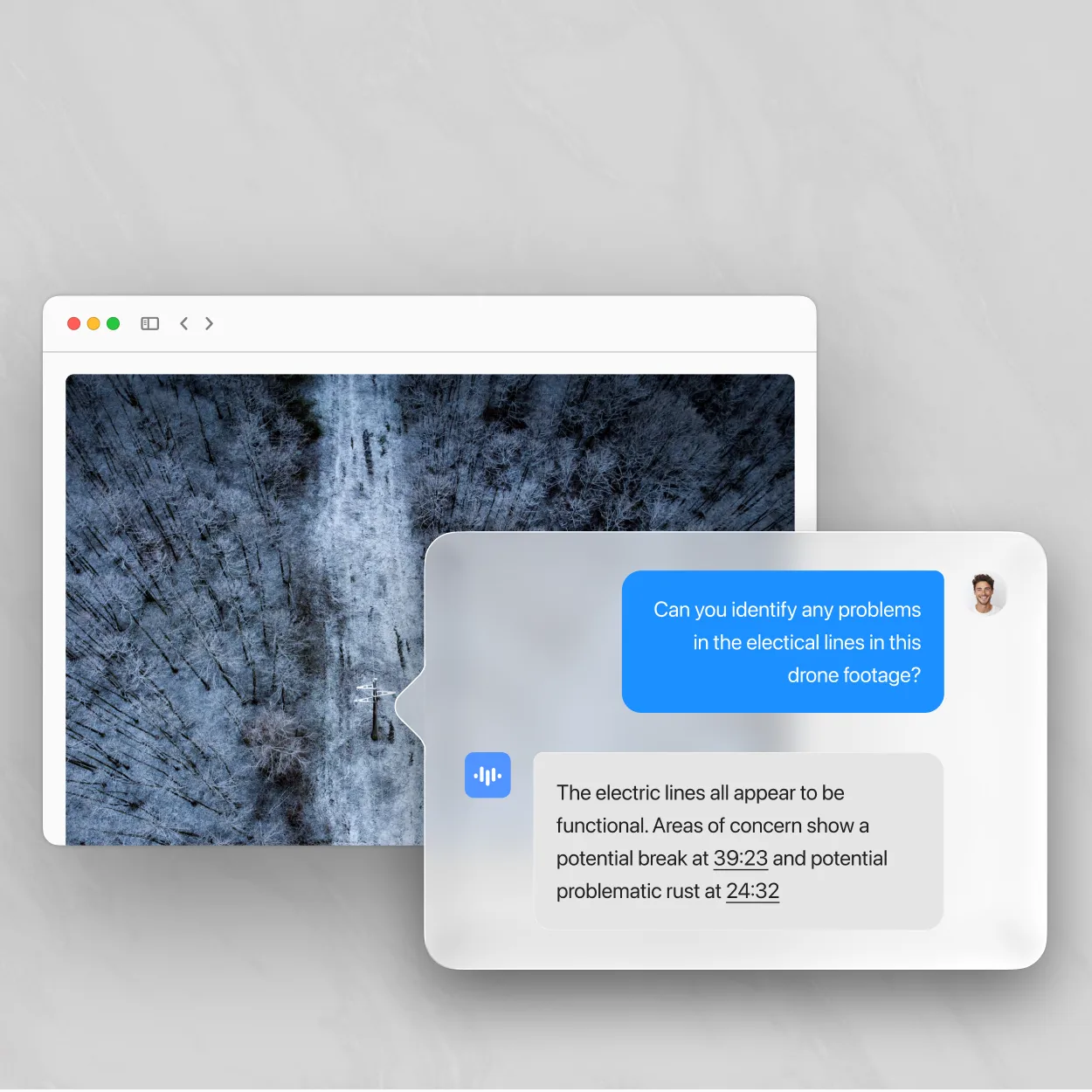
Video analysis transforms raw footage into actionable insights. Whether you’re analyzing customer interviews, training videos, meetings, or content performance, AI extracts patterns, sentiment, and key information faster than manual review. Choosing the right platform matters. See our detailed comparison of AI video analyzer tools for pricing and features, or check our broader AI video intelligence platforms review for transcription, brand monitoring, and search capabilities.
Common video analysis needs:
- Customer research: Analyze user interviews for pain points and preferences
- Content optimization: Understand what resonates in your videos
- Meeting intelligence: Extract decisions, sentiment, and engagement levels
- Training effectiveness: Evaluate instructional content clarity and comprehension
- Quality assurance: Review support calls for compliance and quality
- Market research: Analyze competitor content or industry trends
What You’ll Need
Before analyzing videos:
- Video file or URL (any format, any length)
- ScreenApp account (free at screenapp.io)
- Clear analysis goal (what insights do you need?)
- Internet connection for AI processing
How ScreenApp Video Analysis Works
ScreenApp uses multi-layered AI analysis:
- Content Extraction: Automatic transcription of all spoken words
- Visual Analysis: Scene detection, object recognition, text extraction
- Sentiment Analysis: Emotional tone detection (positive, negative, neutral)
- Topic Modeling: Identifies main themes and subjects discussed
- Pattern Recognition: Finds recurring concepts across multiple videos
- Insight Generation: AI generates actionable summary and recommendations
Analysis dimensions:
- Speech: What was said (transcription, keywords, topics)
- Emotion: How it was said (sentiment, tone, energy level)
- Visual: What was shown (scenes, objects, text on screen)
- Structure: Content organization (chapters, sections, flow)
- Engagement: Potential viewer response (predicted interest, clarity)
Step-by-Step: Analyze Videos with AI
Step 1: Upload Video for Analysis
- Go to ScreenApp Video Analyzer
- Upload video file or paste URL
- Wait for upload and initial processing
- Automatic transcription begins
Supported sources:
- Upload file: MP4, MOV, AVI, WebM, MKV, and 50+ formats
- Paste URL: YouTube, Vimeo, social media links
- Import from cloud: Dropbox, Google Drive, OneDrive
- Screen recording: Record and analyze immediately
Processing time:
- 5-minute video: ~1-2 minutes
- 30-minute video: ~5-10 minutes
- 2-hour video: ~20-30 minutes
Processing includes:
- Video upload and encoding
- Audio extraction
- Speech-to-text transcription
- Visual scene analysis
- AI insight generation
Step 2: Choose Analysis Type
Select the type of insights you need:
Content Analysis:
- What topics are discussed
- Main themes and subjects
- Key concepts mentioned
- Content structure and flow
Sentiment Analysis:
- Overall emotional tone (positive, negative, neutral)
- Sentiment changes throughout video
- Speaker emotion and energy
- Audience response prediction
Keyword Analysis:
- Most frequent words and phrases
- Technical terms and jargon
- Named entities (people, places, brands)
- Search-optimized keywords for SEO
Performance Analysis:
- Engagement prediction
- Content clarity score
- Pacing and structure evaluation
- Recommendations for improvement
Comparative Analysis:
- Compare multiple videos
- Find common themes
- Identify differences
- Track changes over time
Step 3: Review Automatic Insights
After processing, ScreenApp generates comprehensive analysis:
Transcript Analysis
Full Transcript with Timestamps:
- Every spoken word captured
- Speaker labels (who said what)
- Timestamp for each section
- Searchable and editable
Transcript Statistics:
- Total word count
- Speaking pace (words per minute)
- Unique vocabulary count
- Reading level (Flesch-Kincaid score)
Topic Extraction
Main Topics Identified (3-7 topics):
Example for marketing webinar:
1. Product Features (35% of content)
   - Mentioned 24 times
   - Key phrases: "automation", "integration", "workflow"

2. Pricing and Plans (25% of content)
   - Mentioned 16 times
   - Key phrases: "subscription", "free trial", "enterprise"

3. Customer Success Stories (20% of content)
   - Mentioned 12 times
   - Key phrases: "case study", "results", "ROI"

4. Implementation Process (15% of content)
   - Mentioned 10 times
   - Key phrases: "onboarding", "setup", "training"

5. Q&A Session (5% of content)
   - Mentioned 4 times
   - Key phrases: "question", "answer", "clarification"
Topic Timeline:
- Shows when each topic discussed
- Visualizes topic transitions
- Identifies topic concentration (did video stay focused?)
Sentiment Analysis
Overall Sentiment Score:
- Positive: 0% to 100%
- Negative: 0% to 100%
- Neutral: 0% to 100%
Example:
Overall Sentiment: 72% Positive, 8% Negative, 20% Neutral

Sentiment Breakdown:
- Opening (0:00-2:30): 85% Positive - Enthusiastic introduction
- Middle (2:30-15:00): 65% Positive - Mixed discussion of challenges
- Q&A (15:00-20:00): 70% Positive - Constructive questions and answers
- Closing (20:00-22:00): 90% Positive - Strong, optimistic conclusion
Sentiment Timeline Graph:
- X-axis: Video timeline
- Y-axis: Sentiment score (-100 to +100)
- Visual representation of emotional journey
Emotional Markers:
- Peak positive moments (great for highlights)
- Negative dips (areas needing improvement)
- Emotional consistency (steady vs. fluctuating)
Keyword Extraction
Top Keywords (20-30 most frequent):
Example for product demo:
1. "automation" - 47 mentions
2. "integration" - 32 mentions
3. "workflow" - 28 mentions
4. "dashboard" - 24 mentions
5. "analytics" - 21 mentions
...and so on
Keyword Categories:
- Product features
- Industry terms
- Action verbs
- Descriptive adjectives
- Company/brand names
SEO Keywords:
- High-volume search terms mentioned
- Recommended video titles based on content
- Suggested tags for video platforms
- Content gaps (keywords you should mention more)
Visual Analysis
Scene Detection:
- Total scenes identified (visual changes)
- Average scene duration
- Scene types (presentation slides, talking head, screen share, etc.)
Text Extraction (OCR):
- All text visible on screen extracted
- Slide titles and bullet points captured
- Graphics and charts text recognized
- URLs and contact info detected
Object Detection:
- Common objects recognized (laptop, phone, whiteboard, etc.)
- Brand logos identified
- Visual elements cataloged
Step 4: Generate Analysis Report
Click “Generate Report” to create comprehensive analysis document:
Report includes:
1. Executive Summary:
- One-paragraph overview of video content
- Main conclusion or takeaway
- Key metrics (duration, word count, topics)
2. Content Overview:
- Detailed topic breakdown
- Time allocation per topic
- Content structure analysis
3. Sentiment Analysis:
- Overall sentiment score
- Emotional journey visualization
- Positive and negative highlights
4. Key Insights (5-10 bullet points):
- Most important findings
- Surprising discoveries
- Actionable recommendations
5. Keywords and Themes:
- Top 30 keywords with frequencies
- Thematic clustering
- SEO recommendations
6. Recommendations:
- Content improvements suggested
- Optimization opportunities
- Next steps or follow-ups
7. Appendix:
- Full transcript
- Raw data and statistics
- Technical details
Export formats:
- PDF: Professional report for sharing
- Word (DOCX): Editable analysis document
- Excel (XLSX): Data and statistics for further analysis
- JSON: Raw data for developers
Step 5: Deep Dive into Specific Insights
Question Answering (AI Chat)
Ask AI questions about video content:
Example questions:
“What were the main objections raised during the Q&A?”
AI: “Three main objections: 1) Pricing concerns (mentioned by 2 participants), 2) Integration complexity (1 participant), 3) Learning curve for team adoption (1 participant)”
“Did anyone mention competitors?”
AI: “Yes, Competitor X was mentioned twice at 8:24 and 14:56. Both mentions were in context of feature comparisons.”
“What action items were assigned?”
AI: “Four action items: 1) Sarah to send pricing sheet by Friday, 2) Mike to schedule demo for next week, 3) Jessica to research integration options, 4) Team to review and provide feedback by Monday”
“Summarize the pricing discussion”
AI: “Pricing discussion occurred from 12:30-15:45. Main points: annual plans offer 20% discount, enterprise tier includes premium support, free trial available for 14 days, custom pricing for teams over 100 users.”
Timestamp Navigation
Jump to specific moments instantly:
- Search for keyword (e.g., “pricing”)
- All mentions appear with timestamps
- Click timestamp to jump to exact moment
- Context provided (surrounding text)
Use cases:
- Find specific answer in long video
- Verify exact quote or statement
- Review particular topic discussion
- Extract specific sections for highlights
Comparison Analysis (Multiple Videos)
Analyze trends across video series:
- Select 2 or more videos
- Click “Compare”
- AI identifies:
- Common themes across all videos
- Unique topics in each video
- Sentiment trends over time
- Keyword evolution
- Content quality changes
Example: Monthly team meetings (Jan - Jun)
Trends Detected:
- "Budget" mentions increased 150% from Jan to Jun
- Sentiment more positive in recent months (45% → 72%)
- "Customer satisfaction" emerged as new topic in Apr
- Average meeting duration decreased from 52min to 38min
- Action item completion rate improved 25%
Advanced Video Analysis Features
Engagement Prediction
AI predicts how viewers will respond:
Metrics analyzed:
- Attention retention: When viewers likely to drop off
- Interest peaks: Most engaging moments
- Clarity score: How easy to understand (0-100)
- Pacing quality: Too fast, too slow, or optimal
Engagement heatmap:
- Green zones: High engagement predicted (keep these sections)
- Yellow zones: Moderate engagement (could improve)
- Red zones: Low engagement predicted (revise or cut)
Optimization suggestions:
- “First 30 seconds slow - add hook to capture attention”
- “Technical jargon heavy at 8:00-12:00 - simplify language”
- “Great storytelling at 15:30 - consider this as opening”
Meeting-Specific Analysis
For recorded meetings, additional insights:
Participation Analysis:
- Speaking time per participant
- Who spoke most/least
- Interruption frequency
- Turn-taking patterns
Decision Tracking:
- Decisions made (with timestamps)
- Who made each decision
- Consensus vs. individual decisions
- Pending vs. finalized decisions
Action Item Extraction:
- Tasks assigned with owner and deadline
- Priority level inferred
- Dependencies identified
- Follow-up requirements
Meeting Effectiveness Score:
- Time efficiency (agenda vs. actual)
- Decision quality (clarity, consensus)
- Participation balance (everyone contributed?)
- Outcome achievement (goals met?)
Custom Analysis Models
Train AI for specific analysis needs:
Industry-Specific Analysis:
- Medical/healthcare compliance review
- Legal deposition analysis
- Sales call quality scoring
- Customer support evaluation
Custom Keyword Sets:
- Upload glossary of technical terms
- Define brand-specific terminology
- Set company acronyms and abbreviations
- Improve accuracy for specialized content
Scoring Criteria:
- Define what “good” looks like
- Set benchmarks and thresholds
- Custom rating scales
- Automated quality scoring
Video Analysis Use Cases
Customer Interview Analysis
Goal: Extract user pain points and feature requests
Process:
- Upload all customer interviews (batch upload)
- Run comparative analysis
- AI identifies:
- Most frequently mentioned problems
- Requested features across all interviews
- Sentiment toward current product
- Competitive comparisons mentioned
Output:
- Prioritized feature request list
- Common pain points with frequency
- Sentiment trends
- Quote highlights for product roadmap
Training Video Effectiveness
Goal: Evaluate if training content is clear and effective
Process:
- Upload training video
- Run engagement and clarity analysis
- Review:
- Content clarity score
- Predicted comprehension level
- Pacing analysis (too fast/slow?)
- Knowledge retention prediction
Output:
- Sections to revise (low clarity)
- Optimal length recommendation
- Suggested improvements
- Comparison to benchmark training videos
Content Performance Analysis
Goal: Understand what makes videos successful
Process:
- Upload high-performing and low-performing videos
- Run comparative analysis
- Identify differences:
- Topics in successful vs. unsuccessful videos
- Sentiment patterns
- Pacing and structure differences
- Keyword optimization
Output:
- Content formula for success
- Topics to emphasize
- Topics to avoid or minimize
- Optimal video structure template
Competitive Analysis
Goal: Understand competitor content strategy
Process:
- Upload competitor videos (webinars, demos, ads)
- Analyze for:
- Messaging themes
- Feature emphasis
- Target audience signals
- Sentiment and tone
Output:
- Competitive positioning insights
- Content gaps (what they’re not covering)
- Messaging differentiation opportunities
- Trend identification
Exporting and Sharing Analysis
Share Analysis Dashboard
- Click “Share Analysis”
- Copy shareable link
- Recipients access:
- Full analysis report
- Interactive charts and graphs
- Video playback with insights overlay
- Search and navigation tools
Privacy controls:
- Public link (anyone with link)
- Password-protected
- Expiration date
- View-only vs. comment permissions
Export Data for Further Analysis
CSV Export:
- Keyword frequencies
- Sentiment scores by timestamp
- Topic distribution
- Speaker statistics
Excel Export:
- Multiple sheets (transcript, keywords, sentiment, topics)
- Charts and visualizations
- Pivot tables for custom analysis
API Access (Pro):
- Programmatic access to analysis data
- Integrate with BI tools
- Automated reporting workflows
- Custom data pipelines
Troubleshooting Common Issues
Inaccurate Topic Extraction
Causes:
- Video too short (< 2 minutes)
- Very fragmented discussion
- Poor audio quality affecting transcription
Solutions:
- Manually edit transcript for accuracy (AI re-analyzes)
- Combine short videos into longer analysis session
- Improve audio quality before uploading
- Use custom keyword set to guide topic detection
Sentiment Seems Wrong
Causes:
- Sarcasm or irony (AI interprets literally)
- Industry-specific tone (medical discussions sound negative but aren’t)
- Language nuances
Solutions:
- Review sentiment timeline (overall vs. specific moments)
- Adjust for context (serious topics have lower positive scores naturally)
- Focus on sentiment changes (trends) rather than absolute scores
- Manually flag sarcastic sections for re-analysis
Missing Keywords
Causes:
- Unclear audio or mumbling
- Heavy accents
- Technical jargon not in AI dictionary
Solutions:
- Edit transcript to add missed words
- Upload custom keyword glossary
- Re-process after transcript corrections
- Use higher quality audio recordings in future
Next Steps
Now that you know how to analyze videos with AI, explore these related guides:
- How to Summarize Videos with AI - Create concise video summaries
- How to Transcribe Audio to Text - Accurate transcription techniques
- Speaker Diarization Guide - Multi-speaker analysis
Start Analyzing Videos Today
ScreenApp makes video analysis effortless with AI-powered insights, sentiment detection, topic extraction, and comprehensive reporting. Turn hours of footage into actionable intelligence in minutes.
Ready to analyze your first video? Start using ScreenApp for free and discover insights you’ve been missing.