
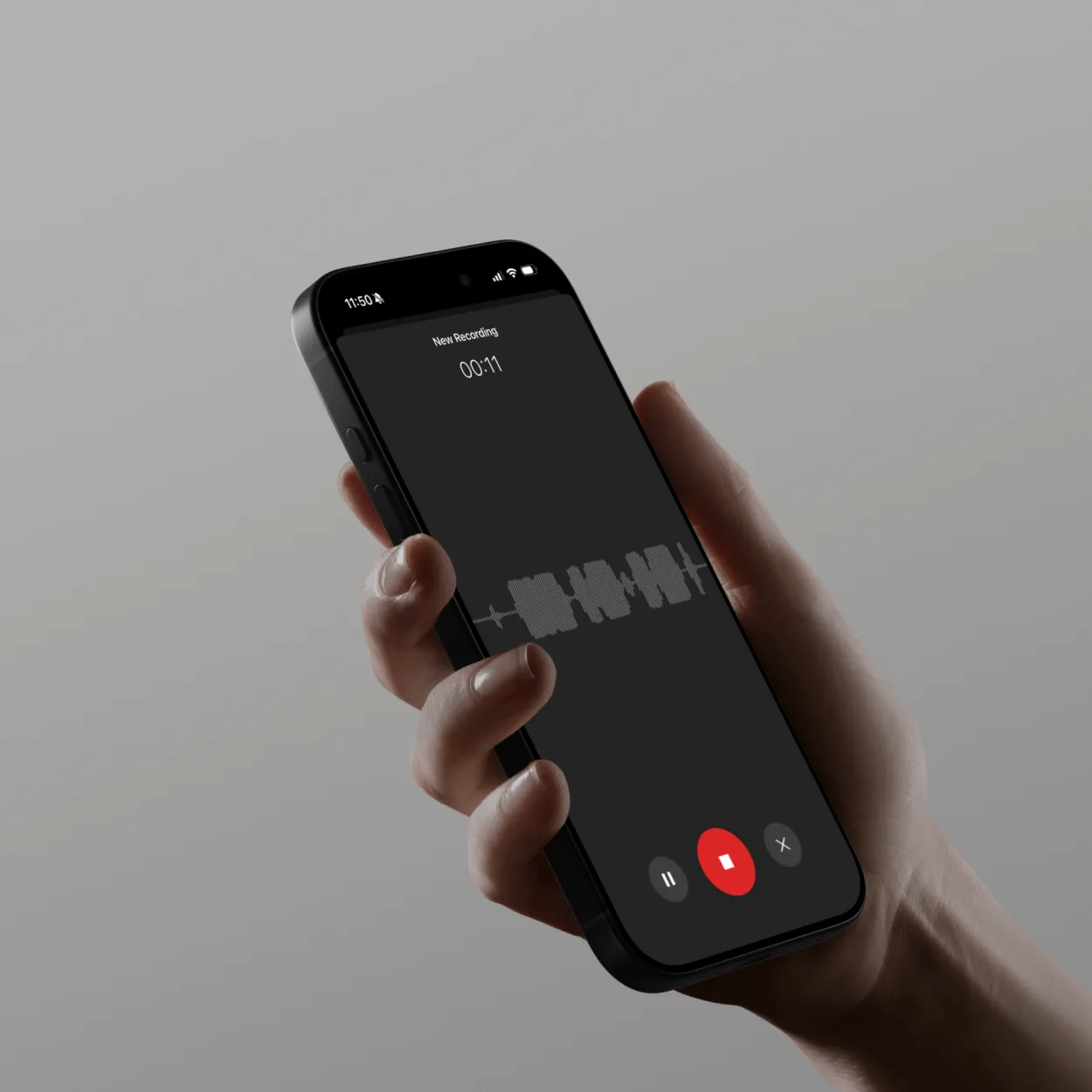
Why Test Your Microphone?
Testing your microphone before important calls prevents embarrassing “Can you hear me?” moments and ensures professional audio quality. A quick mic test identifies issues early, saving time and maintaining your credibility in meetings.
Common microphone problems:
- No audio: Mic not detected or muted
- Low volume: Speaking too quietly or gain too low
- Background noise: Fan sounds, keyboard clicks, room echo
- Distortion: Volume too loud or poor mic quality
- Buzzing/static: Electrical interference or bad connection
What You’ll Need
Before testing your microphone:
- Working microphone (built-in, USB, or headset)
- ScreenApp Voice Tester (free at screenapp.io/app?intent=voice-tester)
- Internet connection
- Quiet environment for accurate testing
- 2-3 minutes for comprehensive test
How ScreenApp Microphone Testing Works
ScreenApp provides instant audio analysis:
- Mic Detection: Automatically finds all available microphones
- Real-Time Monitoring: Visual feedback as you speak
- Quality Analysis: AI checks clarity, volume, and noise levels
- Pass/Fail Results: Clear recommendations for improvements
- Recording Playback: Hear exactly what others will hear
What the test measures:
- Input level: Whether you’re too quiet or too loud
- Clarity score: How clear and understandable your voice is
- Background noise: Ambient sounds that may distract
- Audio consistency: Whether levels fluctuate too much
- Device compatibility: If your mic works with common platforms
Step-by-Step: Test Your Microphone
Step 1: Access ScreenApp Voice Tester
- Open your browser (Chrome, Firefox, Safari, or Edge)
- Go to ScreenApp Voice Tester
- Browser will request microphone permission
- Click “Allow” to grant permission
Privacy note:
- Audio processed locally in your browser
- No recordings sent to servers during testing
- Only you can hear your test recording
- Optional: Save test recording to analyze later
Step 2: Select Your Microphone
After granting permission:
- Click the “Select Microphone” dropdown menu
- Available microphones appear in list:
- Built-in microphone (laptop/computer)
- USB microphone (external mic)
- Headset microphone (wired or Bluetooth)
- Audio interface inputs
How to identify your microphone:
- MacBook: “MacBook Pro Microphone” or “MacBook Air Microphone”
- External USB: Brand name appears (e.g., “Blue Yeti”, “HyperX QuadCast”)
- Headset: Headphone model name (e.g., “AirPods”, “Bose QC45”)
- Bluetooth: May show as “Bluetooth Audio” or device name
Multiple microphones listed?
- Test each one to see which you’re using
- Speak into mic and watch for level movement
- Active mic shows visual feedback when you talk
Step 3: Run Audio Level Test
- Click “Start Test” button
- Speak normally at your regular volume:
- “Testing, one, two, three”
- “This is how I sound in meetings”
- Read a sentence from an email or document
- Visual indicators show:
- Green bars: Optimal audio level (good)
- Yellow bars: Too quiet (increase volume)
- Red bars: Too loud (reduce volume or move away from mic)
Optimal audio levels:
- Green zone: -12dB to -6dB (ideal for voice)
- Yellow zone (too quiet): Below -20dB (hard to hear)
- Red zone (too loud): Above -3dB (distortion risk)
During the test, speak:
- At your normal conversational volume
- At the distance you’ll use during meetings
- In the environment where you’ll take calls (to capture background noise)
Step 4: Check Audio Quality Analysis
After speaking for 5-10 seconds:
AI Quality Analysis Shows:
Clarity Score (0-100):
- 90-100: Excellent - Crystal clear voice
- 75-89: Good - Understandable with minor issues
- 60-74: Fair - Acceptable but could improve
- Below 60: Poor - Difficult to understand clearly
Background Noise Level:
- Low (Green): Quiet environment, professional quality
- Medium (Yellow): Some ambient noise, acceptable for most calls
- High (Red): Loud background noise, may distract from speech
Common noise sources identified:
- Fan or AC unit humming
- Keyboard typing sounds
- Traffic or outdoor noise
- Other people talking in background
- Echo from room acoustics
Recommendations:
- “Move closer to microphone” - if too quiet
- “Reduce input gain” - if too loud/distorting
- “Reduce background noise” - if ambient sounds detected
- “Consider different microphone” - if quality score very low
Step 5: Playback Your Recording
- Click “Play Recording” button
- Listen to exactly what others hear in meetings
- Check for:
- Volume: Can you hear yourself clearly?
- Clarity: Are words crisp and understandable?
- Noise: Any distracting background sounds?
- Echo: Does your voice sound hollow or reverberating?
- Consistency: Does volume stay steady or fluctuate?
What to listen for:
- Breathing sounds (position mic away from nose/mouth)
- Plosives (hard “P” and “B” sounds popping)
- Sibilance (hissing “S” sounds)
- Mouth clicks or smacking sounds
- Room echo or reverb
If recording sounds bad:
- Adjust microphone position (6-12 inches from mouth ideal)
- Change input volume in system settings
- Move to quieter room
- Close windows to reduce outside noise
- Turn off fans or AC temporarily
Advanced Microphone Testing
Testing Multiple Scenarios
Test your mic in different situations:
1. Speaking Normally:
- Regular conversation volume
- Check baseline quality
2. Speaking Quietly:
- Whisper or speak softly
- Tests mic sensitivity for confidential calls
3. Speaking Loudly:
- Raise your voice (not yelling)
- Tests if mic handles volume without distortion
4. With Background Noise:
- Play music or sounds nearby
- Tests noise cancellation effectiveness
5. While Typing:
- Type on keyboard while speaking
- Tests if keyboard noise gets picked up
Results help you:
- Know your mic’s limitations
- Prepare for different meeting scenarios
- Decide if you need better equipment
Webcam and Mic Combined Test
Test both camera and microphone together:
- Click “Test Webcam + Mic”
- Grant camera permission
- See yourself on camera while speaking
- Check:
- Lighting: Can others see you clearly?
- Framing: Are you centered in frame?
- Audio sync: Does audio match your lip movement?
- Overall quality: Professional appearance and sound?
Professional setup checklist:
- ✅ Face well-lit (window or lamp in front, not behind)
- ✅ Camera at eye level (not looking up or down)
- ✅ Clean background (not cluttered or distracting)
- ✅ Audio clear without echo
- ✅ No background noise
Frequency Response Test (Advanced)
For audio professionals or high-quality needs:
- Enable “Advanced Audio Analysis”
- Speak through different vocal ranges:
- Low pitch: “Ho ho ho” (Santa voice)
- Medium pitch: Normal speaking
- High pitch: Excited or emphatic speech
- Analysis shows:
- Frequency response graph: Which frequencies your mic captures well
- Bass response: Low-frequency voice quality
- Treble response: High-frequency clarity
- Overall balance: If voice sounds natural
What the graph means:
- Flat line across frequencies: Ideal, natural sound
- Bass-heavy (left side higher): Warm, deep voice tone
- Treble-heavy (right side higher): Bright, sharp sound
- Uneven: May sound unnatural or tinny
Fixing Common Microphone Issues
Issue: “No Microphone Detected”
Causes:
- Microphone not plugged in properly
- Device disabled in system settings
- Browser permission denied
- Driver issues
Solutions:
Windows:
- Right-click speaker icon in taskbar
- Select “Sound settings”
- Scroll to “Input” section
- Click “Device properties”
- Ensure “Disable” is NOT checked
- Test microphone in Windows settings
Mac:
- Open System Settings > Sound
- Click “Input” tab
- Select your microphone from list
- Adjust input volume slider
- Speak and watch input level bars
Browser:
- Check address bar for microphone icon
- Click icon and ensure permission is “Allow”
- Reload page after changing permission
- Try different browser if issue persists
Issue: Volume Too Low
Causes:
- Input gain set too low
- Mic too far from mouth
- Low-sensitivity microphone
- Application volume limit
Solutions:
-
Adjust input volume:
- Windows: Sound settings > Input > Device properties > Volume slider
- Mac: System Settings > Sound > Input > Input volume slider
- Increase to 75-100%
-
Position microphone closer:
- Ideal distance: 6-12 inches from mouth
- Angle slightly off-axis (prevents breath sounds)
- Test different positions
-
Enable mic boost (Windows only):
- Sound settings > Device properties > Additional device properties
- “Levels” tab > Microphone Boost slider
- Increase to +10dB or +20dB
-
Check application settings:
- Zoom, Teams, Google Meet have independent volume controls
- Open app settings > Audio > Increase mic volume
Issue: Background Noise Too Loud
Causes:
- Noisy environment (AC, fan, traffic)
- High microphone sensitivity picking up everything
- Poor mic quality without noise rejection
- Echo in room
Solutions:
-
Environmental changes:
- Close windows (reduces outside noise)
- Turn off fans or AC temporarily
- Move to quieter room
- Use soft furnishings (carpet, curtains) to absorb sound
-
Use noise cancellation:
- Enable in meeting platform (Zoom, Teams, Meet all have AI noise suppression)
- Use ScreenApp’s built-in noise reduction
- Krisp.ai software for system-wide noise cancellation
-
Directional microphone:
- Position cardioid (directional) mic facing you
- Point away from noise sources
- Creates “dead zone” behind microphone
-
Microphone upgrade:
- Consider USB mic with built-in noise rejection
- Headset mic blocks environmental noise better
- Dynamic mics reject background noise better than condenser mics
Issue: Echo or Reverb
Causes:
- Large, empty room with hard surfaces
- Speaker volume too loud (feedback into mic)
- Poor acoustic environment
- Multiple audio devices active
Solutions:
-
Use headphones:
- Prevents speaker audio from feeding back into mic
- Instantly eliminates echo in most cases
- Wired headphones best (no Bluetooth delay)
-
Improve room acoustics:
- Add soft materials (blankets, pillows, acoustic foam)
- Move away from hard walls
- Sit near curtains or bookshelves (absorb sound)
- Smaller rooms echo less than large empty spaces
-
Reduce speaker volume:
- Lower computer volume
- Move speakers farther from microphone
- Check for multiple audio outputs active
Microphone Recommendations by Use Case
Built-in Laptop Microphone
Pros: Convenient, always available, no setup Cons: Low quality, picks up typing, far from mouth Best for: Quick, informal calls Improvement: Use ScreenApp noise reduction feature
USB Microphone
Pros: High quality, simple plug-and-play, good value Cons: Takes desk space, less portable Best for: Remote work, podcasting, content creation Popular models: Blue Yeti, HyperX QuadCast, Audio-Technica AT2020USB+
Headset Microphone
Pros: Close to mouth (clear audio), eliminates echo, portable Cons: Comfort for long wear, cable management (wired) Best for: All-day meetings, customer support, gaming Popular models: HyperX Cloud II, SteelSeries Arctis, Jabra Evolve2
Lavalier (Clip-on) Microphone
Pros: Hands-free, consistent position, professional look Cons: Visible on camera, wired to phone/computer Best for: Video recording, presentations, on-camera work Popular models: Rode SmartLav+, Sennheiser ME2, Audio-Technica ATR3350
Next Steps
Now that you know how to test your microphone, explore these related guides:
- How to Record Meetings with AI - Professional meeting recording
- Meeting Notes Best Practices - Effective meeting documentation
- How to Record Audio with AI - High-quality audio recording
Test Your Microphone Today
ScreenApp makes microphone testing instant and effortless with real-time quality analysis, playback preview, and actionable recommendations for improvement.
Ready to test your microphone? Start using ScreenApp Voice Tester for free and ensure perfect audio quality for your next meeting.