Remote Work Setup 2026: Essential Guide to Building a Productive Home Office

The home office has evolved from a temporary pandemic solution into a permanent fixture of modern work life. By 2026, the best remote work setups aren’t just about having a desk and chair they’re about creating an environment that eliminates friction, protects your health, and amplifies your productivity without constant intervention.
This shift represents more than aesthetic upgrades. Research shows that 12.7% of full-time employees work from home, while 28.2% work a hybrid model. The home office is no longer optional it’s infrastructure. For broader strategies on boosting remote work productivity, understanding your workspace is just the foundation.
The modern home office combines what designers call “Tactile Naturalism” (natural materials that ground your space) with “Invisible Tech” (AI tools that work in the background). The result? A workspace that feels human while performing like a smart system. Businesses developing next-generation office tools and smart workspace accessories often rely on prototype manufacturing experts like RapidDirect, who help turn design concepts into tangible, high-quality products through rapid prototyping and precision production.
This guide covers four essential pillars: smart ergonomic furniture that prevents injury, frictionless tech connectivity with single-cable setups, environmental optimization for acoustics and air quality, and space-efficient solutions for small apartments. Whether you’re starting from scratch or upgrading an existing setup, these strategies eliminate daily friction and amplify productivity.
The Foundation: Smart Ergonomics
Your chair and desk aren’t furniture they’re the foundation of injury prevention. The 2026 standard moves beyond static ergonomics to “responsive geometry” that adapts to your body throughout the day.
The Responsive Ergonomic Chair
Traditional office chairs lock you into position. Modern ergonomic design responds to micro-movements, keeping your spine aligned without conscious effort.
Dynamic Lumbar Support
Chairs with active lumbar systems adjust to your posture automatically. The Herman Miller Embody uses "pixelated support" that distributes pressure across 128 individual points.
Budget Alternative
Branch Ergonomic Chair offers responsive back support at $350. While not pixelated, its flexible mesh adapts to movement patterns throughout the day.
Key features for 2026:
- Adjustable seat depth (not just height)
- 4D armrests (height, width, depth, angle)
- Breathable mesh that doesn’t trap heat during long sessions
Studies show that proper ergonomic seating reduces back pain by 32% and increases focus duration by up to 17%.
The Smart Sit-Stand Desk
Sitting all day damages health. Standing all day damages health. The solution? Programmable movement throughout your workday.
The non-negotiable feature for 2026: memory presets. Your desk should transition between sitting and standing with a single button press no manual adjustment, no breaking focus.
| Feature | Why It Matters | Specifications | Recommended Models |
|---|---|---|---|
| Programmable Memory | One-touch height adjustment removes friction from position changes | 4+ preset positions | Uplift V2, Fully Jarvis |
| Height Range | Accommodates sitting (25-30") and standing (40-50") positions for various user heights | 25.5" - 51" range | Uplift V2, ApexDesk Elite |
| Weight Capacity | Handles multiple monitors + equipment without wobbling or stability issues | 250-355 lbs | Uplift V2 (355 lbs), Jarvis (350 lbs) |
| Motor Speed | Fast transitions mean you'll actually use sit-stand feature multiple times daily | 1.5" per second | Uplift V2 Commercial, Jarvis Bamboo |
| Quiet Motors | Won't interrupt video calls or break focus during height adjustment | Under 50dB | Uplift V2, Vari Electric |
| Collision Detection | Stops automatically if objects block movement, preventing damage to equipment | Anti-collision sensors | Uplift V2 Commercial, ApexDesk Elite |
| Desk Size Options | Larger surfaces provide space for multiple monitors and work materials | 48" - 80" widths | Uplift V2 (customizable), Jarvis (6 sizes) |
| Warranty | Long-term protection for significant investment in ergonomic equipment | 10-15 years | Uplift (15yr), Jarvis (15yr), Vari (10yr) |
| Price Range | Investment varies by features; programmable memory is essential, advanced features optional | $500 - $1200 | Budget: Branch ($490), Premium: Uplift ($750+) |
Movement Integration: Active Sitting
The cutting edge of ergonomics isn’t about perfecting stillness it’s about productive movement.
Under-desk treadmills keep blood flowing without breaking concentration. Mayo Clinic research indicates that walking at 1-2 mph while working burns 100-130 calories per hour while maintaining cognitive performance.
Motion boards (balance platforms) activate core muscles and improve focus for tasks requiring deep concentration. Place them at standing height for 15-minute focus sprints.
The Tech Stack: Frictionless Connectivity
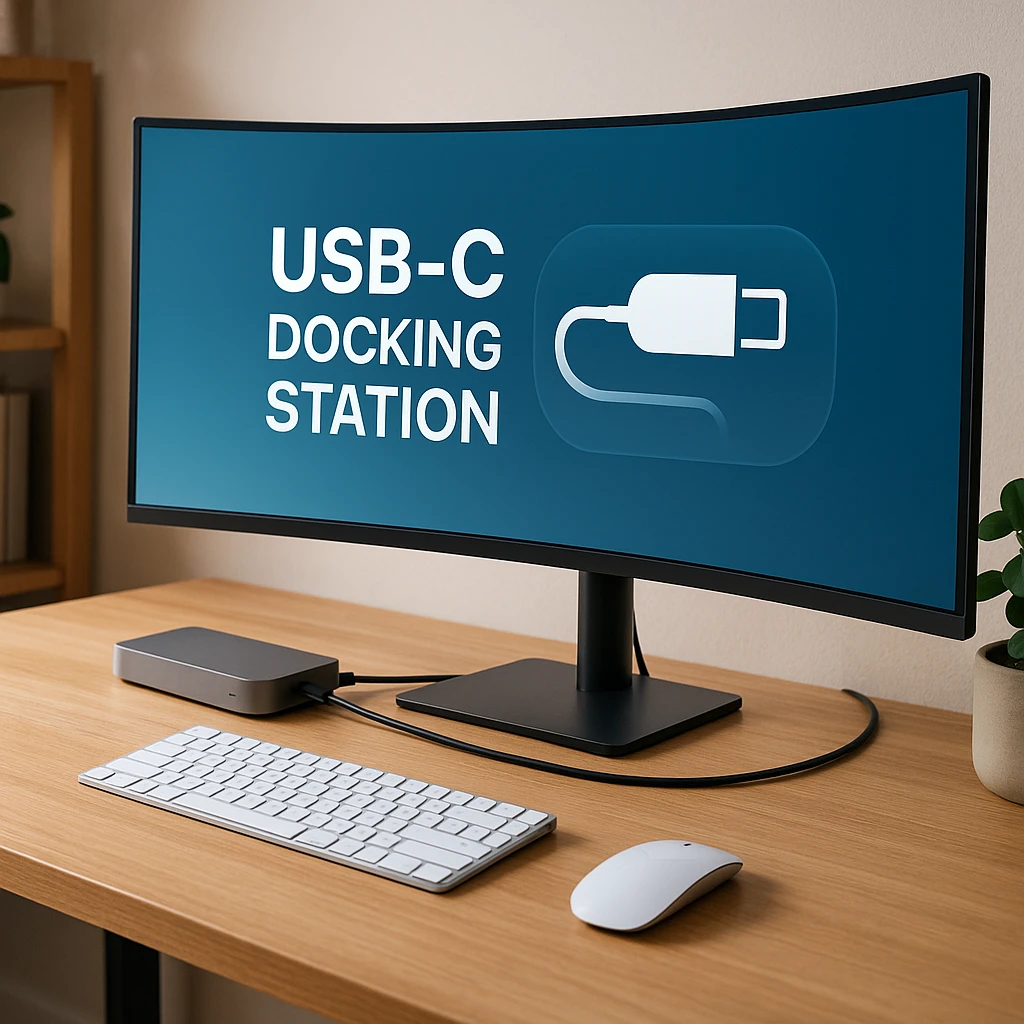
The best technology disappears. Your remote work setup should connect with one cable, charge everything wirelessly, and adjust to your needs without manual configuration.
The Visual Workspace
Ultrawide curved monitors have replaced dual monitor setups for a reason: no bezel gaps, uniform color, and a more natural field of view that reduces eye strain.
The 2026 standard: 34-inch curved displays with 3440x1440 resolution. This matches two 24-inch monitors side-by-side but eliminates the center divide that breaks visual continuity.
Apple Vision Pro and Meta Quest Pro enable virtual multi-monitor setups in small spaces. Early adopters report success for focused work sessions, but prolonged use (3+ hours) causes eye fatigue. Best used for specific tasks like 3D modeling or data analysis requiring multiple reference windows.
Reality check: This works for 30-60 minute sprints, not full workdays. Traditional monitors remain the productivity standard.
The One-Cable Solution: USB-C Docking Stations
Your laptop should connect to your entire setup with a single USB-C cable that simultaneously:
- Charges your laptop (100W+ power delivery)
- Connects displays (dual 4K or single ultrawide)
- Enables wired internet (faster and more stable than WiFi)
- Powers peripherals (keyboard, mouse, webcam)
Recommended docking stations:
- CalDigit TS4: 18 ports, 98W charging, supports dual 4K displays
- Anker 777: Budget option with essential ports, 85W charging
This eliminates the “cable dance” every time you sit down to work. One connection. Everything works.
AI-Enhanced Peripherals
4K AI Webcams
Standard webcams fail in real-world conditions. The 2026 upgrade: AI auto-framing cameras that adjust composition as you move and compensate for poor lighting.
The Opal C1 uses computational photography to produce DSLR-quality video from a small sensor. It auto-frames your face, adjusts exposure in real-time, and works in dim lighting that makes standard webcams look like security footage.
Why this matters: Harvard Business Review found that video quality directly impacts perceived competence in remote meetings.
Noise-Canceling Microphones
Background noise destroys meeting credibility. AI noise cancellation software like Neep removes dog barks, construction sounds, and keyboard typing in real-time without affecting your voice.
Built into microphones like the Shure MV7 or software-based through apps, this technology makes home environments sound like professional studios.
For recording async updates or documentation, consider using screen recording tools with built-in audio enhancement to maintain consistent quality across all your video communications.
Convenience and Automation: The Self-Running Office
The best home office setup reduces decision fatigue. Your environment should adjust automatically based on time of day and activity.
Biophilic Smart Lighting
Your circadian rhythm the internal clock regulating energy and focus responds to light temperature. Morning blue light increases alertness. Evening warm light prepares your body for rest.
Smart lighting systems adjust automatically:
- 6:00 AM - 12:00 PM: Cool blue (5000-6500K) for peak focus
- 12:00 PM - 6:00 PM: Neutral white (4000-5000K) for sustained work
- After 6:00 PM: Warm amber (2700-3000K) to reduce blue light exposure
Video Call Lighting Scene
Create a one-command setup: "Siri/Alexa, I'm in a meeting"
- ✓ Activates key light (soft, front-facing illumination)
- ✓ Pauses music and notifications
- ✓ Adjusts monitor brightness to reduce screen glare
- ✓ Locks smart home routines (no vacuum interruptions)
Recommended systems:
- Philips Hue: Most mature ecosystem, excellent color accuracy
- Govee LED strips: Budget option with good app control
- Elgato Key Light: Designed specifically for video calls
For teams that rely heavily on video communication, our best free video conferencing apps guide covers platforms with built-in lighting optimization features.
Cable Management: The Invisible Standard
Visible cables create visual clutter that subtly increases stress. The 2026 standard hides everything.
Implementation strategy:
- Under-desk cable trays: Route all cables beneath your desk surface
- Magnetic cable organizers: Hold cables in place without adhesive damage
- Wireless charging pads: Eliminate phone and earbud cables entirely
- Cable sleeves: Group remaining visible cables into single lines
Cost: $30-50 in materials. Time investment: 2 hours. Result: A workspace that looks professional in every video call.
The Convenient Environment: Acoustics and Air
Your productivity depends on factors you don’t consciously notice: echo, air quality, and ambient noise. Fix these, and focus becomes effortless.
Sound Control for Deep Work
Home environments weren’t designed for focused work. Hard surfaces (walls, desks, monitors) reflect sound, creating echo that your brain processes as distraction.
Acoustic panels absorb sound reflections without turning your office into a recording studio. Modern designs look like art felt panels in geometric patterns, fabric-wrapped squares in accent colors.
Placement strategy:
- First reflection points: Where sound bounces between you and your monitor
- Behind your desk: Reduces echo during video calls
- On adjacent walls: Controls sound from other rooms
Cost: $60-150 for 6-12 panels. The difference is immediately noticeable your voice sounds clearer, and ambient noise stops competing for attention.
Active Noise Canceling (ANC) Headphones handle intermittent noise neighbors, street sounds, household activity. The best models (Sony WH-1000XM5, Bose QuietComfort Ultra) eliminate 90%+ of ambient sound while maintaining natural voice quality on calls.
Air Quality: The Invisible Productivity Killer
Harvard research shows that elevated CO2 levels reduce cognitive function by up to 50%. A closed room with poor ventilation hits 1000+ ppm CO2 within hours well above the 800 ppm threshold where thinking slows.
Smart air purifiers with CO2 monitoring alert you when air quality degrades. The afternoon “brain fog” isn’t just fatigue it’s literally stale air.
Recommended models:
- Molekule Air Pro: PECO technology destroys pollutants at molecular level
- Coway Airmega: Budget option with excellent HEPA filtration
- Aranet4: Standalone CO2 monitor (pairs with any purifier)
Simple fix: When CO2 exceeds 1000 ppm, open a window or door for 5-10 minutes. Cognitive performance returns immediately.
Small Space Solutions: The Cloffice Era
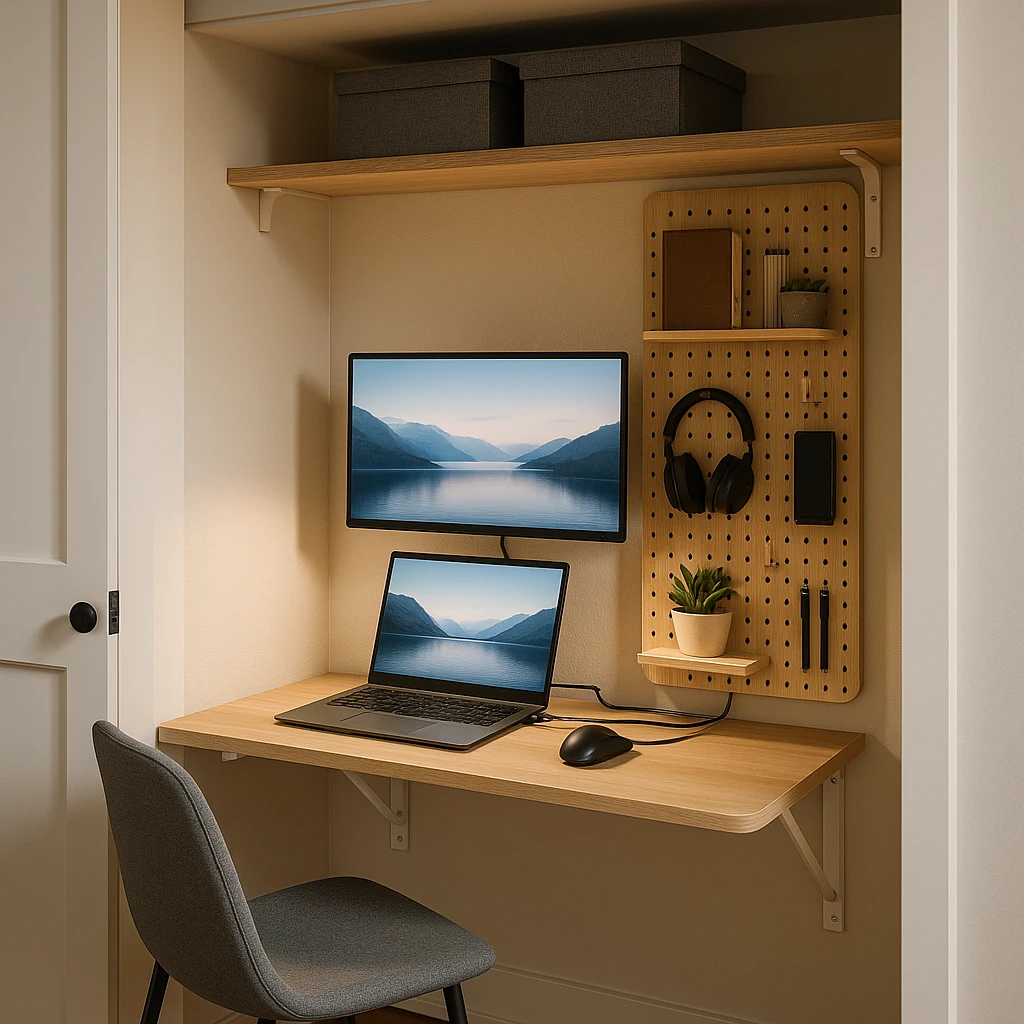
Not everyone has a dedicated office. These strategies create productive workspaces in apartments, studios, and shared living arrangements.
The Cloffice: Closet Office Conversion
Remove the closet doors and lower rod, install a fold-down desk, and you’ve created an office that disappears when work ends. The psychological benefit is significant physical separation between work and personal space.
Required components:
- Fold-down desk: Murphy Desk or similar (supports 50+ lbs when open)
- Floating shelves: Above desk level for monitor and equipment
- LED strip lighting: Since closets lack natural light
- Cable management panel: Pre-route cables for clean appearance
Cost: $200-400 depending on desk quality. Space required: 2.5 ft wide x 2 ft deep.
Vertical Storage: Pegboard Systems
Desk space is premium in small setups. Pegboards mount tools, chargers, and accessories on walls, freeing your work surface for actual work.
Use pegboards for:
- Headphones and cables
- Notebooks and pens
- USB hubs and adapters
- Phone/tablet charging
The visual benefit: Everything has a defined place. No more “where did I put that cable” searches that break focus.
Mobile Work-From-Home Setup
For ultimate flexibility, create a portable rig that works from couch, kitchen table, or bed.
Essential gear:
- Laptop stand: MOFT or Roost for ergonomic height
- Portable monitor: ASUS ZenScreen (15.6” USB-C powered)
- Compact keyboard: Keychron K3 (low profile, wireless)
- Travel mouse: Logitech MX Anywhere 3
Total weight: Under 8 lbs. Setup time: Under 2 minutes. This setup travels and transforms any surface into a workstation.
The key insight: Work happens where you have energy, not where furniture lives. Design for flexibility.
The Digital Layer: Productivity Software
Hardware enables work. Software multiplies it. These tools reduce the friction between thought and execution.
Asynchronous Communication Tools
Real-time meetings interrupt deep work. Asynchronous video updates respect everyone’s schedule while maintaining personal connection.
Record screen walkthroughs instead of scheduling sync meetings. This communication method:
- Respects recipient’s time (watch when convenient)
- Creates searchable documentation automatically
- Reduces meeting fatigue by 30-40%
For teams adopting async-first workflows, AI note-taking tools transform verbal updates into structured summaries without manual transcription.
Buffer’s State of Remote Work survey found that 39% of remote workers cite too many meetings as their biggest challenge async video solves this.
Focus Protection: Distraction Blockers
Your attention is your most valuable asset. Protect it aggressively.
Website/app blockers eliminate the “just checking” reflex. For a comprehensive list of tools that help maintain focus, check out our guide to best free productivity apps.
Top distraction blockers:
- Opal: AI-powered blocking that learns your distraction patterns
- Freedom: Cross-device blocking (phone + computer simultaneously)
- Cold Turkey: Nuclear option that can’t be disabled once started
Implementation tip: Don’t block everything forever. Create “focus sessions” (90-120 minutes) where blockers activate, then scheduled breaks where everything is available. Sustainable focus beats willpower.
Time Tracking Without Surveillance
Understanding where time goes is different from surveillance. My Hours, RescueTime and Toggl Track show patterns without screenshots or keystroke monitoring.
Insight example: Discovering you spend 2 hours daily in Slack often leads to setting specific “communication windows” instead of all-day reactive monitoring.
The Monday Morning Readiness Test
Your setup is ready when these checks take under 2 minutes:
If any item takes longer than 30 seconds, that’s friction. Fix it.
FAQ
Is a standing desk actually worth the investment?
Yes, but only with programmable memory presets. Manual adjustment desks fail because they create friction you won’t change positions multiple times daily if it requires effort. CDC research shows that reducing barriers to healthy behavior increases compliance by 60%+. A one-button height change makes position switching effortless. Expect to pay $500-800 for quality electric desks with presets. The health benefit (reduced back pain, improved circulation) pays for itself within the first year.
How do I hide cables cheaply?
The most cost-effective solution uses three components: (1) An under-desk cable management tray ($15-25) to route cables beneath your desk, (2) Velcro cable ties ($8) to bundle cables together, and (3) Adhesive cable clips ($10) to guide cables along desk legs. Total cost under $50. Pro tip: Use a power strip with mounting holes to secure it under your desk this centralizes power distribution and eliminates floor-level cable nests. Wireless charging pads ($20-30) for phones and earbuds eliminate two more visible cables.
What is the best lighting for video calls?
Soft, front-facing light at eye level produces the most professional appearance. The Elgato Key Light ($199) is the gold standard adjustable brightness and color temperature via app control. Budget alternative: A ring light ($30-60) positioned behind your monitor provides decent illumination. The key principle: Light should come from in front of you (not behind or from the side) and be diffused (not harsh). Natural window light works well if your desk faces the window, but creates problems when positioned behind you (silhouette effect). Test your setup by recording a short video with online screen recording software and checking how your face appears.
How much internet speed do I need for 4K video calls?
For smooth 4K video calls, you need a minimum of 15-20 Mbps upload speed (not download). Most consumer internet plans advertise download speed but provide much slower upload check your actual upload speed at fast.com. Standard HD calls (1080p) work fine with 5-8 Mbps upload. If your upload speed is limited, use wired ethernet instead of WiFi to maximize stability. Ethernet provides 30-40% better reliability than WiFi even at the same nominal speeds. For households with multiple people on video calls simultaneously, multiply these numbers by the number of concurrent users.
Should I buy a monitor arm or use the included stand?
Monitor arms ($100-150) provide three benefits that justify the upgrade: (1) Full height and angle adjustment for perfect ergonomic positioning, (2) Reclaimed desk space (the stand base disappears), and (3) Easy repositioning without lifting the monitor. This matters for sit-stand desks your viewing angle changes between sitting and standing heights. An arm adjusts in seconds; a fixed stand requires manual monitor lifting. The Ergotron LX ($150) is the industry standard with smooth movement and 25 lbs weight capacity. Budget option: AmazonBasics monitor arm ($100) works well for monitors under 15 lbs.
Can noise-canceling software replace a good microphone?
No, but the combination is powerful. Noise-canceling software like Neep removes background noise but can’t fix poor microphone quality (thin sound, static, low volume). Start with a decent USB microphone ($100-150 range like Blue Yeti or Audio-Technica ATR2100), then add software-based noise cancellation. This approach handles both problems: the microphone captures clear voice quality, and the software removes environmental distractions. Laptop built-in microphones lack the hardware quality to sound professional software can’t fix fundamental limitations. For important presentations or client calls, audio quality signals professionalism as much as video quality.
Build Your Setup Incrementally
The perfect remote work setup isn’t built in a weekend. Prioritize investments based on pain points:
Month 1 - Foundation: Chair and desk. These prevent injury and should be first.
Month 2 - Core Tech: Docking station and monitor. Reduces daily friction significantly.
Month 3 - Environment: Lighting and sound control. Improves meeting quality and focus.
Month 4 - Refinement: Cable management, air quality, automation.
Your workspace is a tool. If it fights you, change it. Start with the chair 8 hours daily in poor seating creates problems that expensive equipment can’t fix later. Build from there.
The goal isn’t perfection it’s removing friction between your thoughts and their execution. Every minute spent adjusting your setup, searching for cables, or fighting with connections is a minute not spent on work that matters.
For teams building remote-first cultures, consider how productive meetings and async communication reduce meeting fatigue while maintaining connection. Tools like AI meeting assistants and video collaboration platforms help remote teams stay connected without constant synchronous meetings. The best home office setup combines individual workspace optimization with team communication tools that respect everyone’s time and focus.
Your home office in 2026 should feel invisible present when needed, absent when not. Build that, and productivity becomes effortless.
FAQ
Yes, but only with programmable memory presets. Manual adjustment desks fail because they create friction you won't change positions multiple times daily if it requires effort. CDC research shows that reducing barriers to healthy behavior increases compliance by 60%+. A one-button height change makes position switching effortless. Expect to pay $500-800 for quality electric desks with presets. The health benefit (reduced back pain, improved circulation) pays for itself within the first year.
The most cost-effective solution uses three components: (1) An under-desk cable management tray ($15-25) to route cables beneath your desk, (2) Velcro cable ties ($8) to bundle cables together, and (3) Adhesive cable clips ($10) to guide cables along desk legs. Total cost under $50. Pro tip: Use a power strip with mounting holes to secure it under your desk this centralizes power distribution and eliminates floor-level cable nests. Wireless charging pads ($20-30) for phones and earbuds eliminate
Soft, front-facing light at eye level produces the most professional appearance. The Elgato Key Light ($199) is the gold standard adjustable brightness and color temperature via app control. Budget alternative: A ring light ($30-60) positioned behind your monitor provides decent illumination. The key principle: Light should come from in front of you (not behind or from the side) and be diffused (not harsh). Natural window light works well if your desk faces the window, but creates problems when
For smooth 4K video calls, you need a minimum of 15-20 Mbps upload speed (not download). Most consumer internet plans advertise download speed but provide much slower upload check your actual upload speed at fast.com. Standard HD calls (1080p) work fine with 5-8 Mbps upload. If your upload speed is limited, use wired ethernet instead of WiFi to maximize stability. Ethernet provides 30-40% better reliability than WiFi even at the same nominal speeds. For households with multiple people on video c
Monitor arms ($100-150) provide three benefits that justify the upgrade: (1) Full height and angle adjustment for perfect ergonomic positioning, (2) Reclaimed desk space (the stand base disappears), and (3) Easy repositioning without lifting the monitor. This matters for sit-stand desks your viewing angle changes between sitting and standing heights. An arm adjusts in seconds; a fixed stand requires manual monitor lifting. The Ergotron LX ($150) is the industry standard with smooth movement and
No, but the combination is powerful. Noise-canceling software like Neep removes background noise but can't fix poor microphone quality (thin sound, static, low volume). Start with a decent USB microphone ($100-150 range like Blue Yeti or Audio-Technica ATR2100), then add software-based noise cancellation. This approach handles both problems: the microphone captures clear voice quality, and the software removes environmental distractions. Laptop built-in microphones lack the hardware quality to s